Test Leader Functions
Test leaders have extended permissions in the app and see additional pages and functions that are not available to regular testers. This page describes all functions that are exclusively available for the test leader role.
Test Leader Overview
The test leader overview page shows all scenarios of the test with color-coded status indicators:
- Red — Scenario not passed
- Orange — Scenario in progress
- Green — Scenario passed
The page is divided into two tabs:
- Szenarien (Scenarios) — List of all scenarios with status indicators
- Testkommentare (Test Comments) — Comments related to the overall test
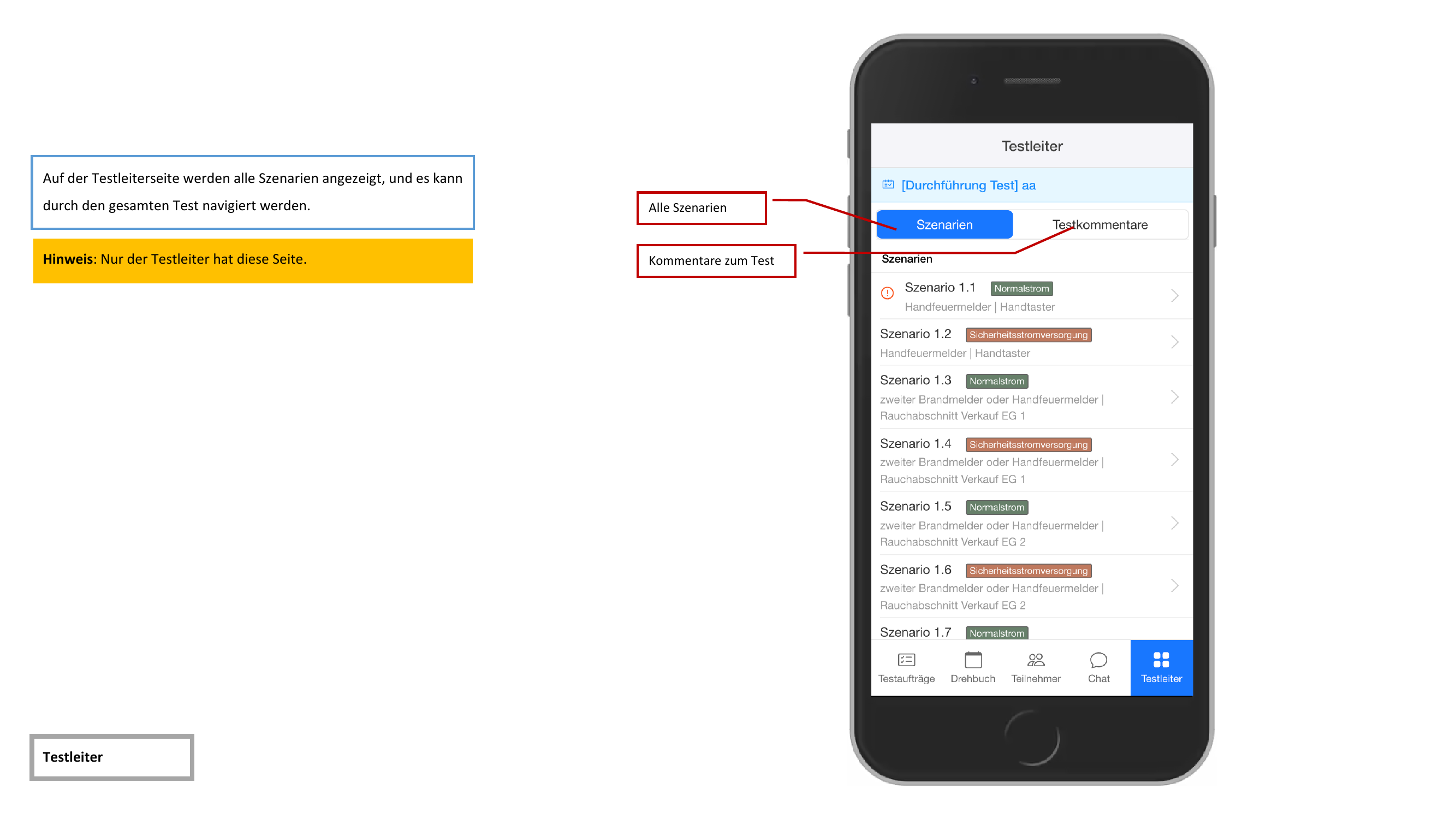
The test leader overview is only visible to users with the Testleiter (Test Leader) role. Other participants do not have access to this page.
Scenario Page
When opening a scenario, the associated Gewerke (trades) are displayed. Each trade shows the number of contained elements.
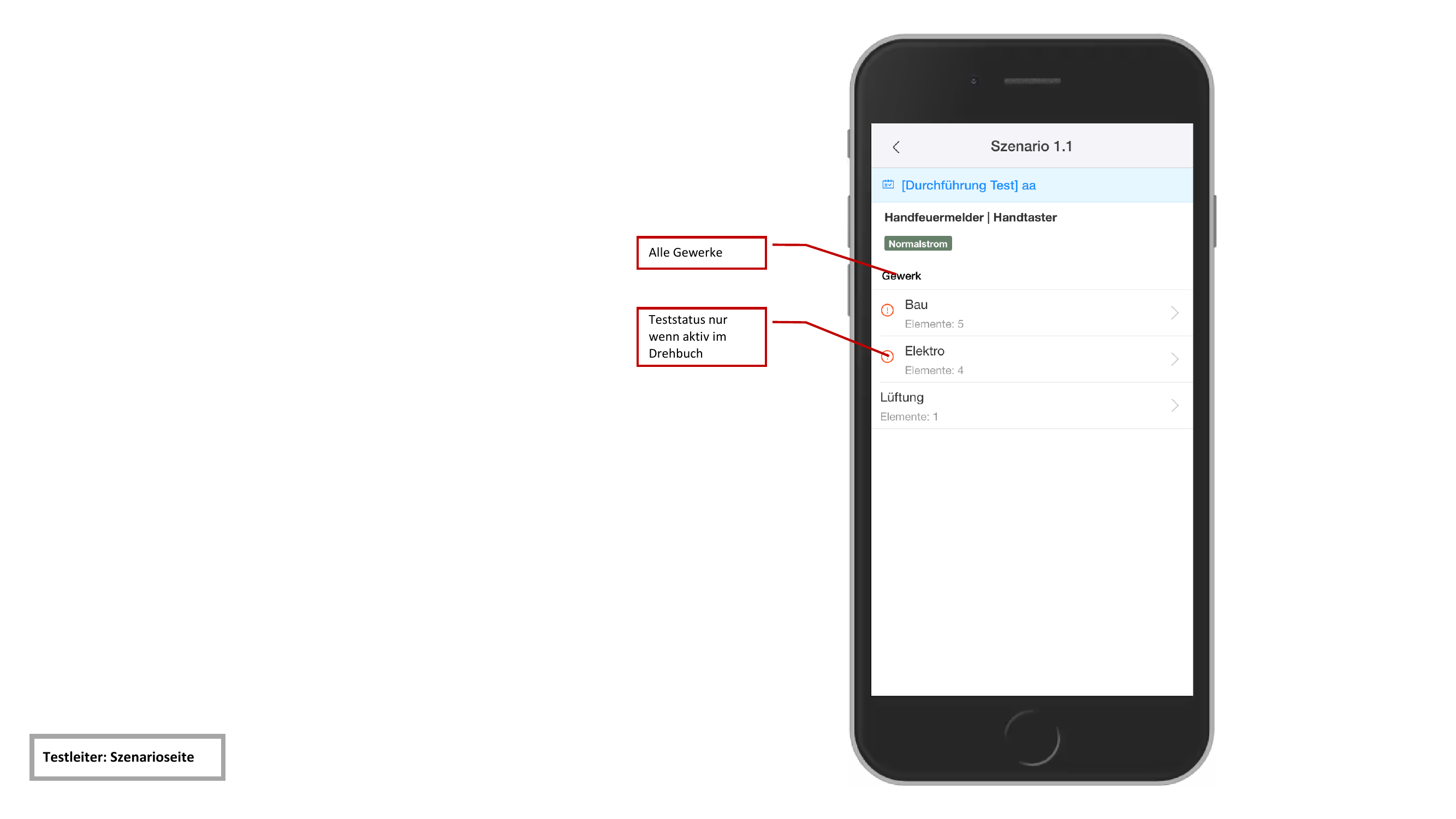
The test status of a scenario is only displayed when the scenario is currently set as the active item in the agenda.
Trade Page
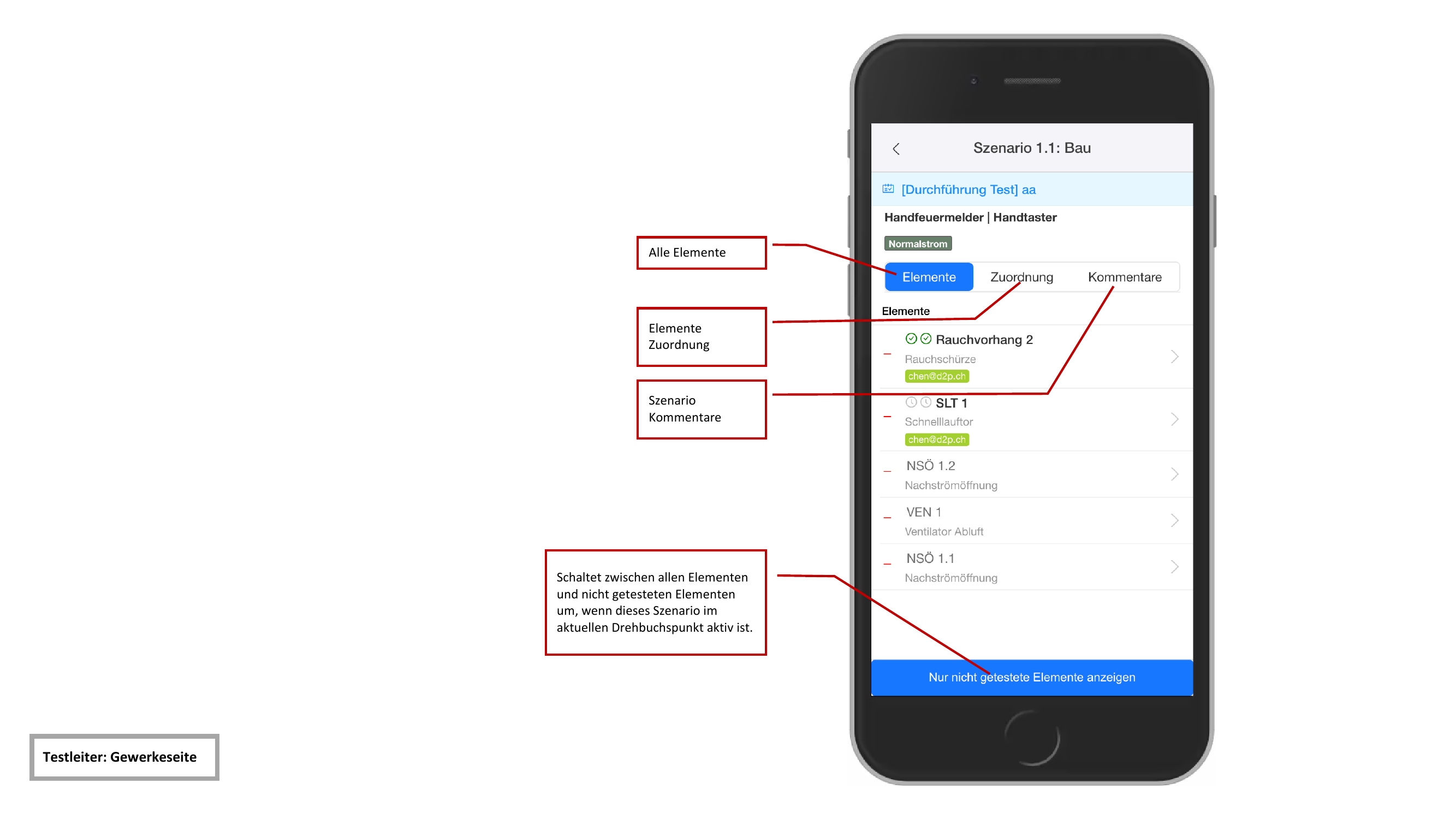
The trade page offers three tabs for managing the elements of a trade:
Elements
The Elemente (Elements) tab shows a list of all elements of the trade with their respective test status. When the scenario is currently active in the agenda, the option "Nur nicht getestete Elemente anzeigen" (Show only untested elements) can be enabled to filter the list to outstanding elements.
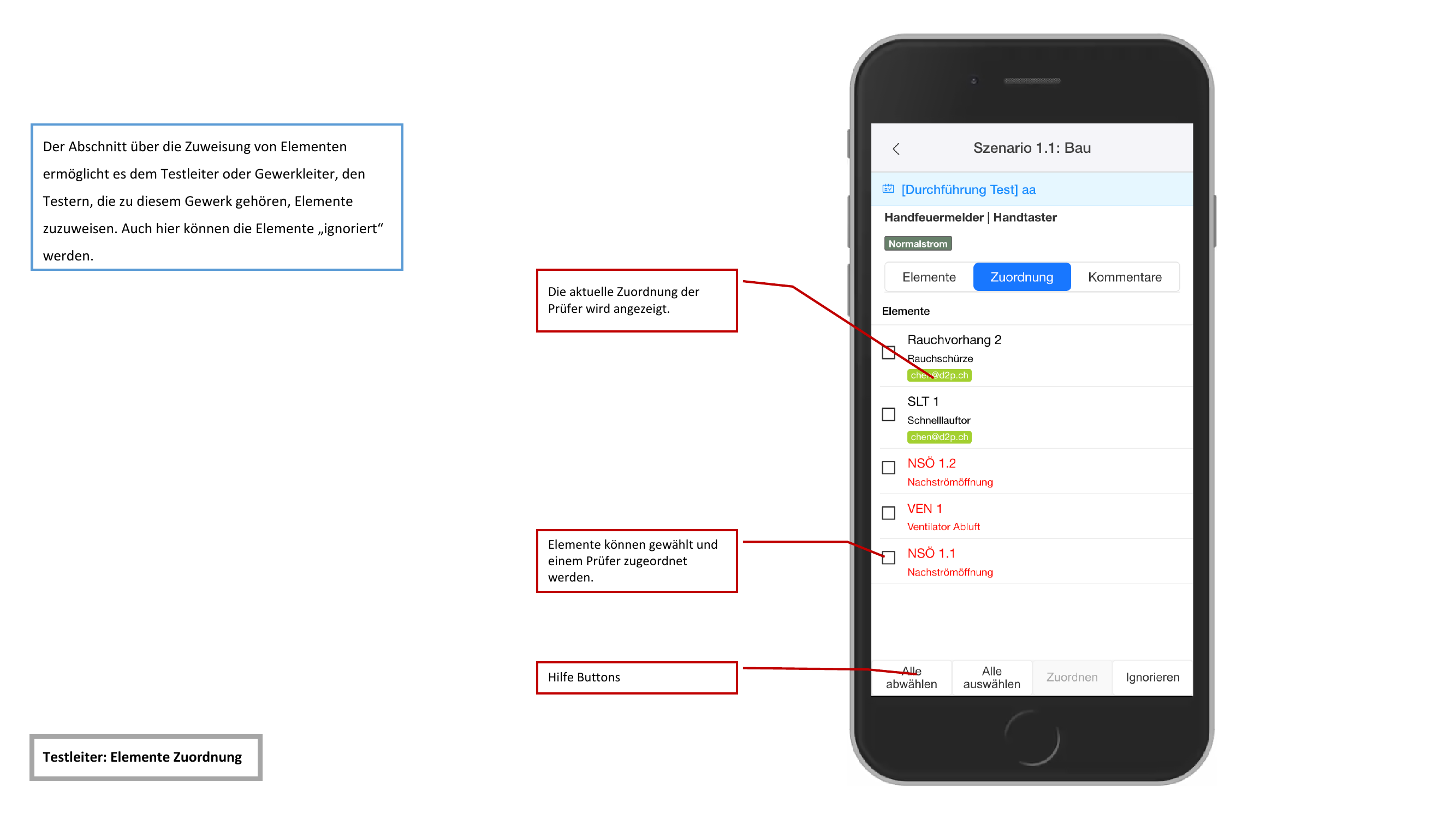
Assignment
In the Zuordnung (Assignment) tab, test leaders and trade leaders can assign elements to testers. The assignment process works as follows:
- Select elements via checkboxes
- Use the buttons to perform the desired action:
- Alle auswählen (Select all) — selects all elements
- Alle abwählen (Deselect all) — clears the selection
- Zuordnen (Assign) — assigns the selected elements to a tester
- Ignorieren (Ignore) — marks the selected elements as ignored
Comments
The Kommentare (Comments) tab shows the comments for the respective trade.
Editing Elements
Test leaders can edit all three test phases of an element independently of the agenda:
- Zustand vor Testbeginn (State before test start) — Initial state of the element
- Test — Test result during the active inspection
- Rückstellen (Reset) — Reset after completion of the test
The editing page also shows the currently assigned tester. Test leaders can change the assignment directly on this page.
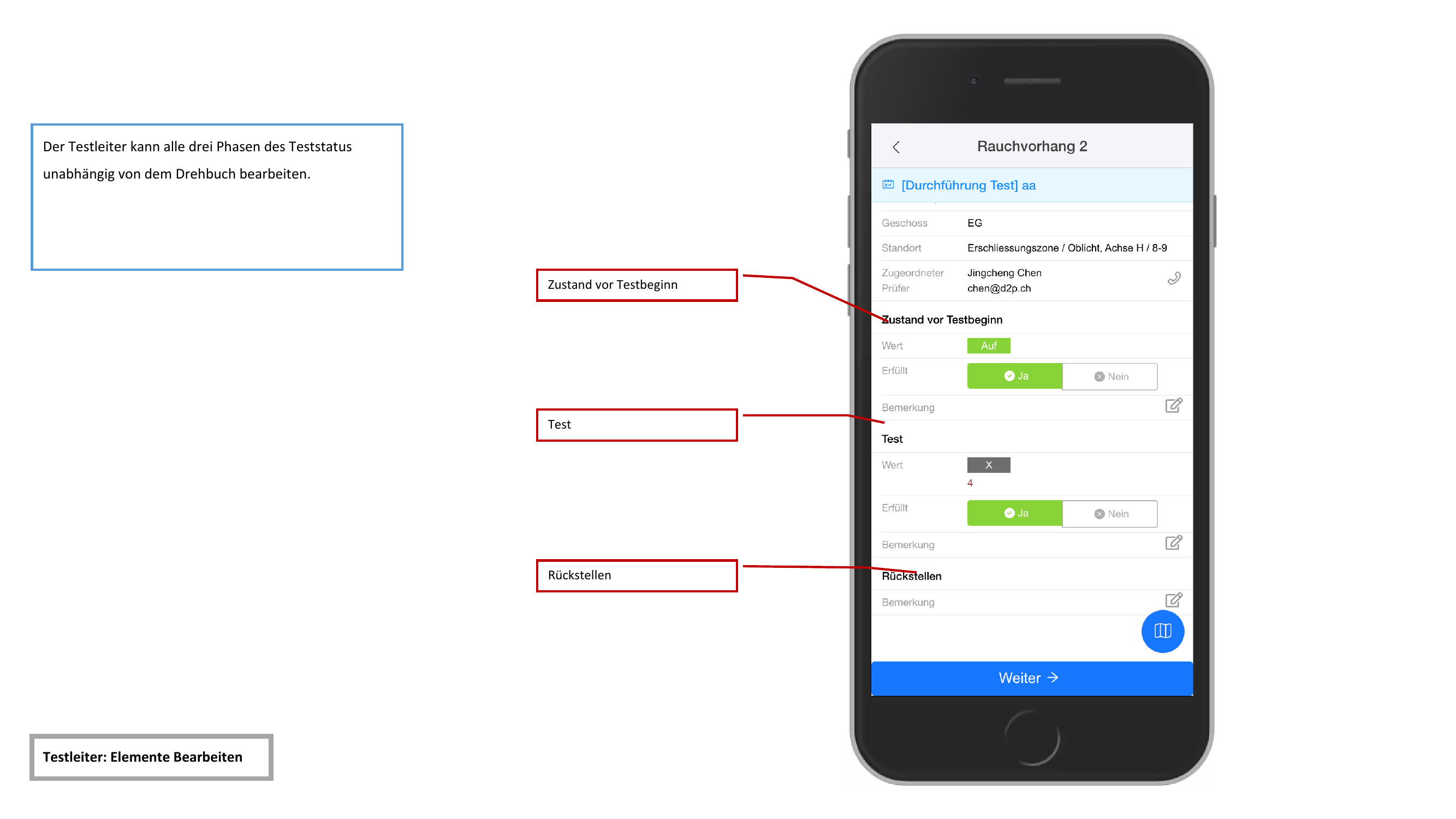
Test leaders can edit elements at any time — even when the associated scenario is not set as the active agenda item. Regular testers can only edit elements that belong to the active agenda item.
Participant List
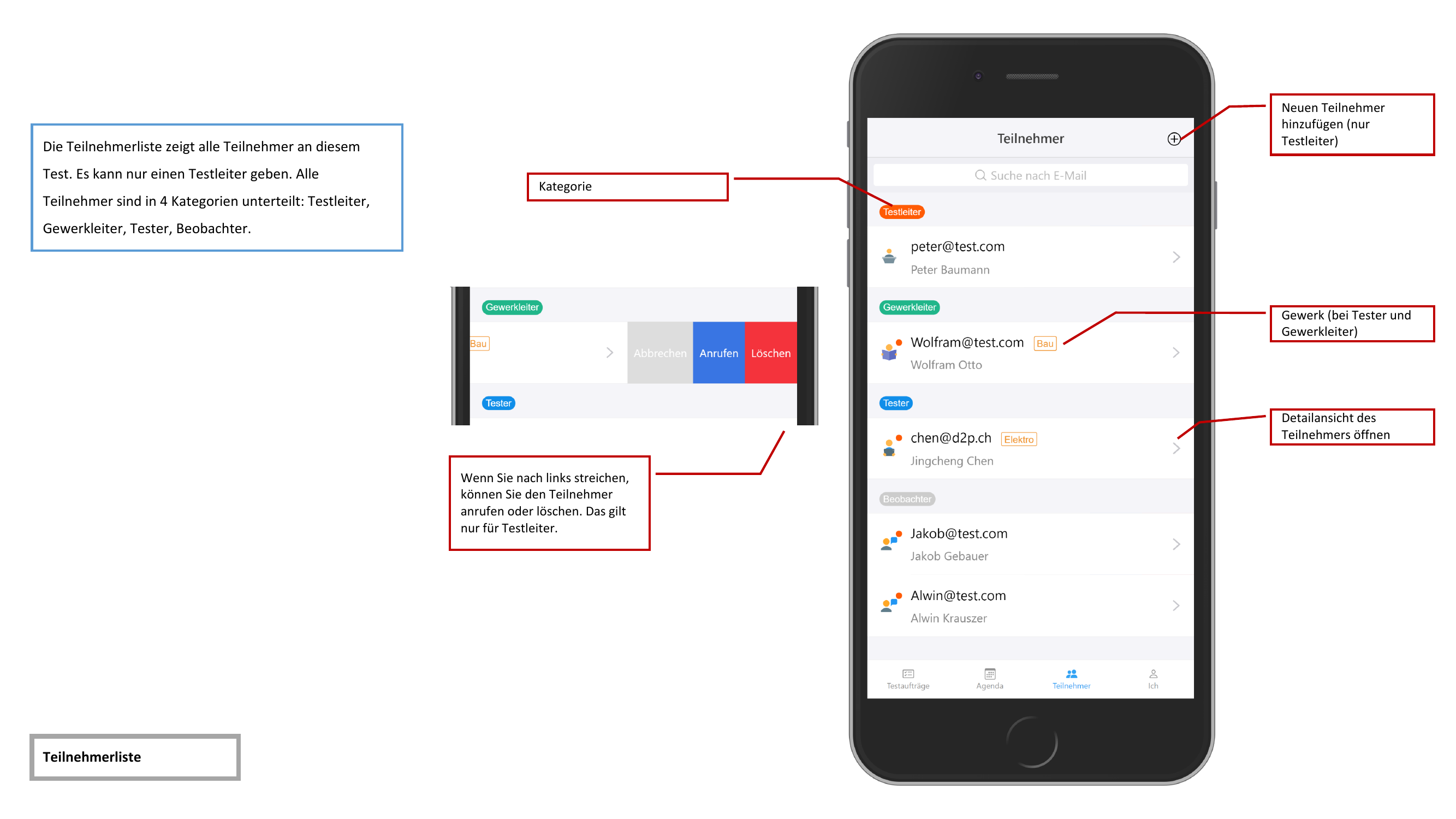
The participant list shows all people involved in the test. Each entry contains the name, email address, assigned trade, and a role badge:
- Testleiter (Test Leader) — Overall responsibility for the test
- Gewerkleiter (Trade Leader) — Responsibility for a specific trade
- Tester — Performs the inspection of the elements
- Beobachter (Observer) — Can follow the test but cannot make edits
Participants can be searched by their email address using the search function.
Managing Participants
By swiping left on a participant, two actions are available:
- Anrufen (Call) — initiates a phone call
- Löschen (Delete) — removes the participant from the test
Only test leaders can delete participants or add new participants. These actions are not available to other roles.
Admin Status View
Test leaders see a real-time status overview per participant for the current agenda item. The status of each participant is displayed with colors:
- Inaktiv (Inactive, gray) — Participant has not yet started testing
- Gemeldet (Reported, green) — Participant has confirmed that all assigned elements are tested
- In Bearbeitung (In Progress, orange) — Participant is currently testing elements
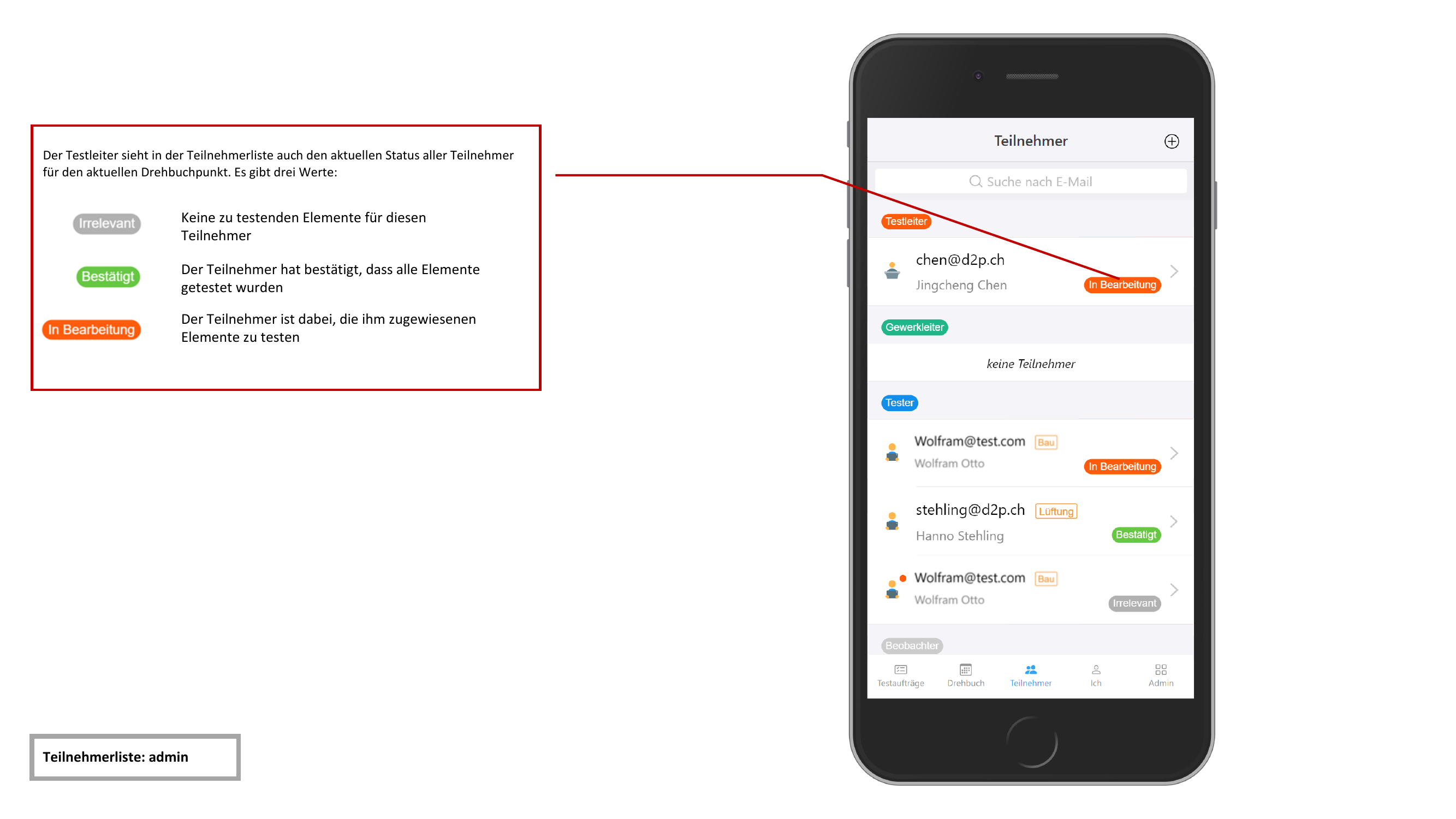
The admin status view always refers to the currently active agenda item. This allows test leaders to monitor the progress of all participants in real time.
Participant Detail View
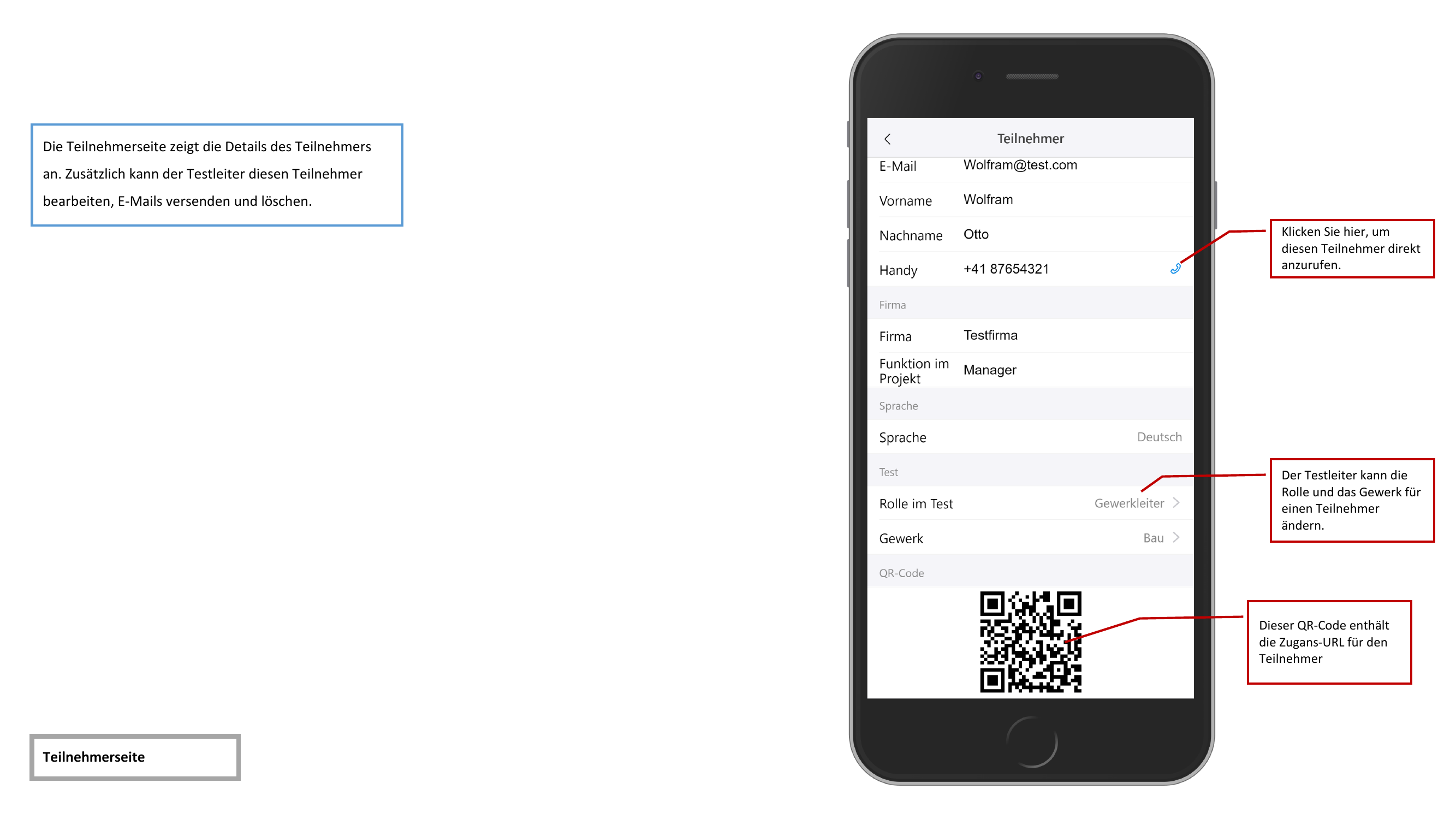
Tapping on a participant opens the detail view with the following information and functions:
- Contact details — Name, email address, and phone number
- Rolle und Gewerk (Role and Trade) — can be edited by the test leader
- QR-Code — contains the participant's access URL, can be used for sharing
- Anrufen (Call) — directly initiates a phone call