Component List
The component list shows all fire protection components in the selected matrix. This is the main working screen for field inspections.
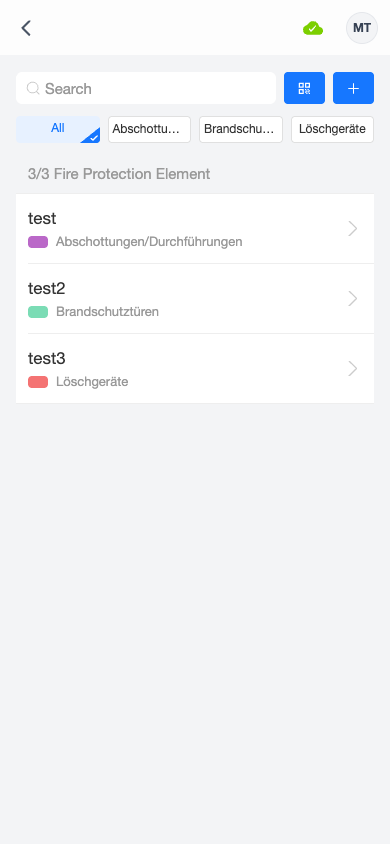
Browsing Components
Each component in the list shows:
- Component name — the identifier or label
- Category — displayed as a colored tag below the name
- QR icon — appears if the component has a linked QR code
- "Modified" badge — shown in red if the component has pending offline changes
The header displays the count of visible components (e.g., "3/3 Fire Protection Element").
Searching
Use the search bar at the top to filter components by name. The list updates in real time as you type.
Category Filter
Below the search bar, horizontal category chips let you filter by component category.
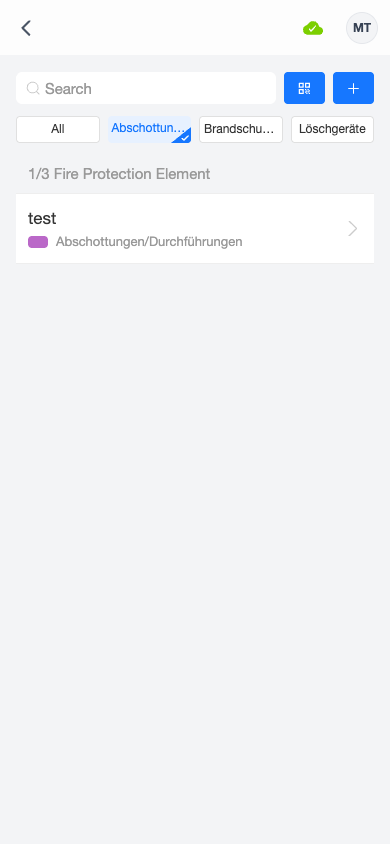
- All — shows all components (default)
- Individual categories — tap to filter to a single category
Creating a New Component
Tap the + button in the top-right area to create a new component.
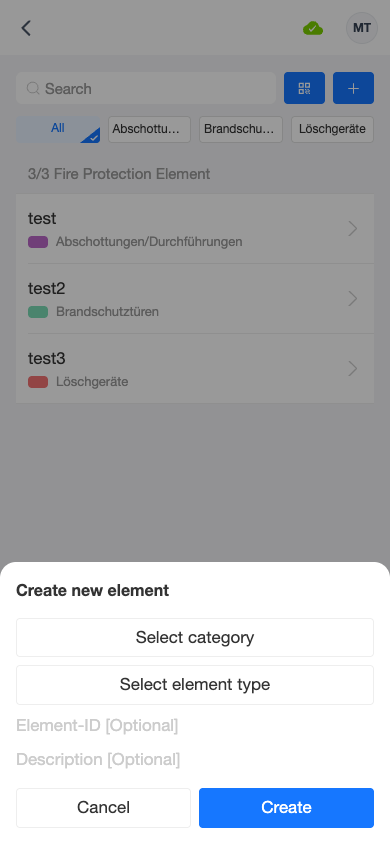
Fill in:
- Category — select from the available categories
- Element type — choose the component type
- Element-ID (optional) — assign an identifier
- Description (optional) — add a description
Tap Create to add the component to the matrix.
QR Code Scanning
Tap the QR button next to the search bar to scan a QR code. See QR Code Scanning for details.