Offline Mode
The Components Mobile App is designed to work even without an internet connection. When you visit a project, the app automatically downloads and caches all data for offline use.
Offline Indicator
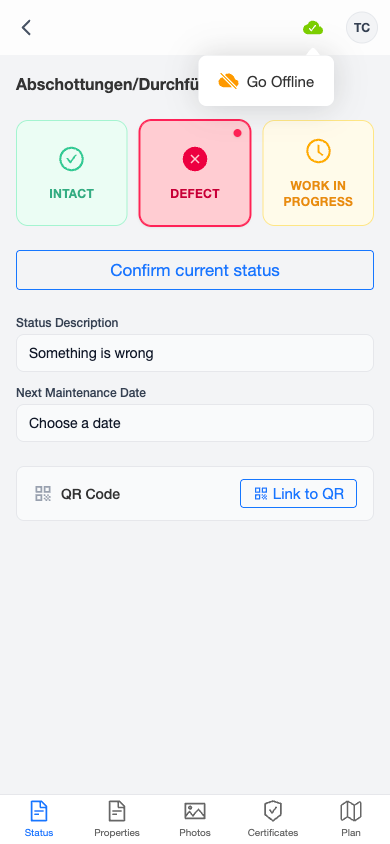
The connection status is shown in the header bar, next to the user menu:
- Green cloud icon — online, all data synced
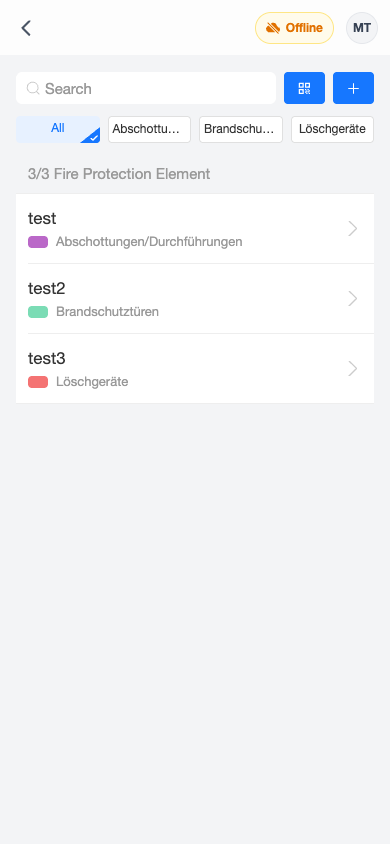
- Amber cloud icon with "Offline" — manually set to offline mode
- Red wifi icon with "Offline" — network connection lost
- Blue spinning icon with "Syncing" — uploading queued changes
Automatic Caching
When you open a project while online, the app automatically:
- Loads all project data (components, photos, floor plans)
- Caches everything to your device's local storage
- Shows a blue "Downloading..." banner with a progress bar while caching
This happens in the background — you can continue working while the download completes.
Going Offline
You can go offline in two ways:
- Automatic — the app detects network loss and switches to offline mode
- Manual — tap the offline indicator and select "Go Offline"
Working Offline
While offline, you can:
- Browse cached projects, matrices, and components
- Edit component status, properties, and photos
- Place markers on floor plans
- Create new components
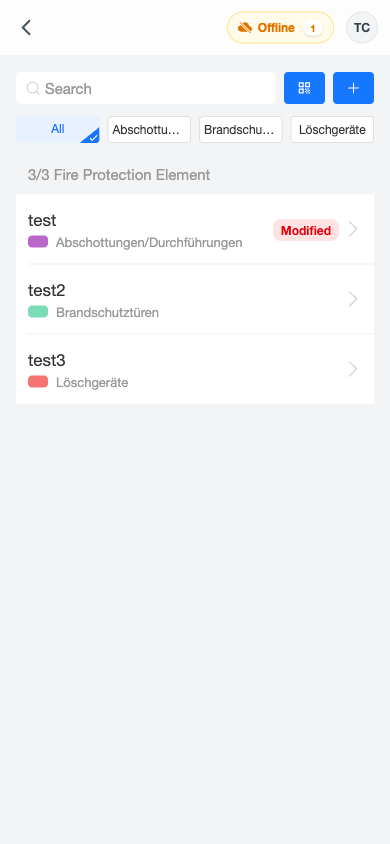
All changes are queued locally and shown with a red "Modified" badge on the component list.
Some features require a connection, such as loading projects not yet cached. An orange "showing cached data" banner indicates you're viewing cached data.
Going Back Online
Tap the offline indicator and select "Go Online". If you have queued changes, a dialog offers three options:
- Upload — syncs all queued changes to the server, showing a progress indicator
- Discard — permanently deletes all queued changes (requires confirmation)
- Cancel — stays offline
After a successful sync, the page reloads to show the latest data from the server.