Getting Started
Accessing the Mobile App
There are three ways to access the Mobile App:
1. Enter the URL in Your Browser
Enter the personal URL directly in your mobile browser (e.g., https://mobile.upkeep-solution.com/u/xxxxx).
2. Open the Invitation Email
Click the link in the invitation email you received from the test leader.
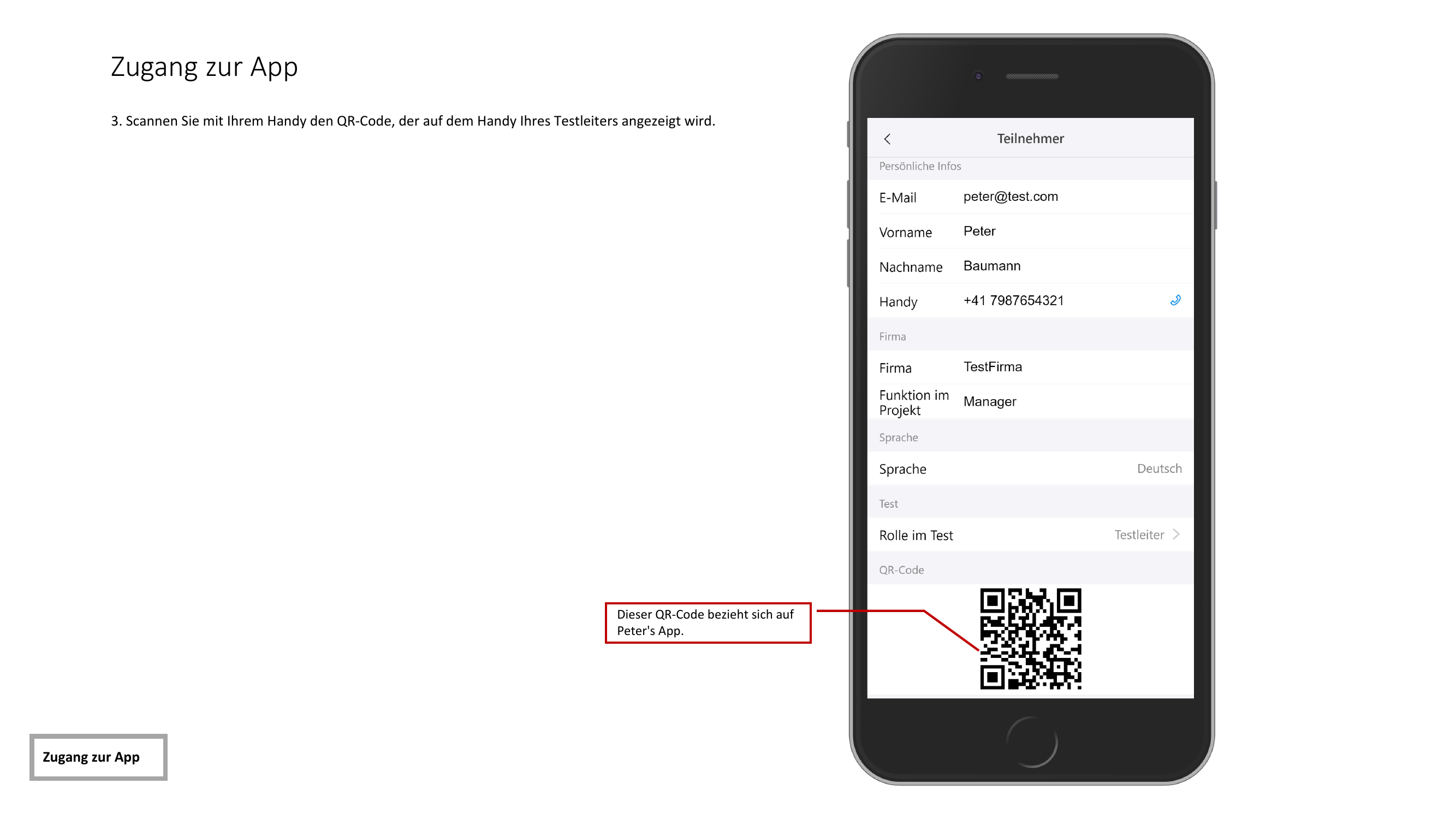
3. Scan the QR Code
Scan the QR code displayed on the test leader's phone.
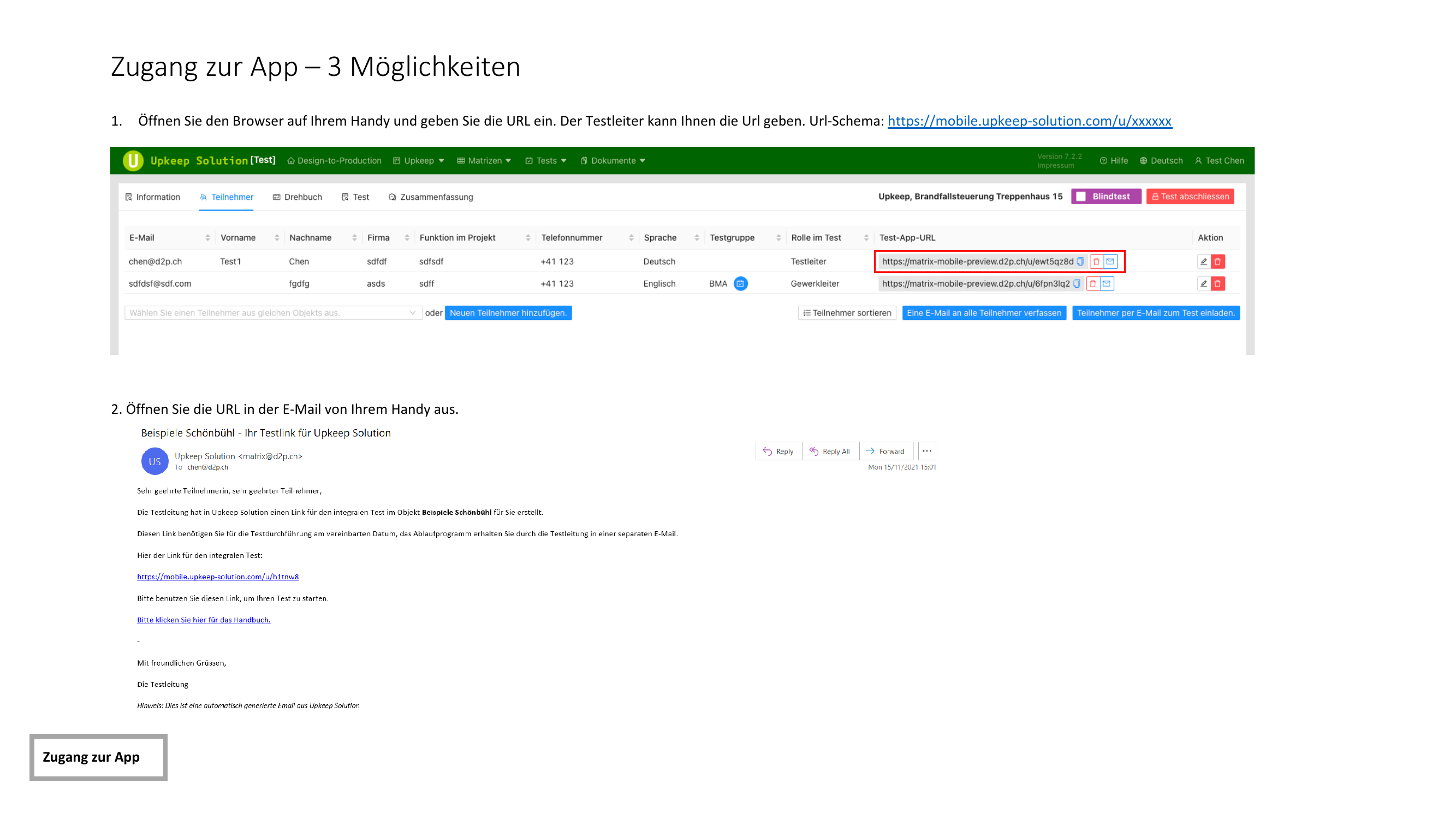
All three methods lead to the same result. The QR code is especially convenient when you are being invited on-site directly by the test leader.
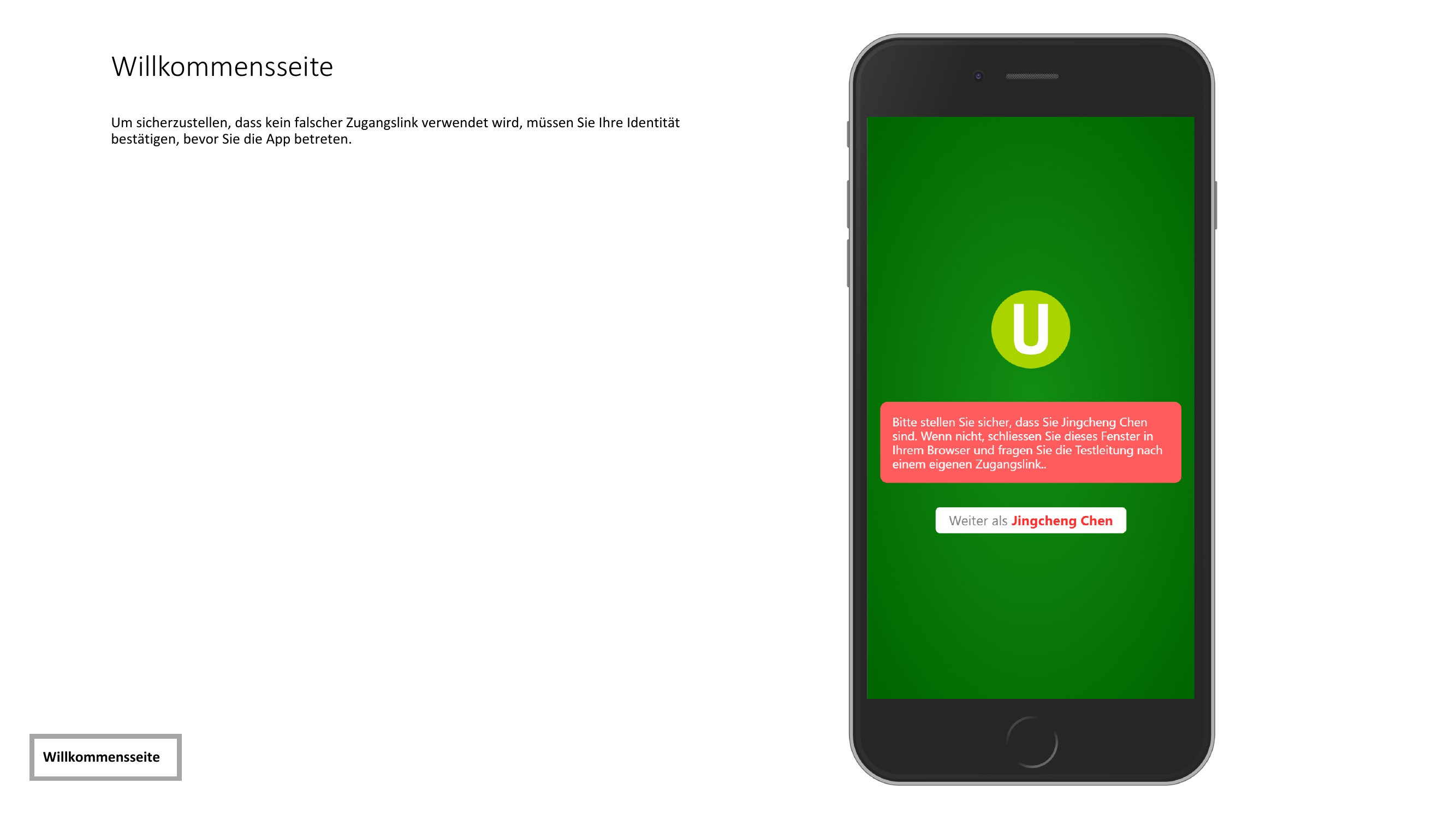
Welcome Page
After opening the link, you will arrive at the welcome page. Here you can see which test you have been invited to. Confirm your identity to proceed.
Personal Information
Before you can start the test, you need to complete your personal information. The following fields are required:
| Field | Description |
|---|---|
| Your email address | |
| Vorname (First Name) | Your first name |
| Nachname (Last Name) | Your last name |
| Handy (Mobile) | Your mobile phone number |
| Firma (Company) | Your company |
| Funktion (Function) | Your professional function |
| Sprache (Language) | Your preferred language |
| Rolle (Role) | Your role in the test |
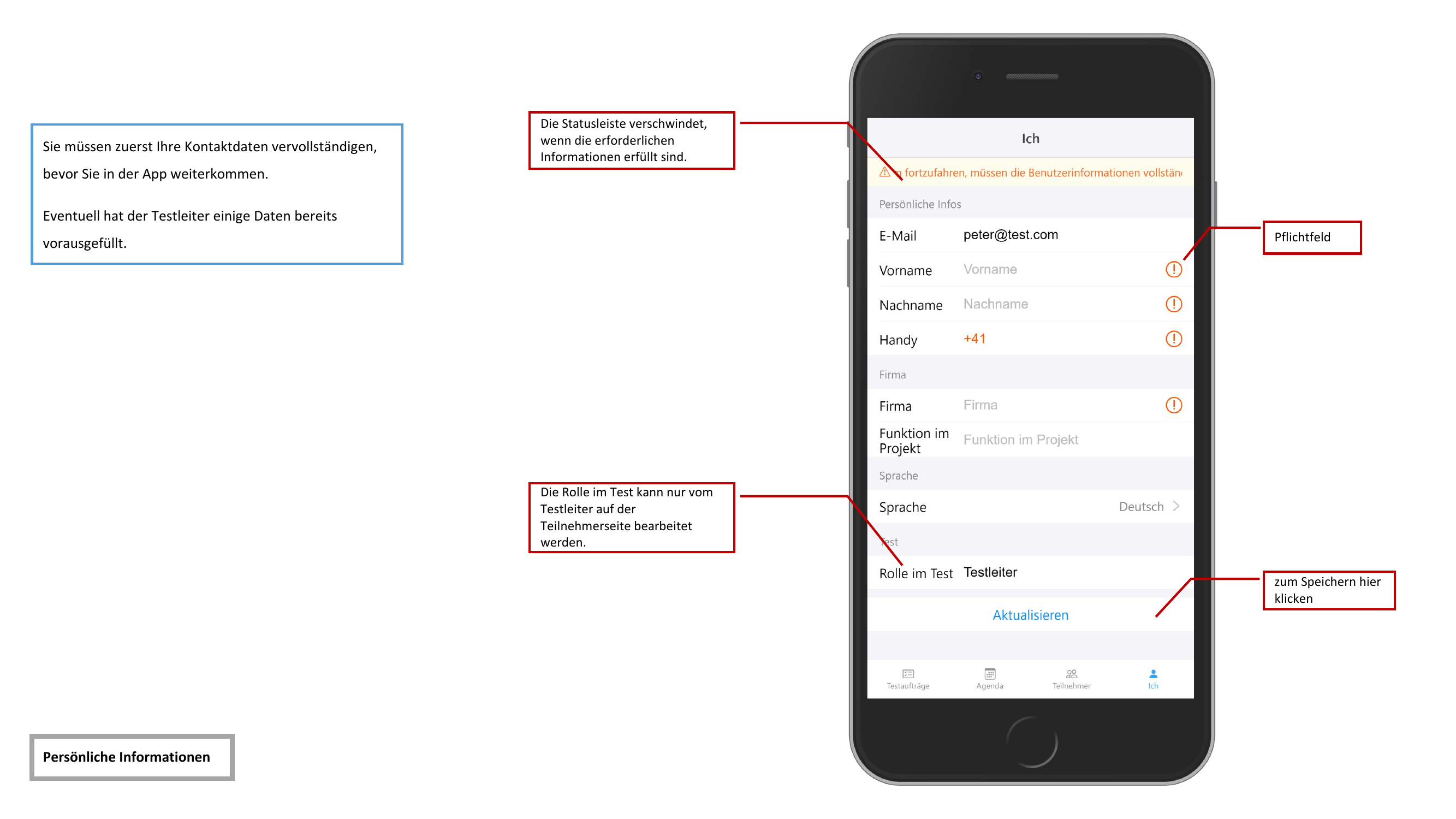
Some fields may already be pre-filled by the test leader. Review the information and complete any missing details.
Your Rolle (Role) can only be changed by the test leader. If you need a different role, contact the test leader directly.