Tests
Tests are the central tool for conducting and documenting fire protection inspections. A test connects a frozen matrix with participants, a script, and the recorded inspection results.
Workflow
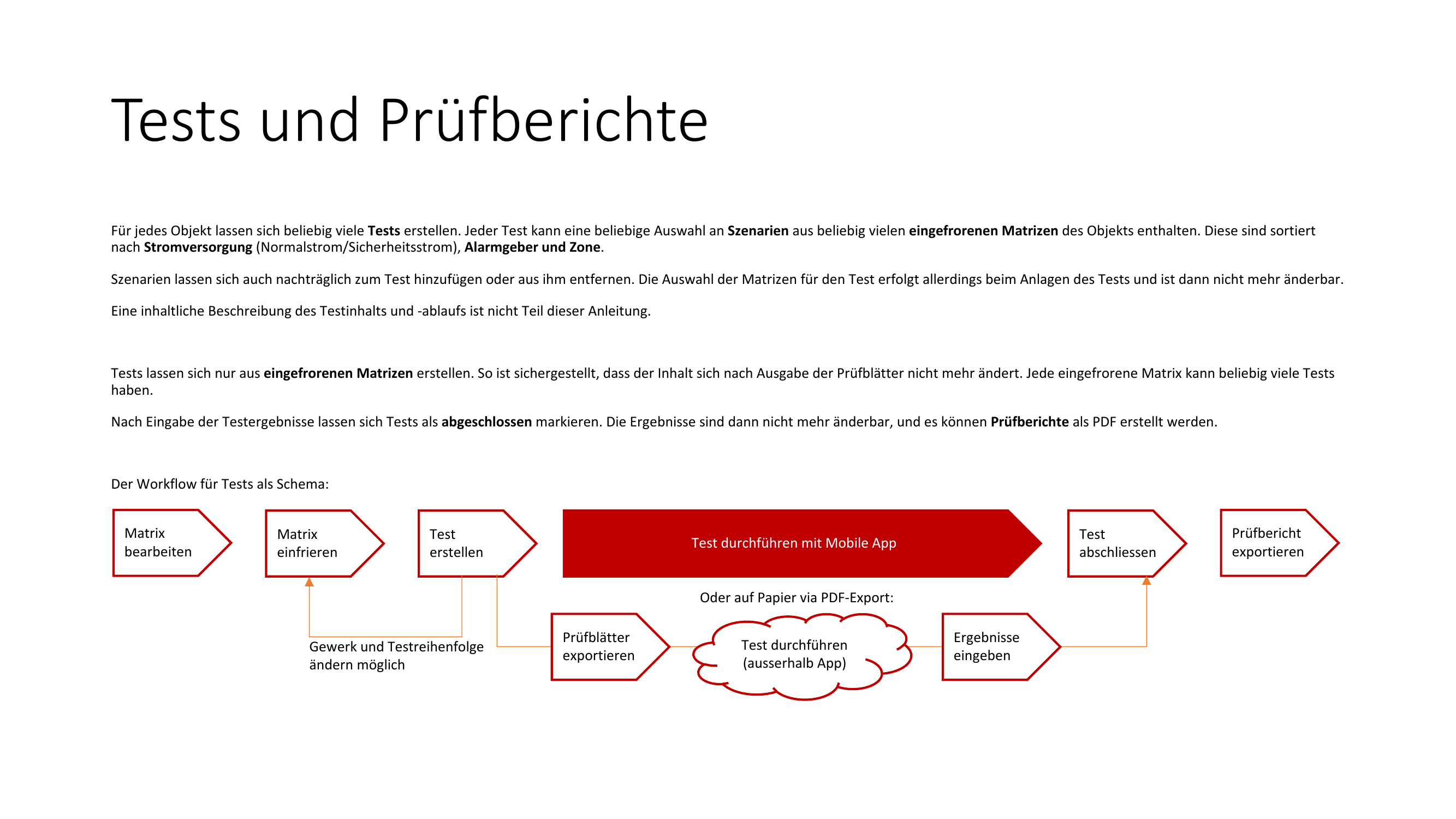
The typical workflow for a fire protection inspection includes the following steps:
- Edit the matrix — Define scenarios, elements, and expected states
- Freeze the matrix — Lock the matrix for the test
- Create a test — Set up a new test based on the frozen matrix
- Conduct the test — Testers carry out the inspection via the mobile app
- Complete the test — All results have been recorded, the test is finalized
- Export the inspection report — Download the complete report as a PDF
Alternative workflow without the mobile app: You can also export test sheets as PDF, conduct the inspection outside the app, and then manually enter the results in the desktop app.
Creating a Test
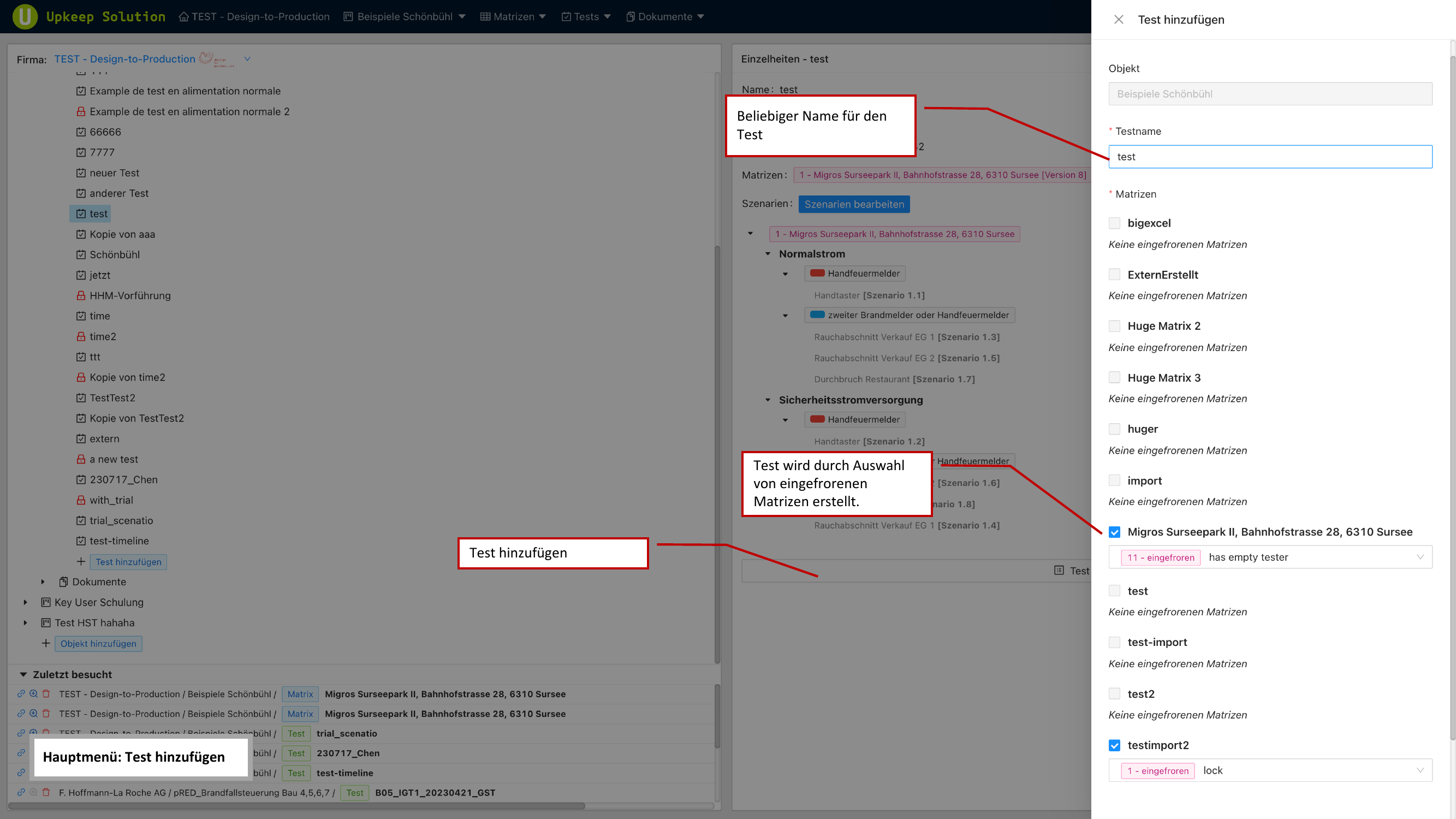
To create a new test:
- Select one or more frozen matrices
- Assign a test name
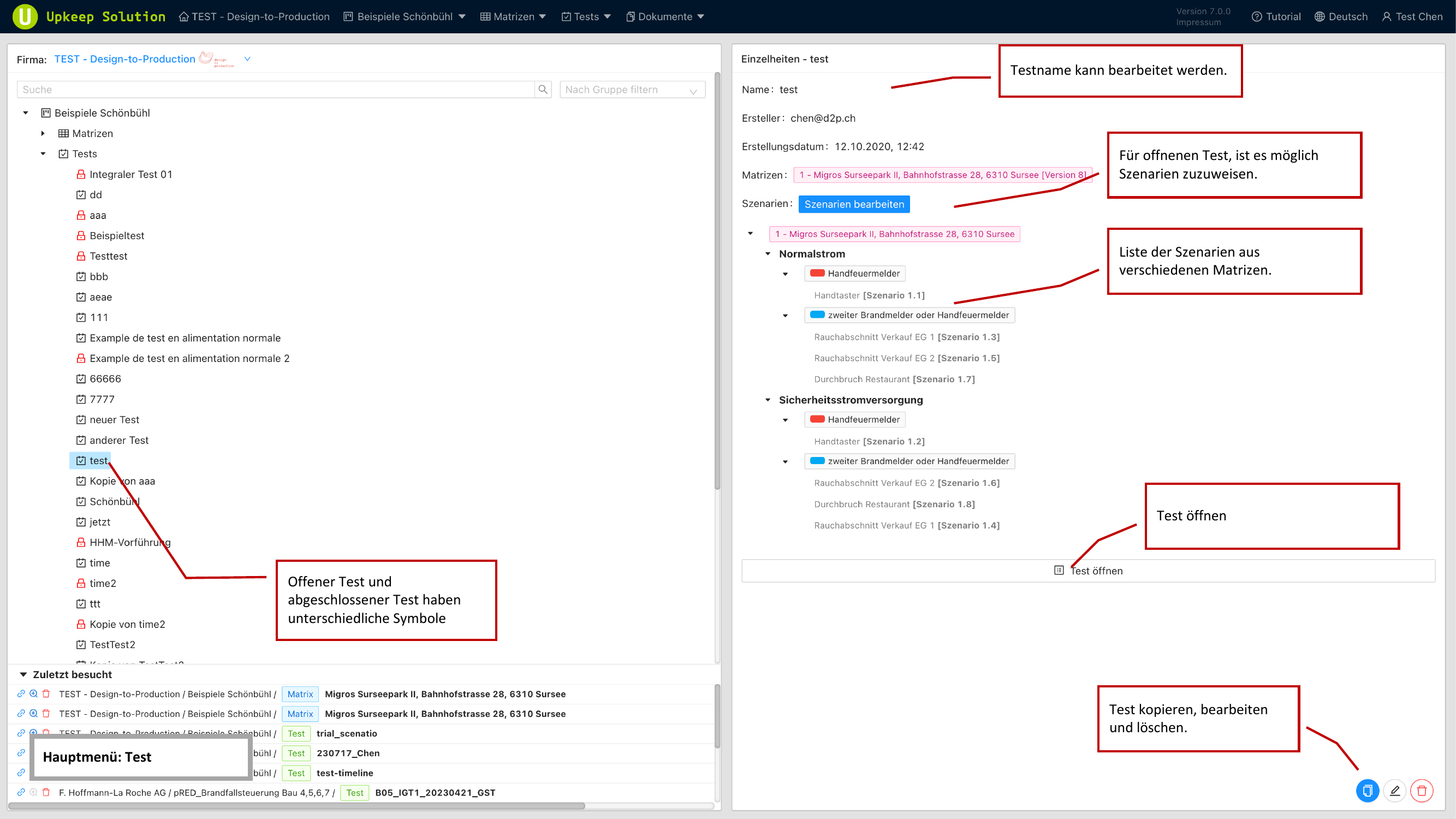
After creation, the test appears in the test tree in the main menu, where you can open it at any time.
Copying a Test
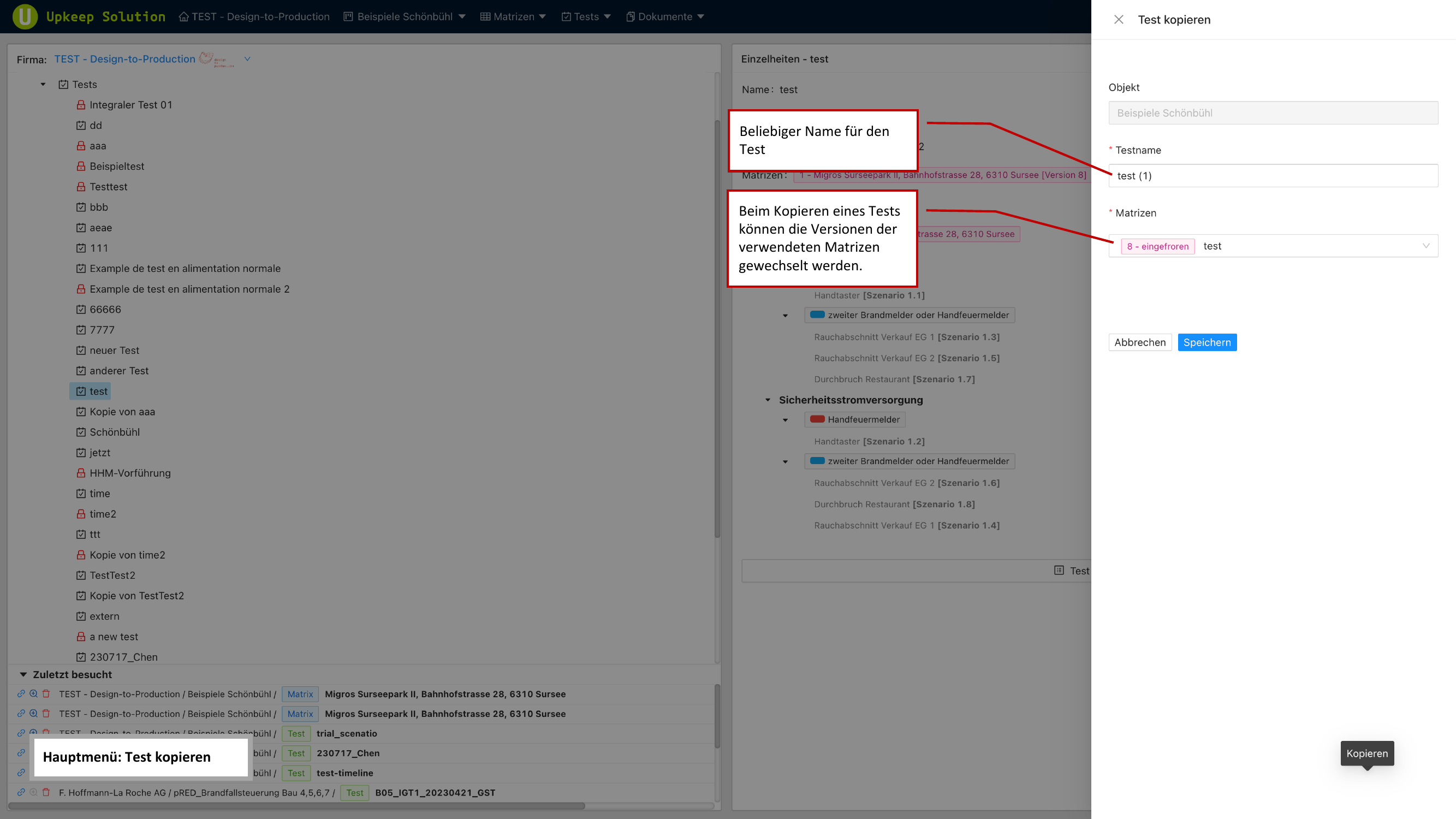
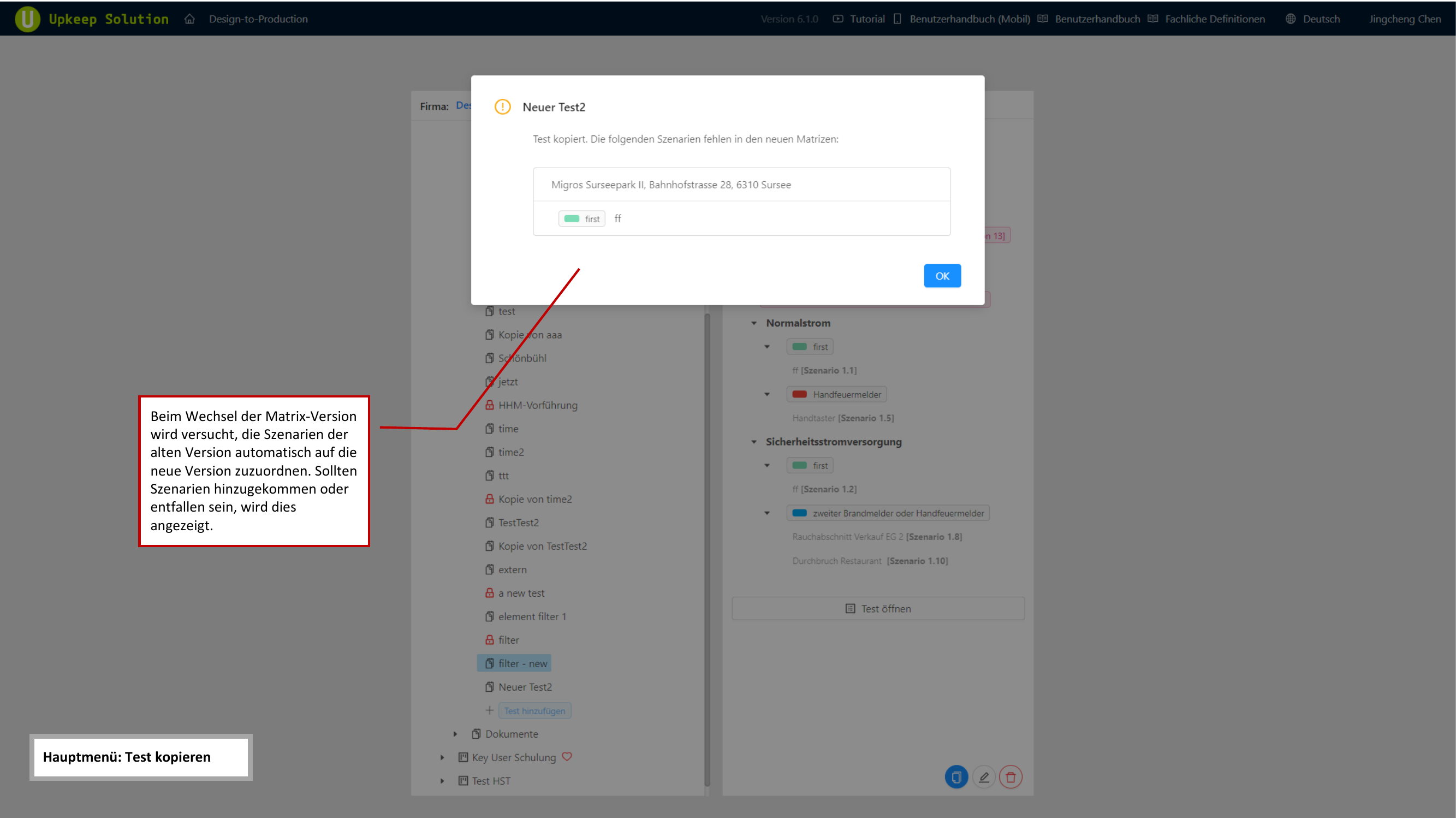
Existing tests can be duplicated. When copying, you have the option to switch to a newer matrix version.
If the new matrix version contains scenarios that were not present in the original version (or vice versa), a warning about version differences is displayed. Missing scenarios cannot be transferred to the copied test.
Test Interface
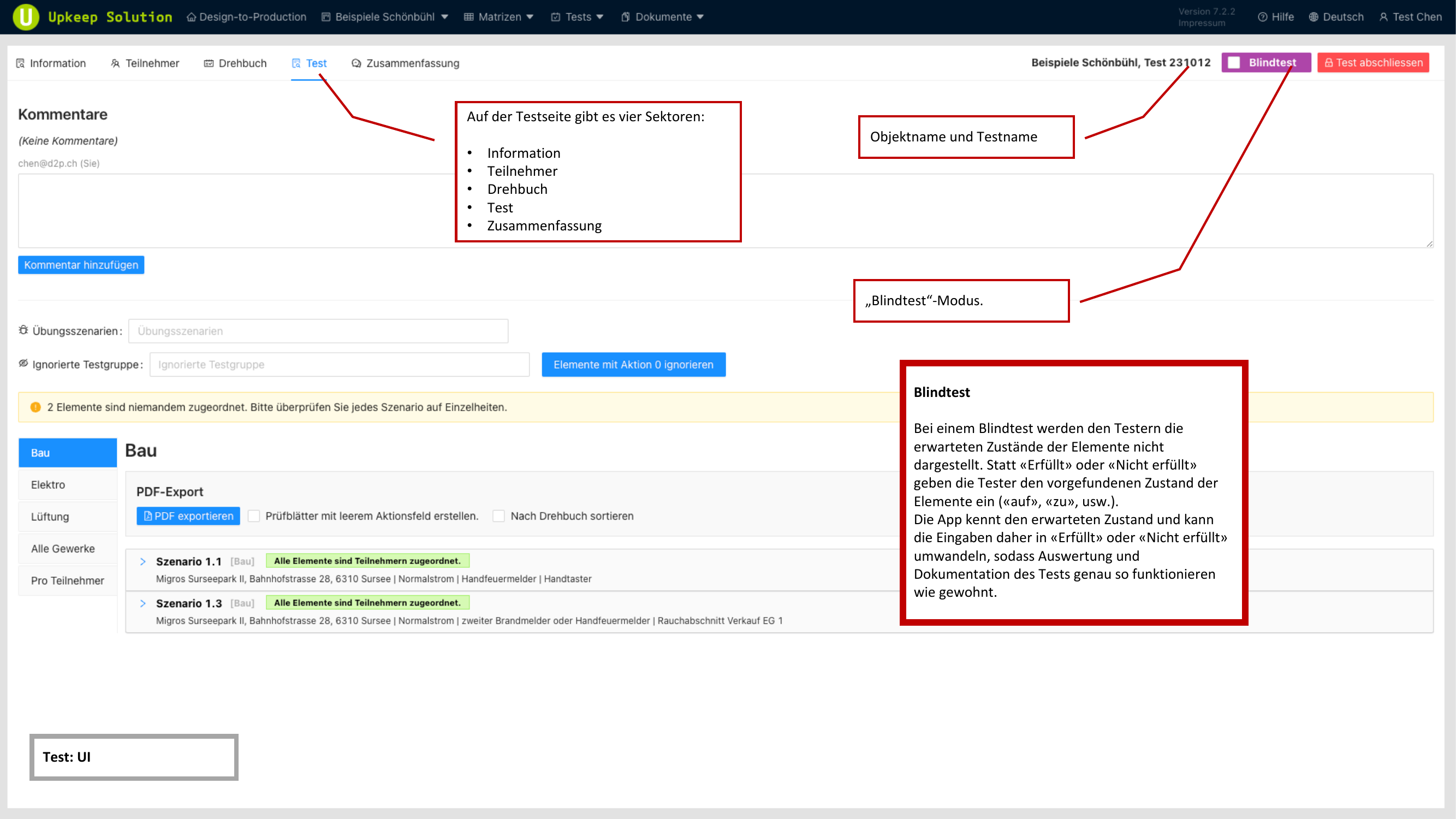
The test interface is divided into five tabs:
Information
The Information tab shows the basic test data such as name, assigned matrix, and current status.
Participants
The Teilnehmer (Participants) tab manages all people involved in the test.
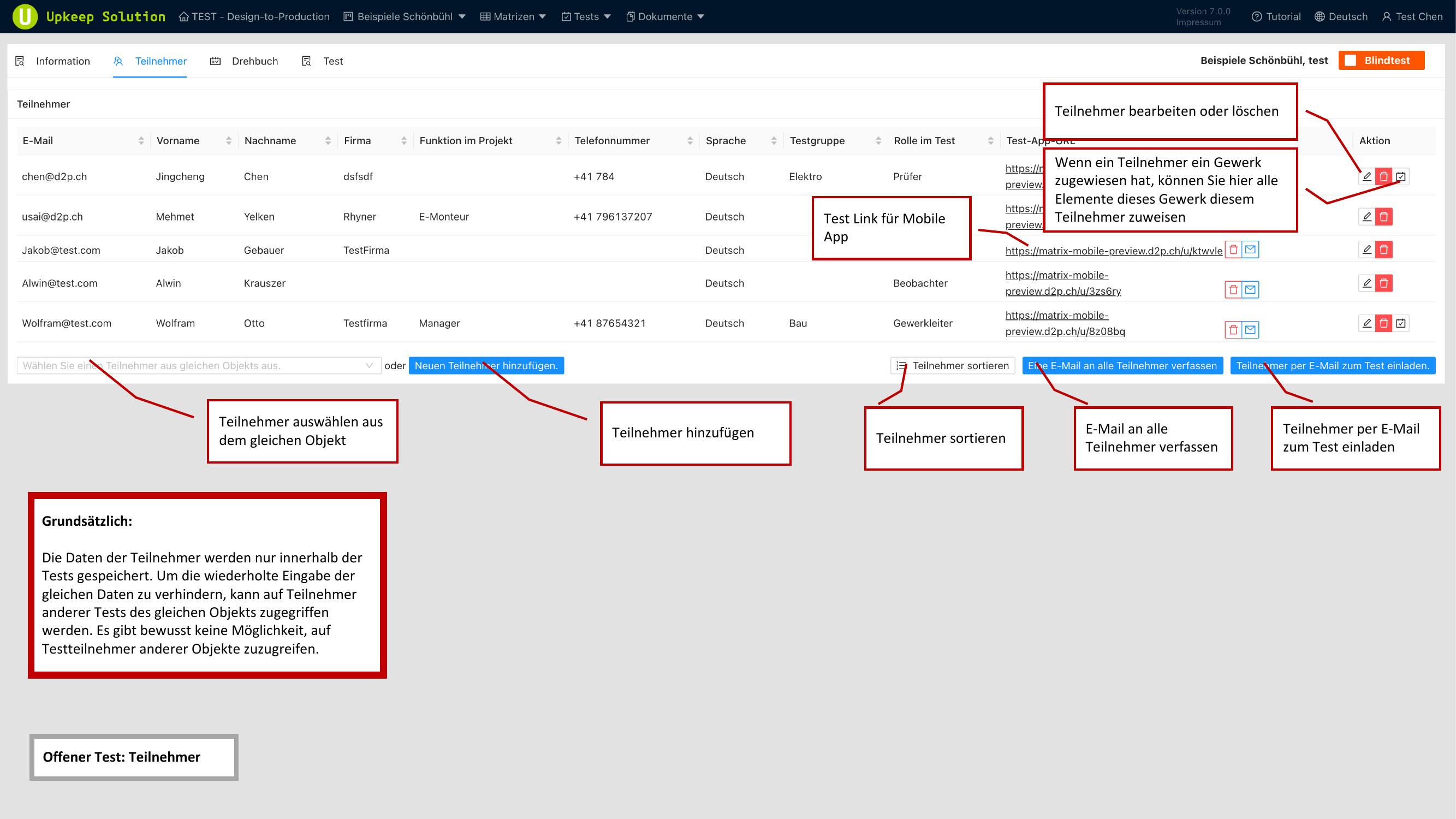
The participant table contains the following columns:
- E-Mail — Email address of the participant
- Name — First and last name
- Firma (Company) — Associated company
- Rolle (Role) — Assigned role in the test
- Testgruppe (Test Group) — Group assignment
- Test-App-URL — Personal link to the mobile app
Available roles:
| Role | Description |
|---|---|
| Testleiter (Test Leader) | Leads the test and controls the workflow |
| Gewerkleiter (Trade Leader) | Responsible for a specific trade |
| Tester | Performs the inspection on the elements |
You can add, edit, and delete participants using the buttons.
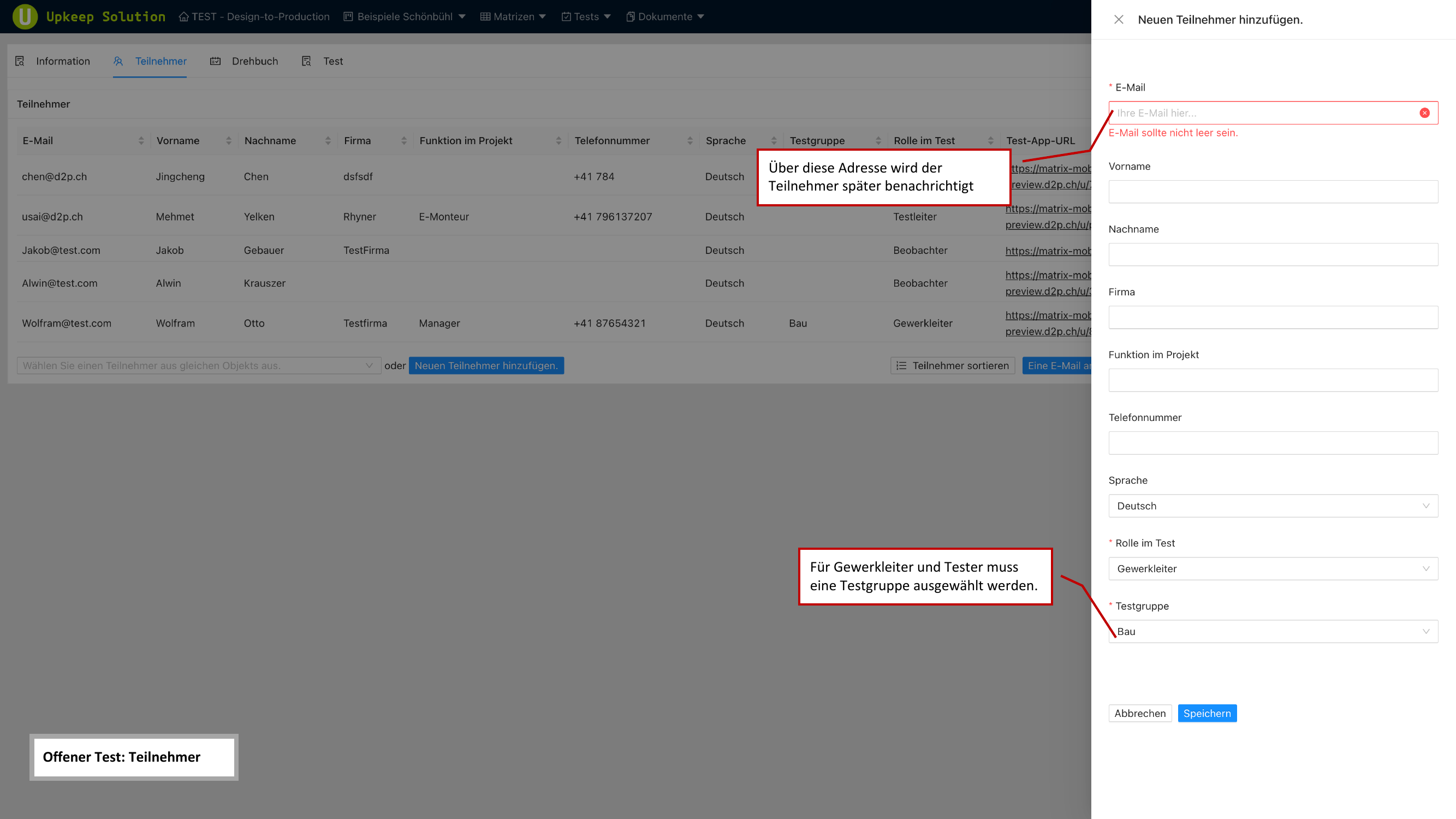
Participant data is saved per test. If you have already recorded participants from the same property in a previous test, this data can be reused.
The E-Mail/Links an alle senden (Send Email/Links to All) function sends each participant their personal access link to the mobile app via email.
Script
The Drehbuch (Script) defines the timeline for the test. For more details, see Script.
Test
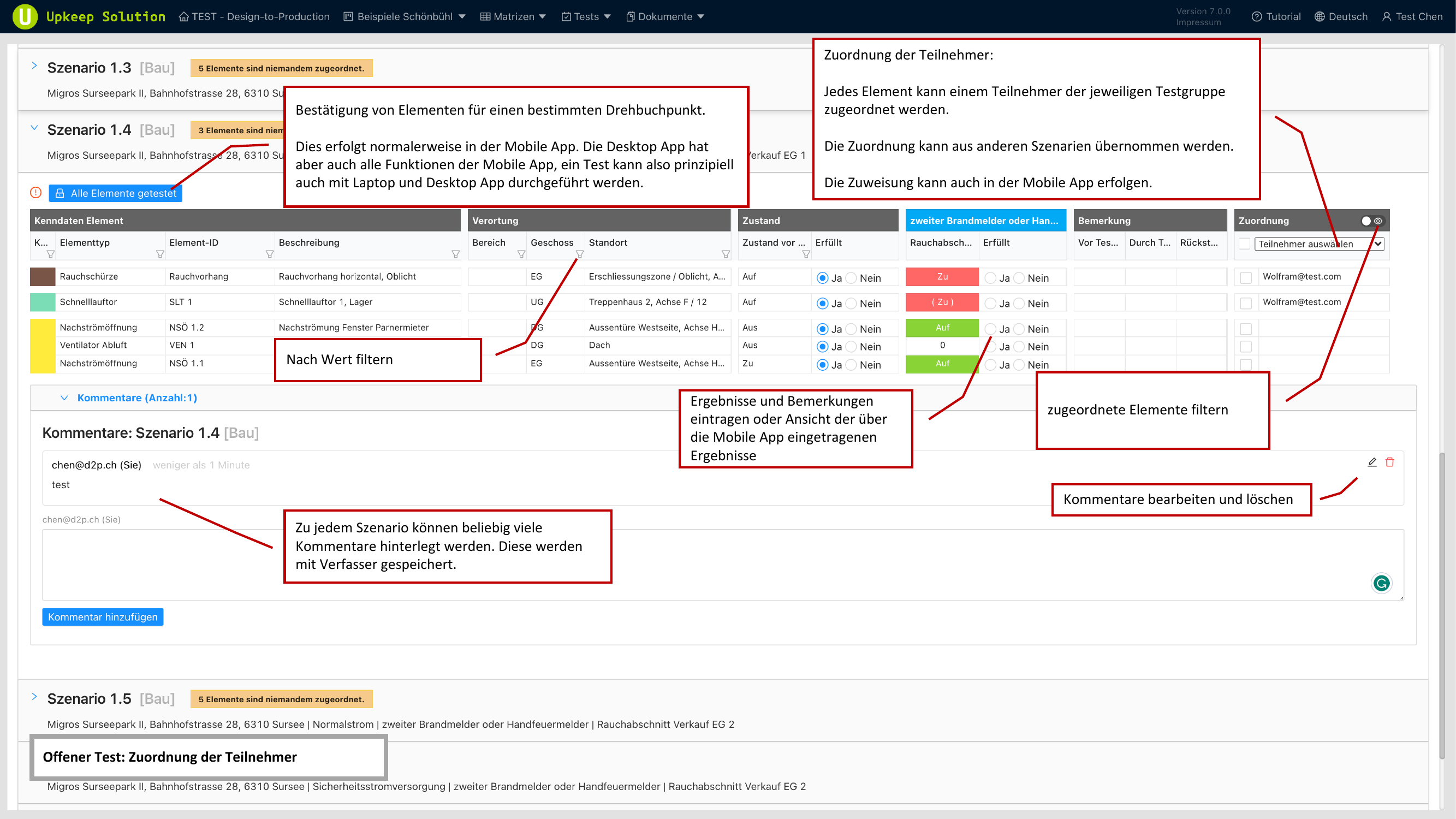
The Test tab is the main workspace for conducting and evaluating the inspection.
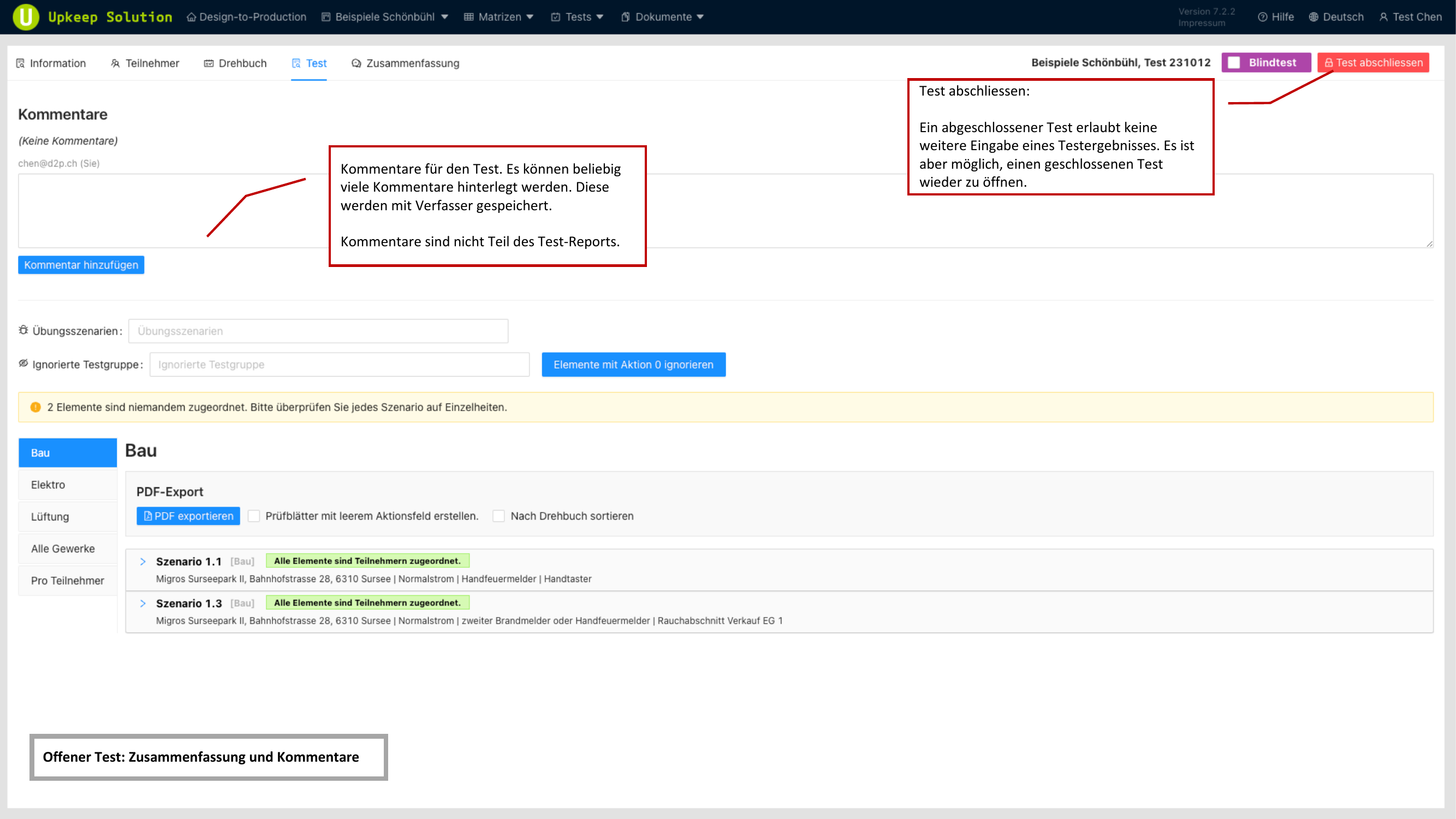
Comments can be added to the test. These serve for internal communication and are not part of the inspection report. Any number of comments with author attribution can be recorded.
Practice Scenarios
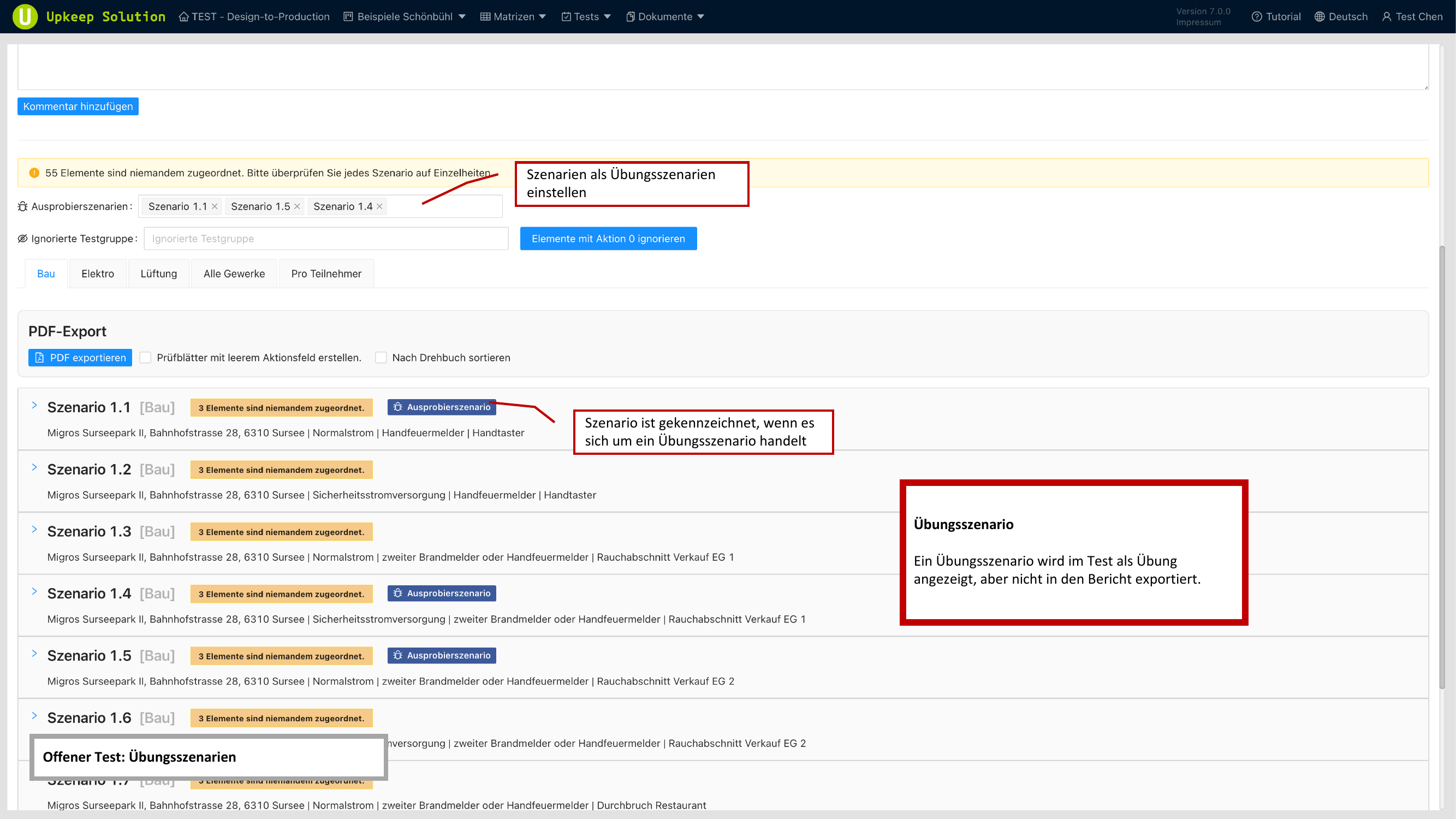
Scenarios can be marked as Übungsszenarien (Practice Scenarios). These are displayed to testers in the mobile app and can be practiced, but they are not included in the inspection report.
Blind Test Mode
In blind test mode, testers are not shown the expected target states. Testers only enter the actual state of the elements (e.g., open/closed). The system then automatically evaluates whether the result is Pass or Fail.
Trade Tabs
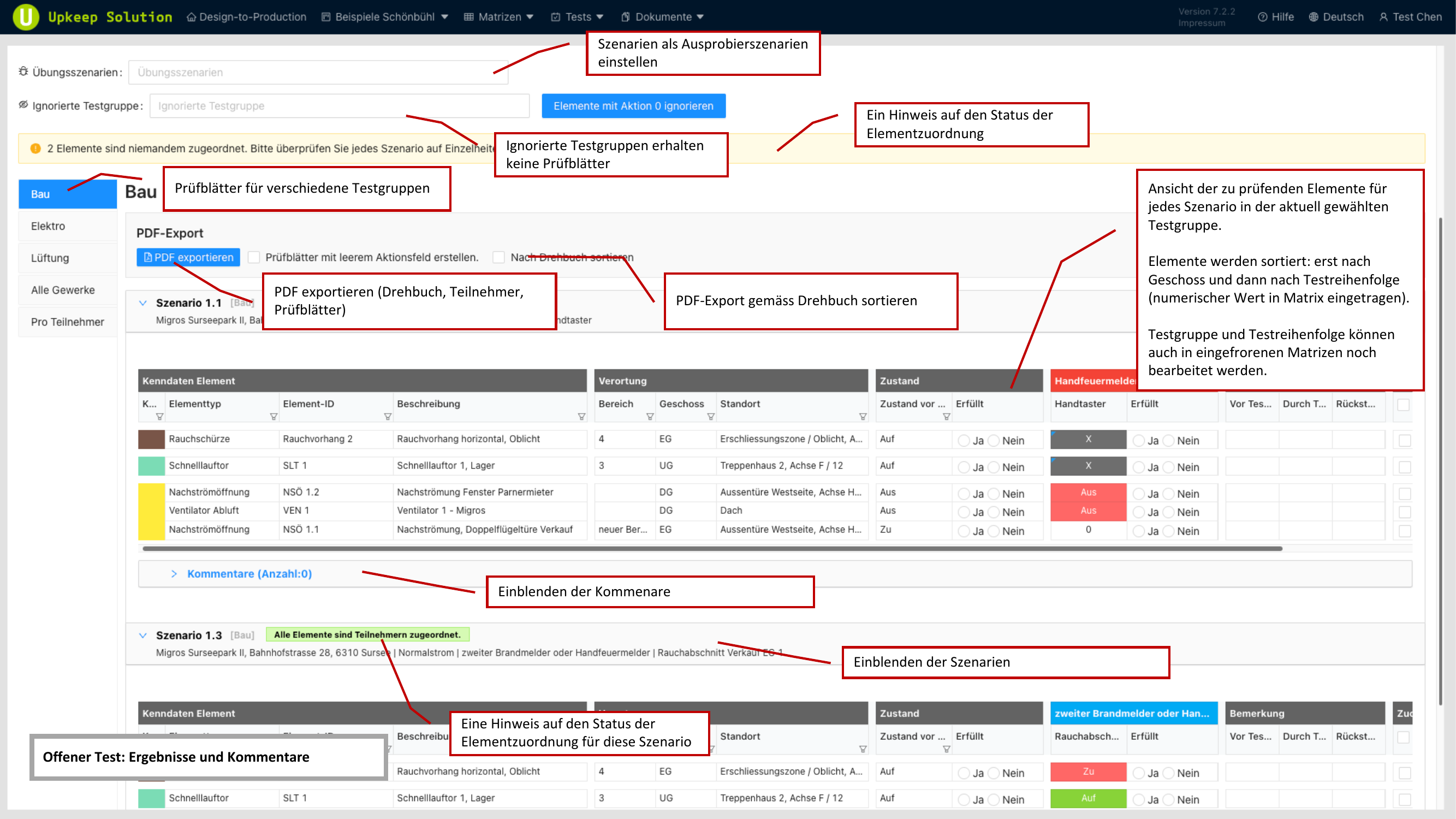
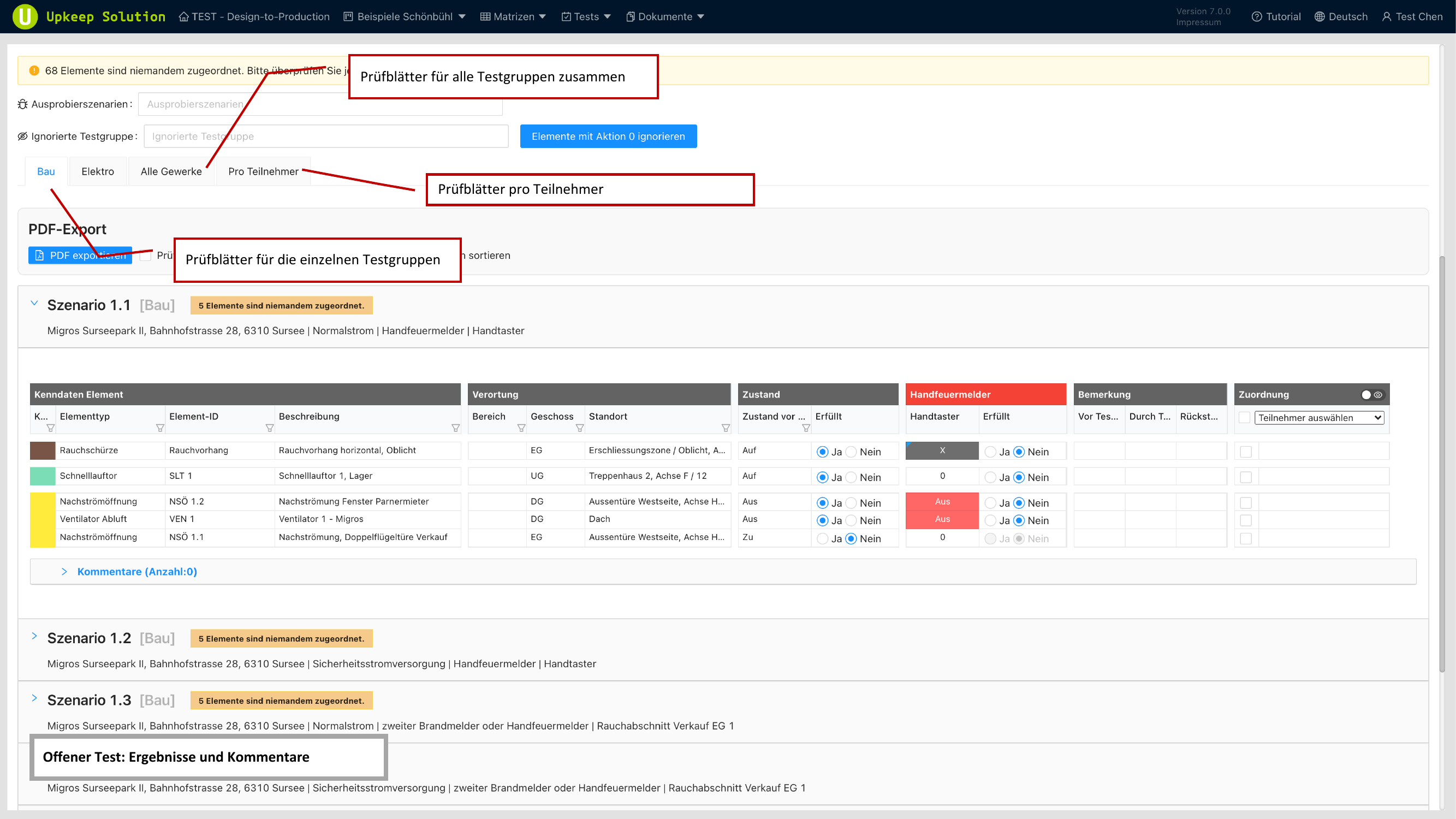
Results can be displayed filtered by trade:
- Bau (Construction)
- Elektro (Electrical)
- Lüftung (Ventilation)
- Alle Gewerke (All Trades)
- Pro Teilnehmer (Per Participant)
PDF Export
The following documents can be exported as PDF:
- Drehbuch (Script) — The complete schedule
- Teilnehmer (Participants) — The participant list
- Prüfblätter (Test Sheets) — Forms for manual execution
Results
The results table shows an element table with status columns for each scenario. The results are color-coded:
- Green — Pass
- Red — Fail
The table can be filtered by values and is sorted by default by floor and then by test order.
Summary
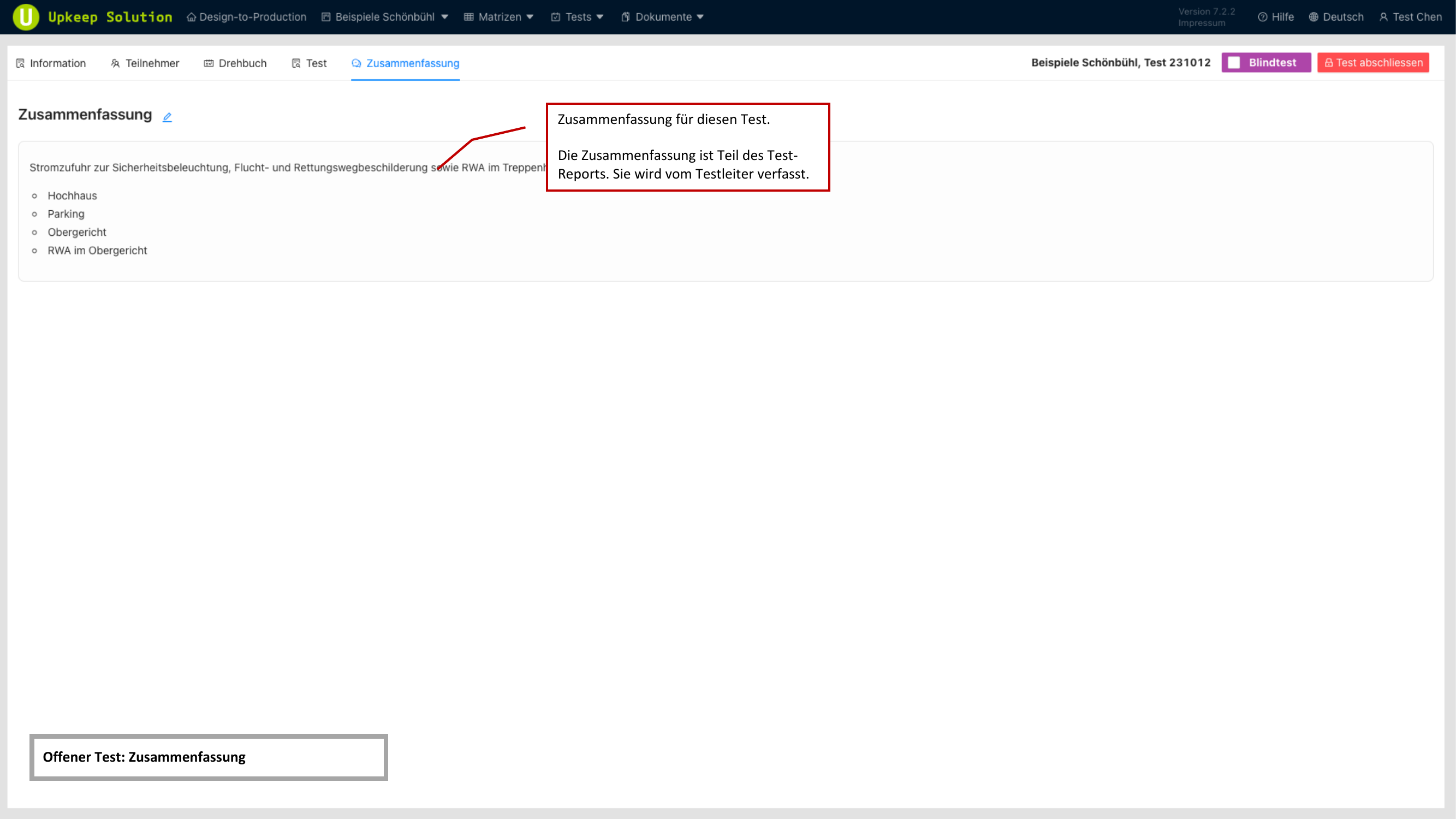
The Zusammenfassung (Summary) tab contains an editable rich text area. The text entered here is exported as part of the inspection report.
Completed Test
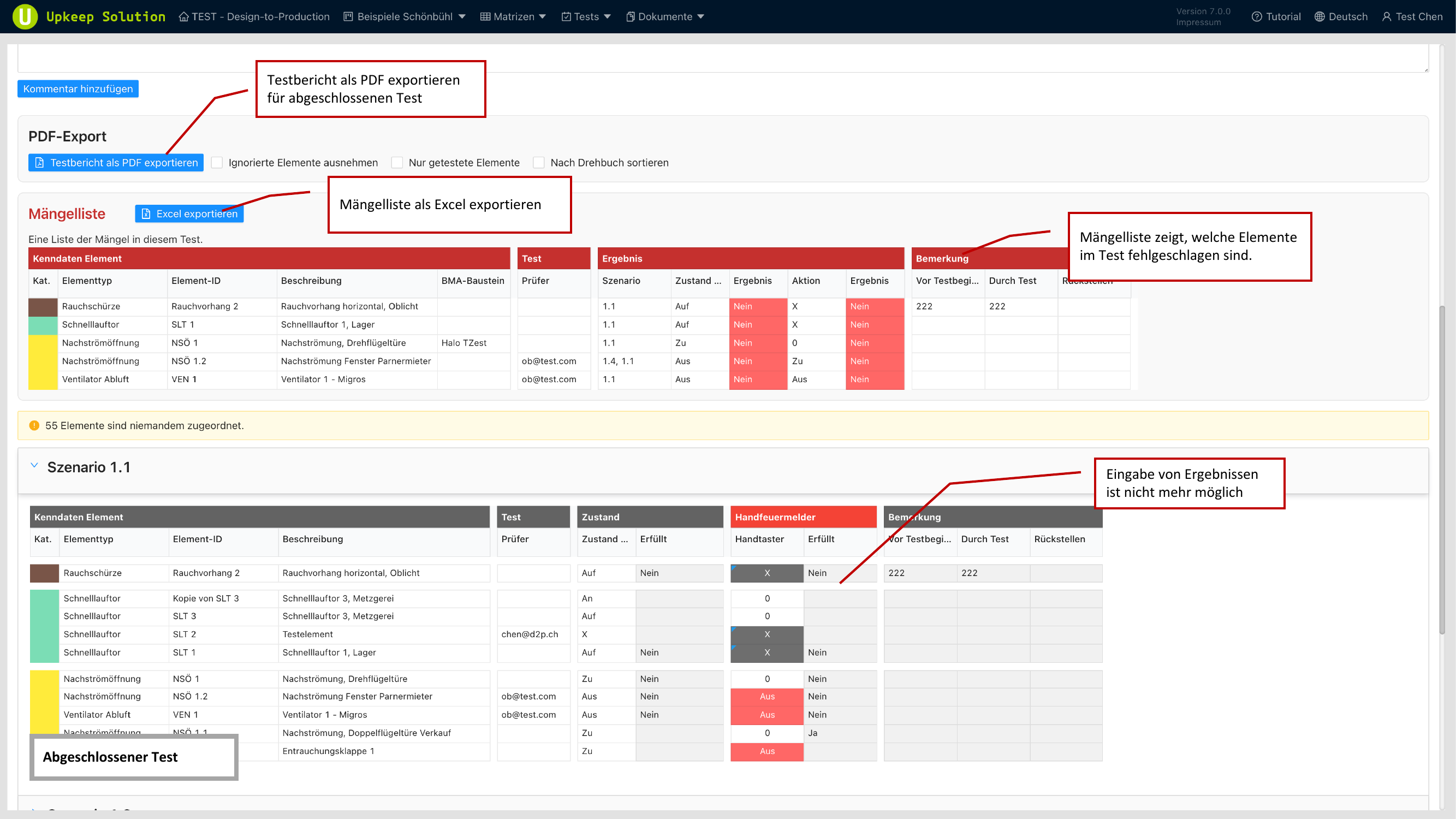
After a test is completed, the results are locked and can no longer be modified.
The following functions are available:
- Mängelliste (Deficiency List) — An overview of all identified deficiencies, exportable as an Excel file
- Prüfbericht (Inspection Report) — The complete test report as a PDF export
- Test erneut öffnen (Reopen Test) — If needed, a completed test can be reopened
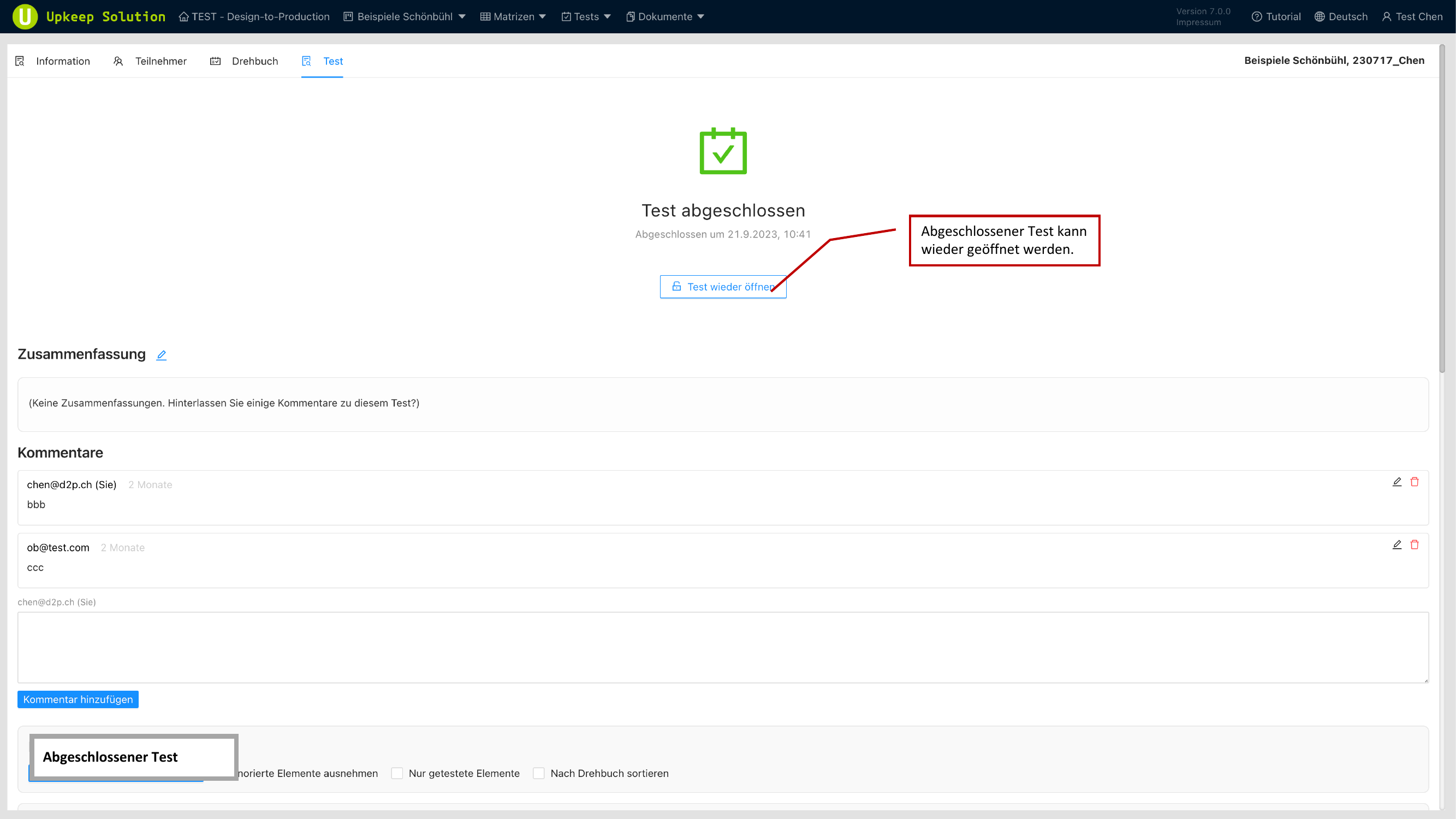
When reopening a test, the locked results become editable again. Use this function with caution, as it invalidates the inspection report.