Matrix Table
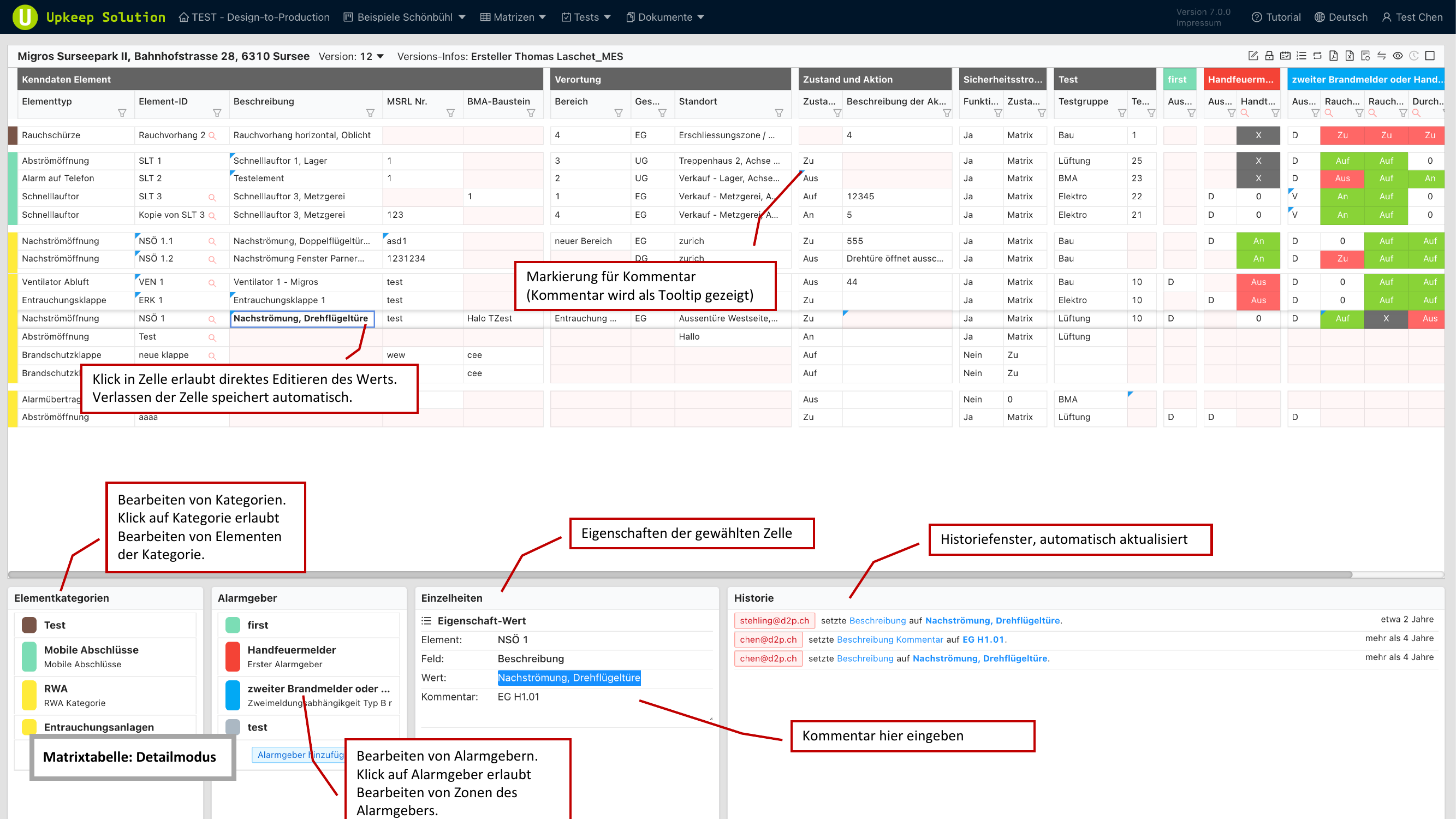
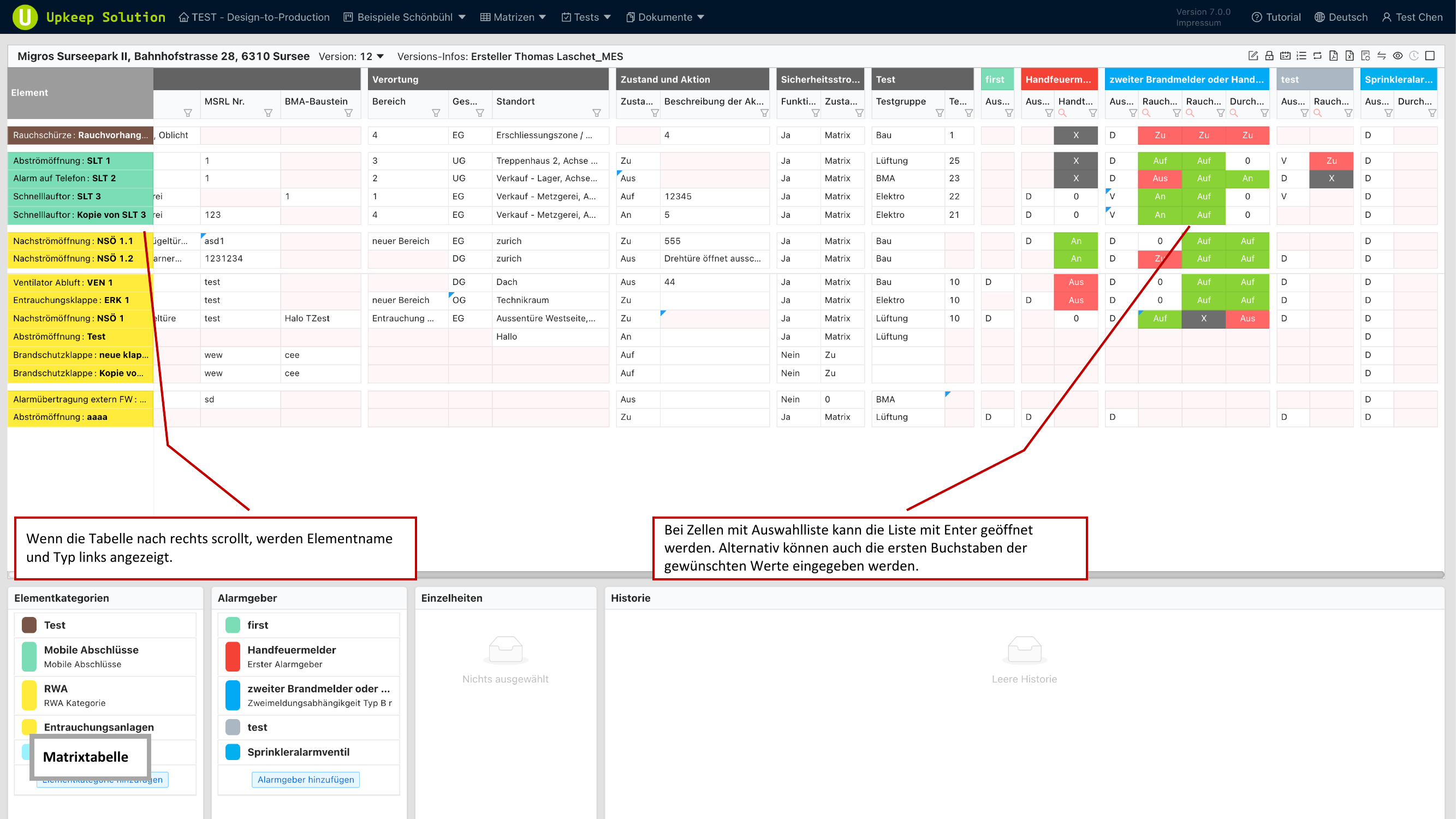
The Matrixtabelle (Matrix Table) is the centerpiece of the Upkeep desktop app. It represents the fire protection matrix as an interactive table, where rows represent element categories and elements, and columns represent alarm devices and zones.
View Modes
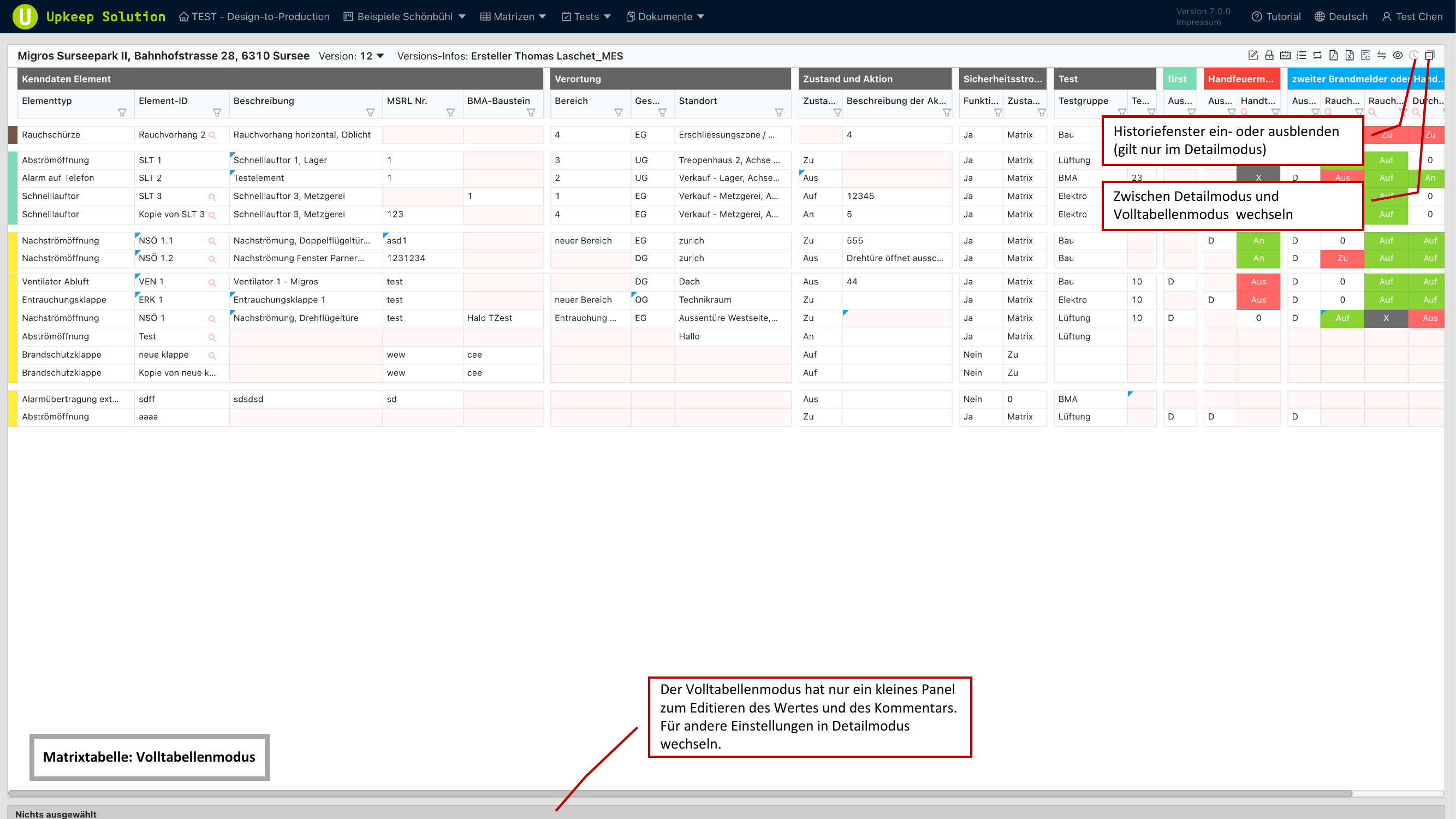
The matrix table offers two view modes, which you can switch between using the toolbar.
Detail Mode
Detail mode is the default view and provides the full range of functionality:
- All input options for each cell
- Bottom panels for Elementkategorien (Element Categories), Alarmgeber (Alarm Devices), Einzelheiten (Details), and Historie (History)
- Side panel for adding new elements
This mode is ideal for detailed editing of individual elements and cells.
Full Table Mode
Full table mode shows a compact view of the matrix:
- Reduced input options per cell
- No bottom panels — the entire screen space is available for the table
- Ideal for a quick overview and navigating through large datasets
Adding Elements
New elements are added via the side panel:
- Click the Element hinzufügen (Add Element) button in the toolbar
- Select an element category from the list
- Select an element type from the predefined list
- The element's properties are automatically pre-filled with default values
- Confirm the entry — the element is inserted as a new row in the table
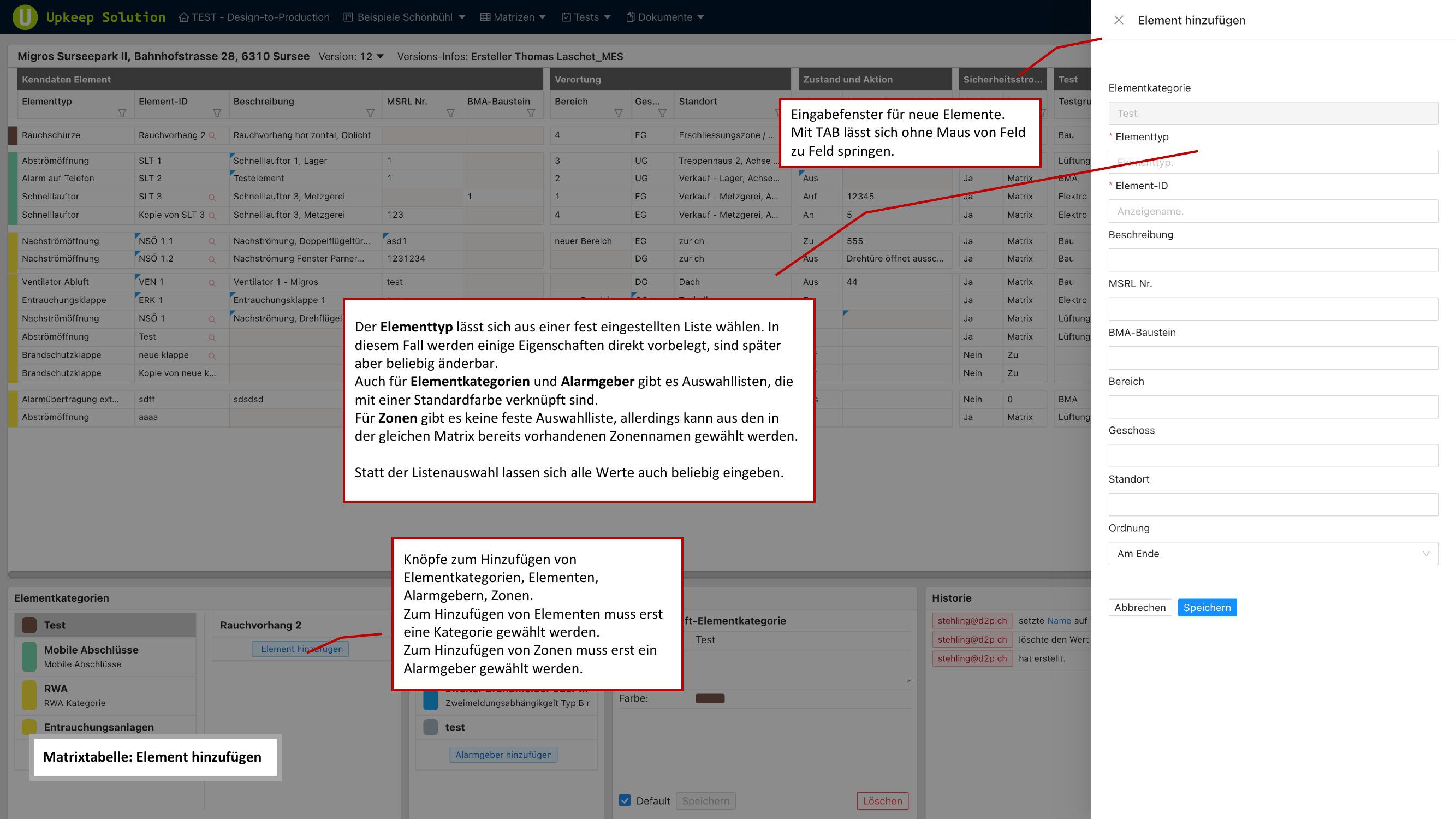
You can also add element categories, alarm devices, and zones directly using the corresponding buttons in the toolbar. Categories and alarm devices appear as new row groups or column groups in the table, respectively.
Cell Editing
Cells in the matrix are edited directly in the table:
- Click on a cell to activate edit mode
- Make your change (text input, dropdown selection, checkbox, etc.)
- Leave the cell — the change is automatically saved
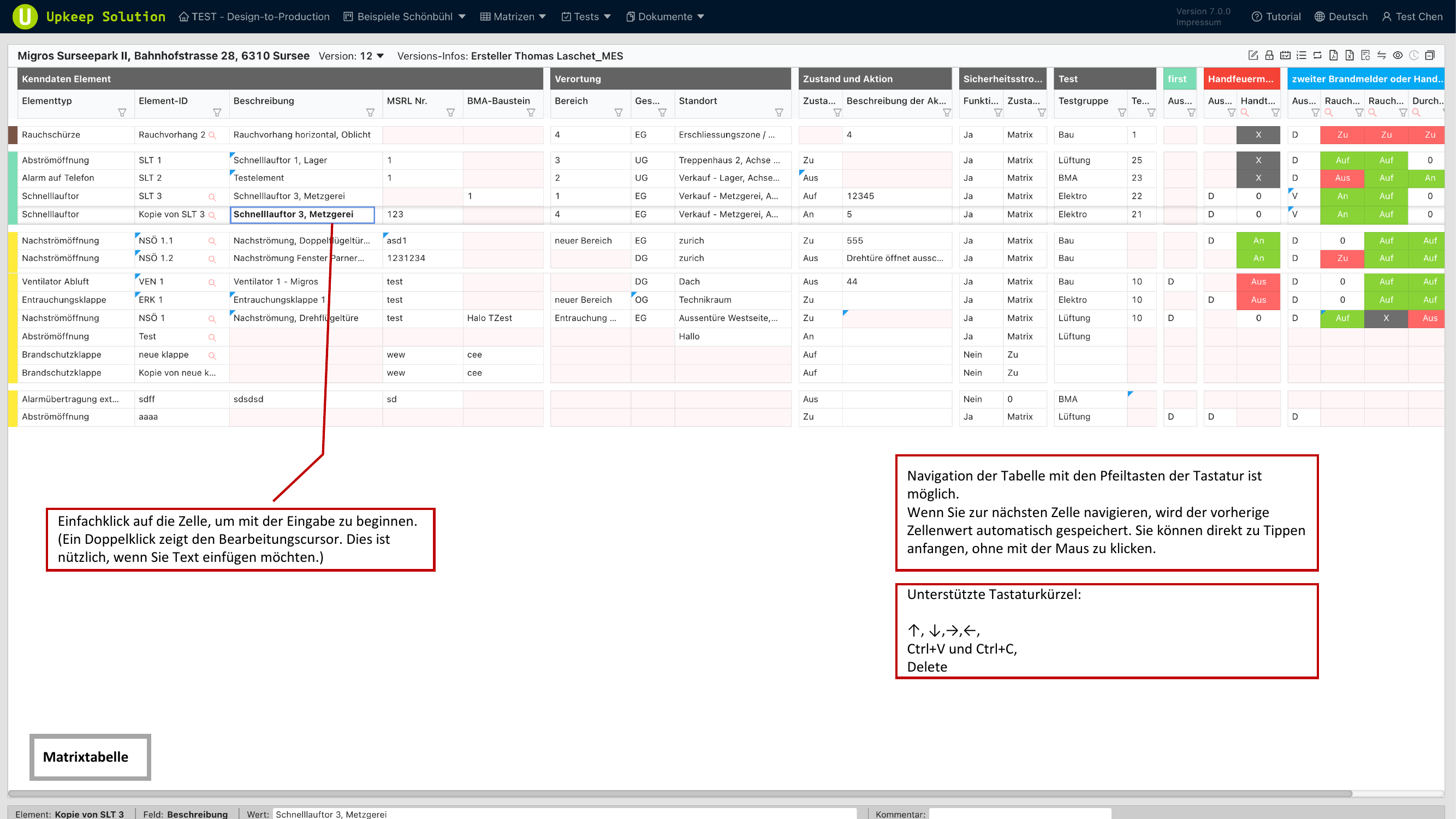
Changes are automatically submitted to the server when you leave the cell. No manual saving is required.
Keyboard Navigation
The matrix table supports extensive keyboard shortcuts for efficient work:
| Key | Function |
|---|---|
| Arrow keys | Navigate between cells |
| Tab | Jump to the next cell |
| Ctrl+C | Copy cell content |
| Ctrl+V | Paste cell content |
| Delete | Clear cell content |
Context Menu
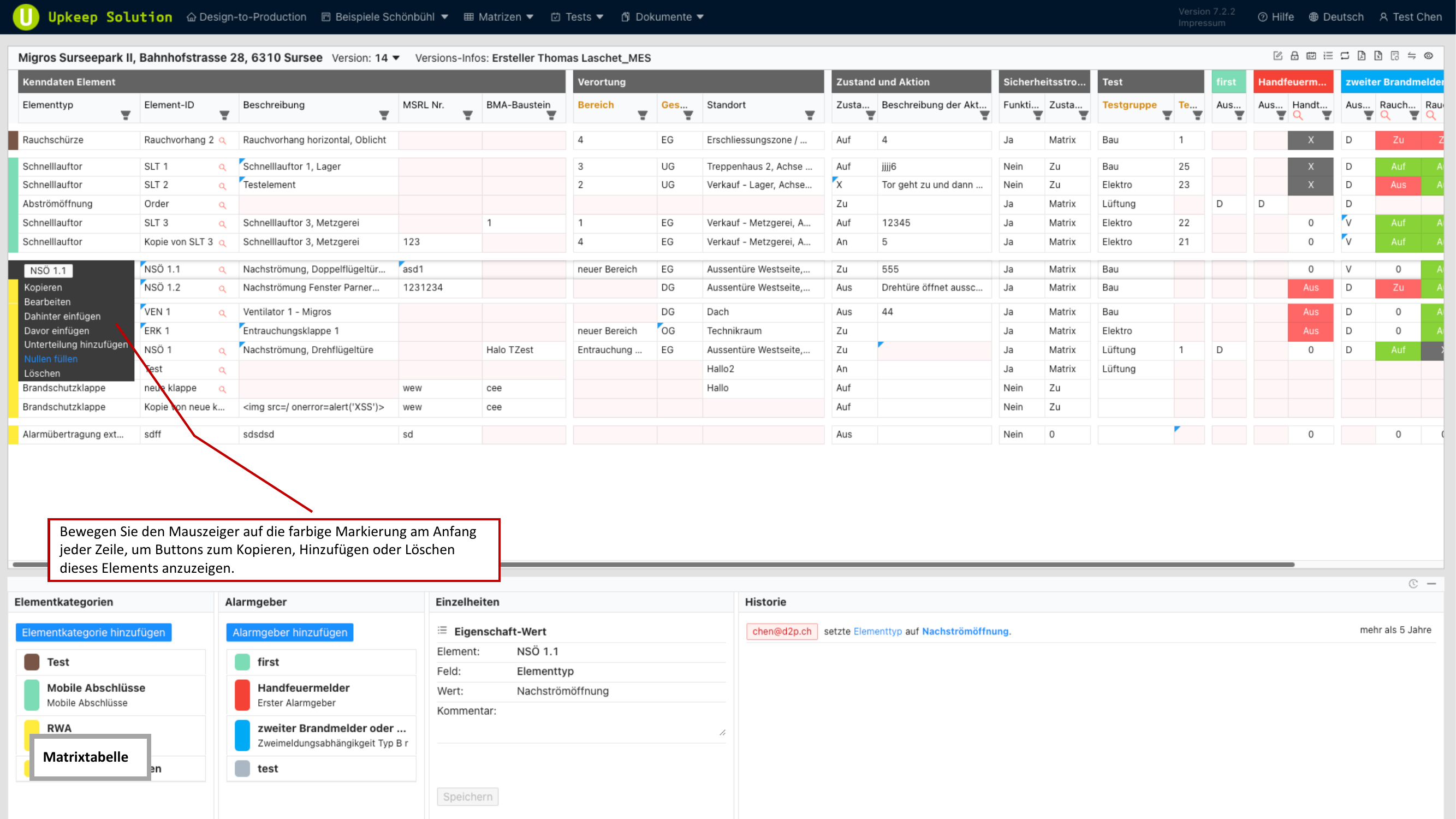
Right-click on an element to open the context menu with the following options:
- Kopieren (Copy) — Duplicate the element
- Löschen (Delete) — Remove the element from the matrix
- Davor einfügen (Insert Before) — Insert a new element above the current row
- Gefahr hinzufügen (Add Hazard) — Add a hazard to the element
Bottom Panels
In detail mode, four panels are available below the table, providing additional information and editing capabilities.
Element Categories
Displays all element categories of the current matrix. Here you can select, rename, or reorder categories.
Alarm Devices
Lists all alarm devices (column groups) of the matrix. You can add and edit alarm devices and adjust their order.
Details
Shows the properties of the currently selected cell. Different fields are displayed depending on the cell type — for example, location information, technical data, or status fields.
History
Logs all changes to the selected element or cell in chronological order. This allows you to trace when each change was made and by whom at any time.