Getting Started
Logging In
- Open the app URL in your mobile browser
- You will be redirected to the login page
- Enter your email address and password
- After successful authentication, you are redirected to the app
tip
The app remembers your session. You won't need to log in again until the session expires.
First Screen: Company Selection
After logging in, you'll see the company selection screen. This lists all companies you have access to.
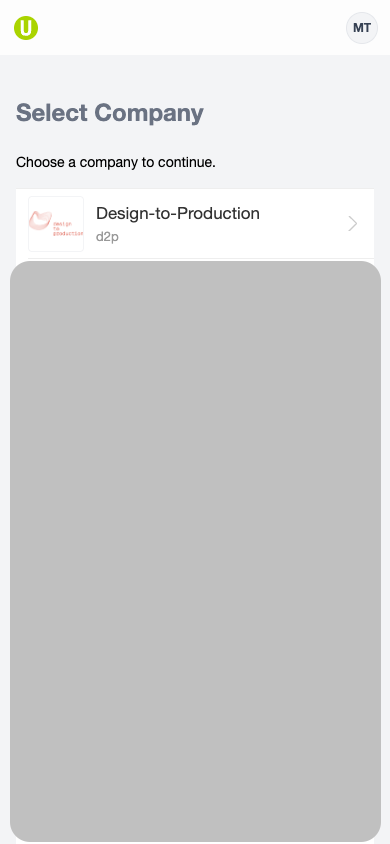
If you only have access to one company, the app skips this screen and takes you directly to the project list.
Navigation Hierarchy
The app follows a hierarchical structure:
- Company — Select your organization
- Project — Choose a building or facility
- Matrix — Pick a fire protection component matrix
- Component — View and edit individual components
Use the back arrow in the top-left corner to navigate back at any level.
Header Bar
Every screen has a header bar with:
- Back button (left) — navigate to the previous screen
- Offline indicator (right) — shows your connection status (see Offline Mode)
- User menu (right) — access account settings and sign out (see Settings)