Component Status
The Status tab is the first tab you see when opening a component. It is the primary screen for maintenance work.
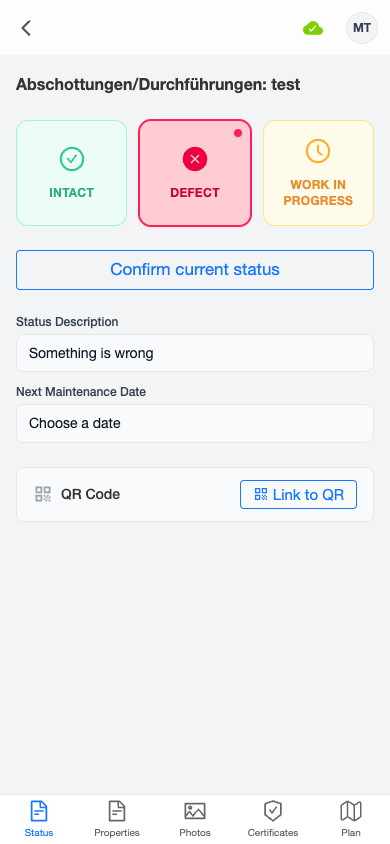
Maintenance Status
Three large buttons let you set the component's maintenance status:
- Intact (green) — the component is functioning correctly
- Defect (red) — the component has a deficiency
- Work in Progress (amber) — repair or maintenance is underway
Tap a button to change the status. The active status is highlighted with a filled icon and colored background.
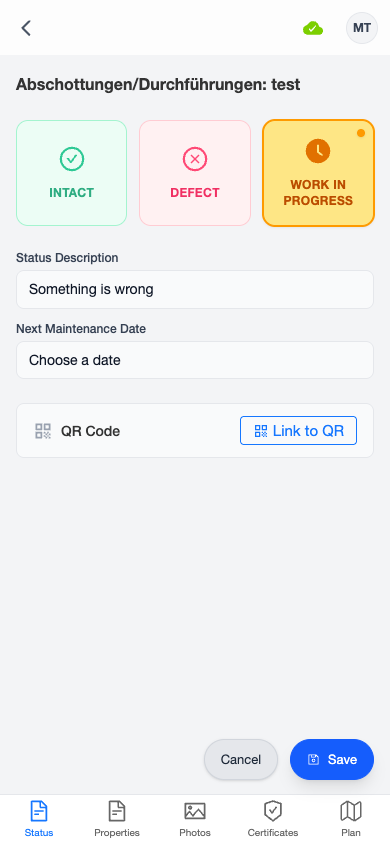
Status Description
A text field below the status buttons lets you add a description. The field offers autocomplete suggestions based on descriptions used on other components in the same matrix.
When setting the status to Work in Progress, the status description is required. The field will be highlighted in red if left empty, and saving will be blocked until you enter a description.
Confirm Status
If the component's status hasn't changed, a "Confirm current status" button appears. Tapping it confirms that you have inspected the component and verified its current state — without changing the status value. This creates a log entry on the server.
Next Maintenance Date
Tap "Choose a date" to open a date picker and set the next scheduled maintenance date for this component.
QR Code
The QR Code section shows whether the component is linked to a QR label:
- Not linked — a "Link to QR" button opens the QR scanner to associate a QR code
- Linked — shows a green checkmark. An unlink button lets you remove the QR association after confirmation
See QR Code Scanning for more details.
Saving Changes
When you make changes on any tab, floating Save and Cancel buttons appear at the bottom of the screen:
- Save — sends your changes to the server (or queues them if offline)
- Cancel — discards all unsaved changes and reverts to the original state