Navigation
Upkeep Solution provides two levels of navigation: the main navigation at the top of the screen and the property navigation, which appears once you have opened a property.
Main Navigation
The main navigation bar is visible on every page and contains the following elements:
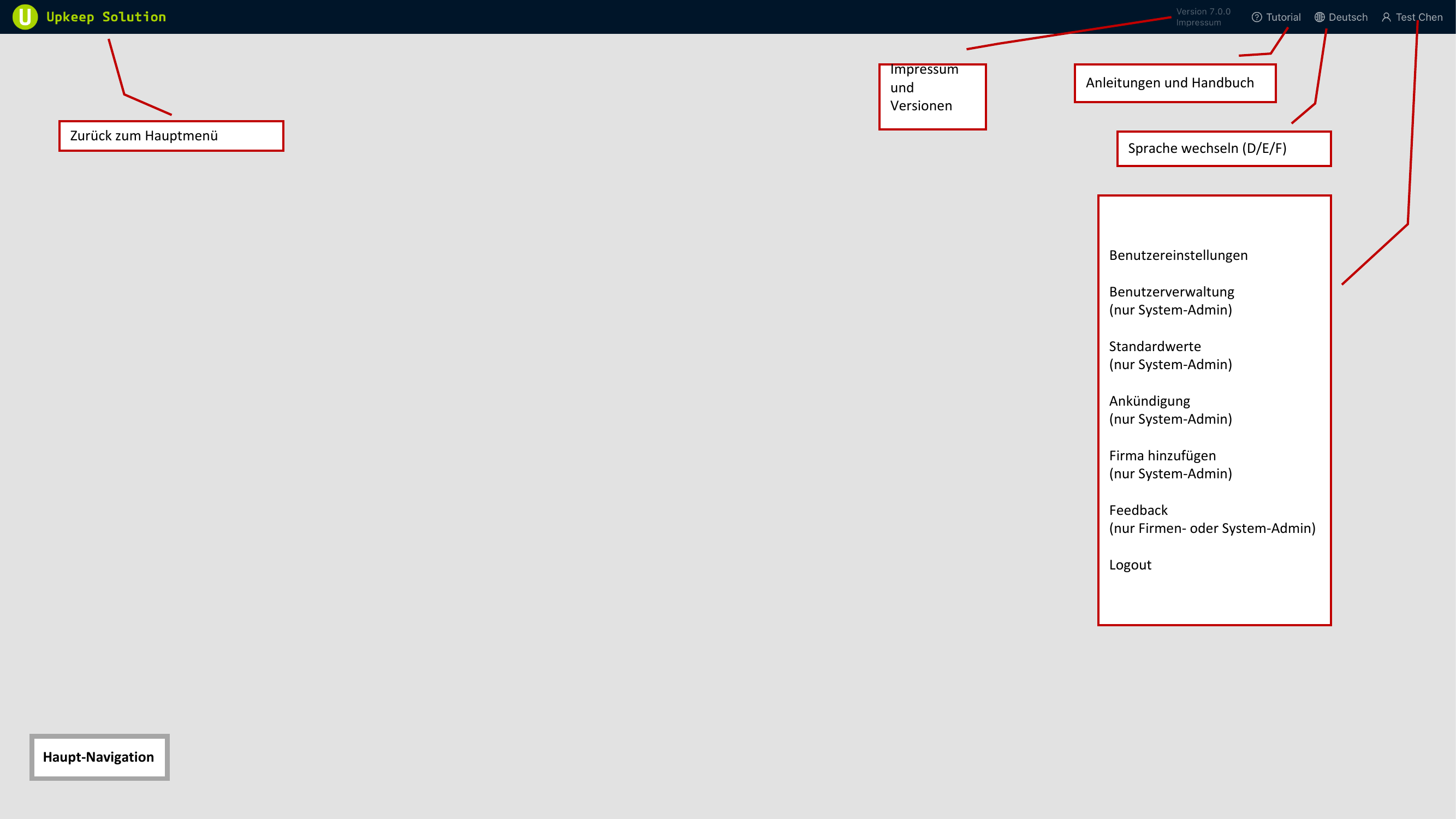
- Logo / Home — Click the Upkeep logo to return to the home page
- Version / Impressum (Imprint) — Displays the current version number and links to the legal notice
- Tutorial — Opens a step-by-step guide for the current view
- Sprachauswahl (Language Selection) — Switch the interface language between German (D), English (E), French (F), and Italian (I)
- Benutzermenü (User Menu) — Opens the dropdown menu with your account settings and additional options
User Menu
The user menu contains different entries depending on your role:
| Menu Item | Available For |
|---|---|
| Benutzereinstellungen (User Settings) | All users |
| Benutzerverwaltung (User Management) | System Admins only |
| Standardwerte (Default Values) | System Admins only |
| Ankündigung (Announcement) | System Admins only |
| Firma hinzufügen (Add Company) | System Admins only |
| Feedback | Company Admins and System Admins |
| Logout | All users |
Most menu items in the user menu are only visible to System Admins. As a regular user, you will only see Benutzereinstellungen (User Settings) and Logout.
Property Navigation
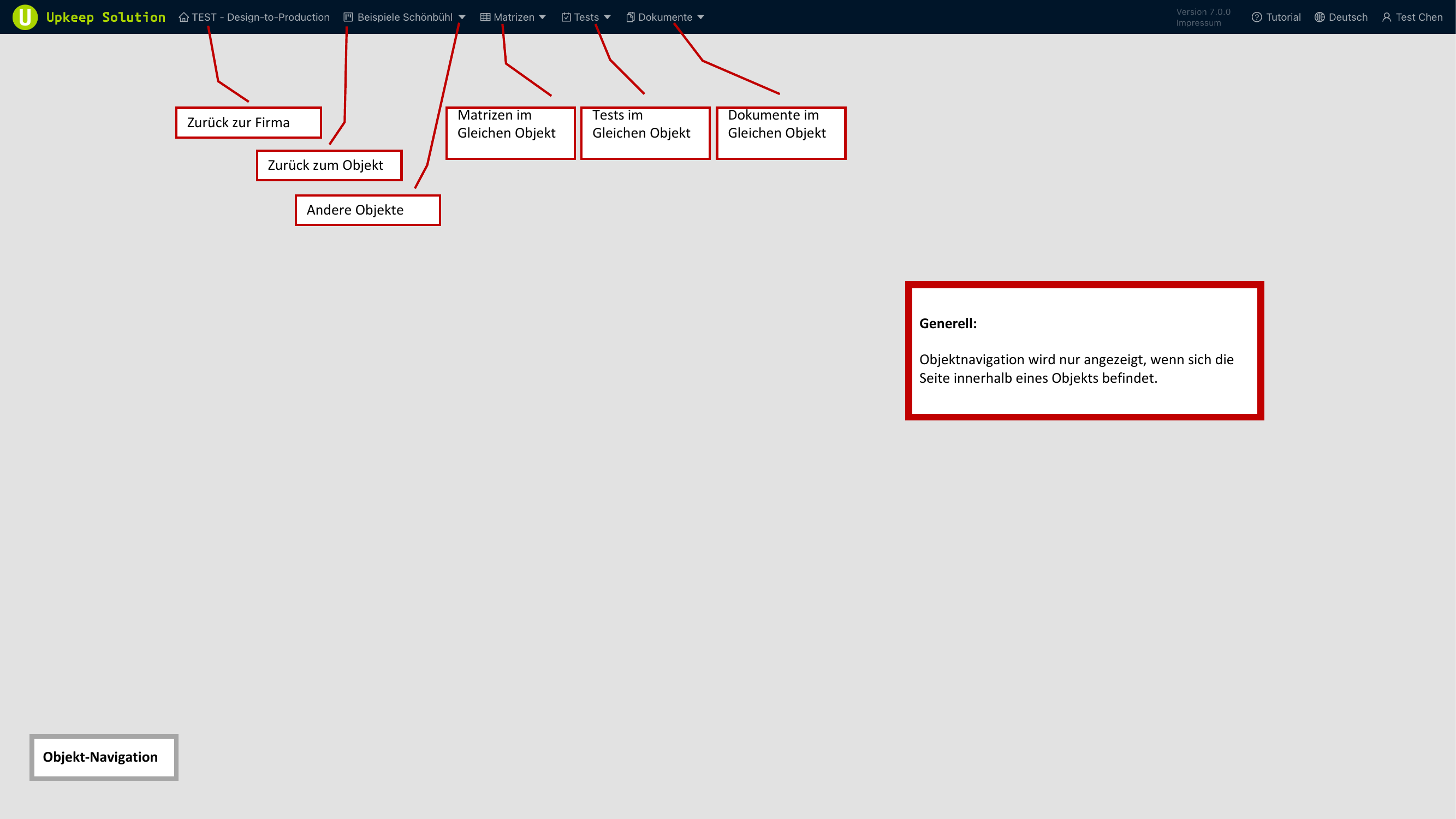
Once you have opened a property, a second navigation bar with property-related functions appears below the main navigation.
Breadcrumb
The breadcrumb navigation shows your current location in the hierarchy:
Company > Property
Click on any part of the breadcrumb to navigate back to that level.
Tabs
Within a property, the following tabs are available:
- Matrizen (Matrices) — Overview and management of all fire protection matrices for the property
- Tests — Management of inspections with a dropdown to select individual tests
- Dokumente (Documents) — Access to property-related documents with a dropdown for different document types
The tabs with dropdown arrows offer submenus for targeted selection. Click the arrow next to the tab name to display the available options.