Component Certificates
The Certificates tab manages the association between a component and project-level compliance certificates (e.g., approval documents, fire safety certifications).
warning
Certificates can only be added in the desktop app.
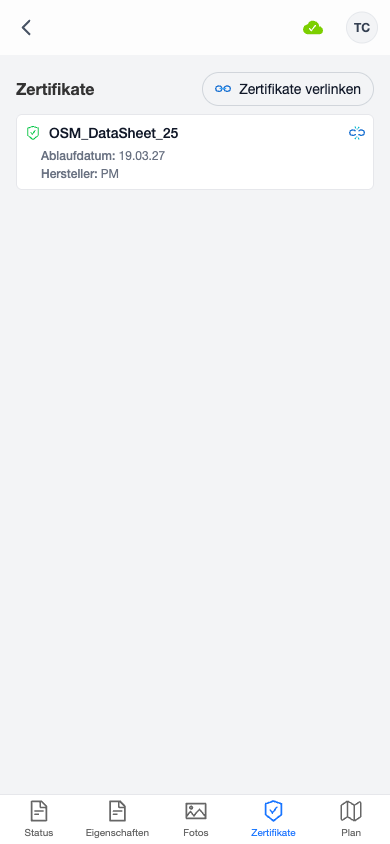
Linked Certificates
Each linked certificate displays:
- Certificate name
- Expiration date
- Approval number
- Manufacturer and product name
- Expiry status indicator:
- Green — valid
- Yellow — expiring within 30 days
- Red — expired
- Grey — no expiration date set
Linking Certificates
Tap the Link certificates button to open a selection popup.
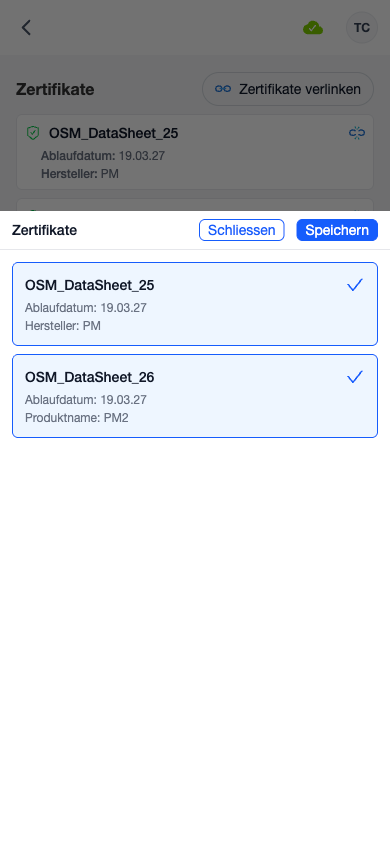
- Browse all project-level certificates
- Tap a certificate to toggle its selection (highlighted in blue)
- Tap Save to apply the selection
Unlinking Certificates
To remove a certificate from a component, tap the unlink icon next to the certificate and confirm the action.
note
Linking or unlinking certificates does not delete the certificate itself — it only changes the association with this component.