Test Script
The Drehbuch (Test Script, also called schedule) defines the complete timeline of a test. It consists of multiple script items, each with assigned scenarios. The script is part of the PDF exports and the inspection report and is displayed to all participants in the mobile app.
The Testleiter (Test Leader) controls the currently active item via the script. All participants can see in the mobile app which script item is currently active.
Timeline
The timeline provides a visual overview of the entire test workflow.
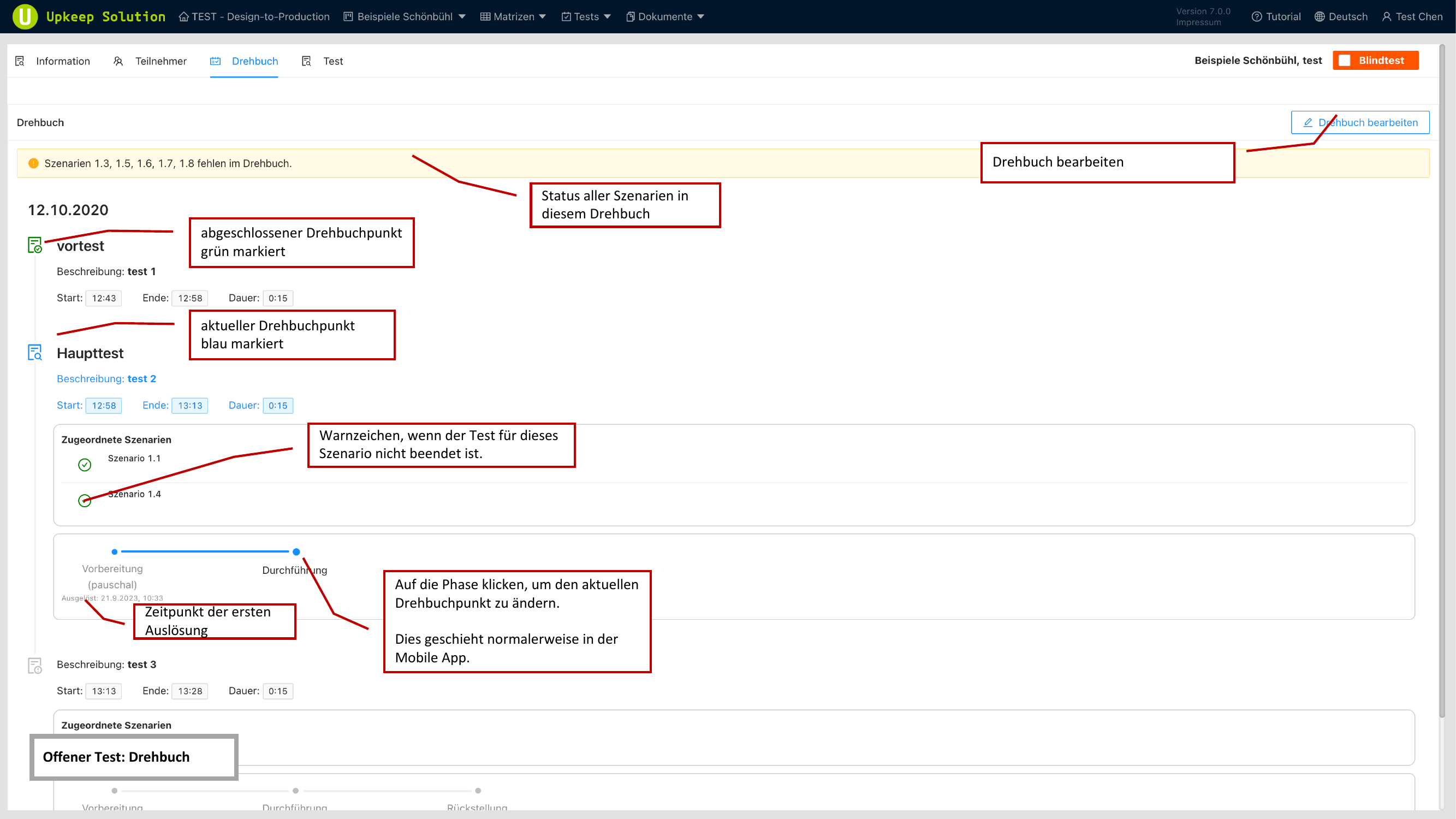
Each script item is displayed with the following information:
- Date of the test run
- Start time and end time of the item
- Duration in minutes
- Assigned scenarios
The color coding indicates progress:
| Color | Meaning |
|---|---|
| Green | Completed |
| Blue | Current active item |
| Gray | Not yet started |
Click on a phase in the timeline to switch the current active script item.
If a scenario test within a script item has not yet been completed, a warning is displayed. Make sure all scenarios are completed before moving to the next item.
Editor
The editor displays all script items in a table view.
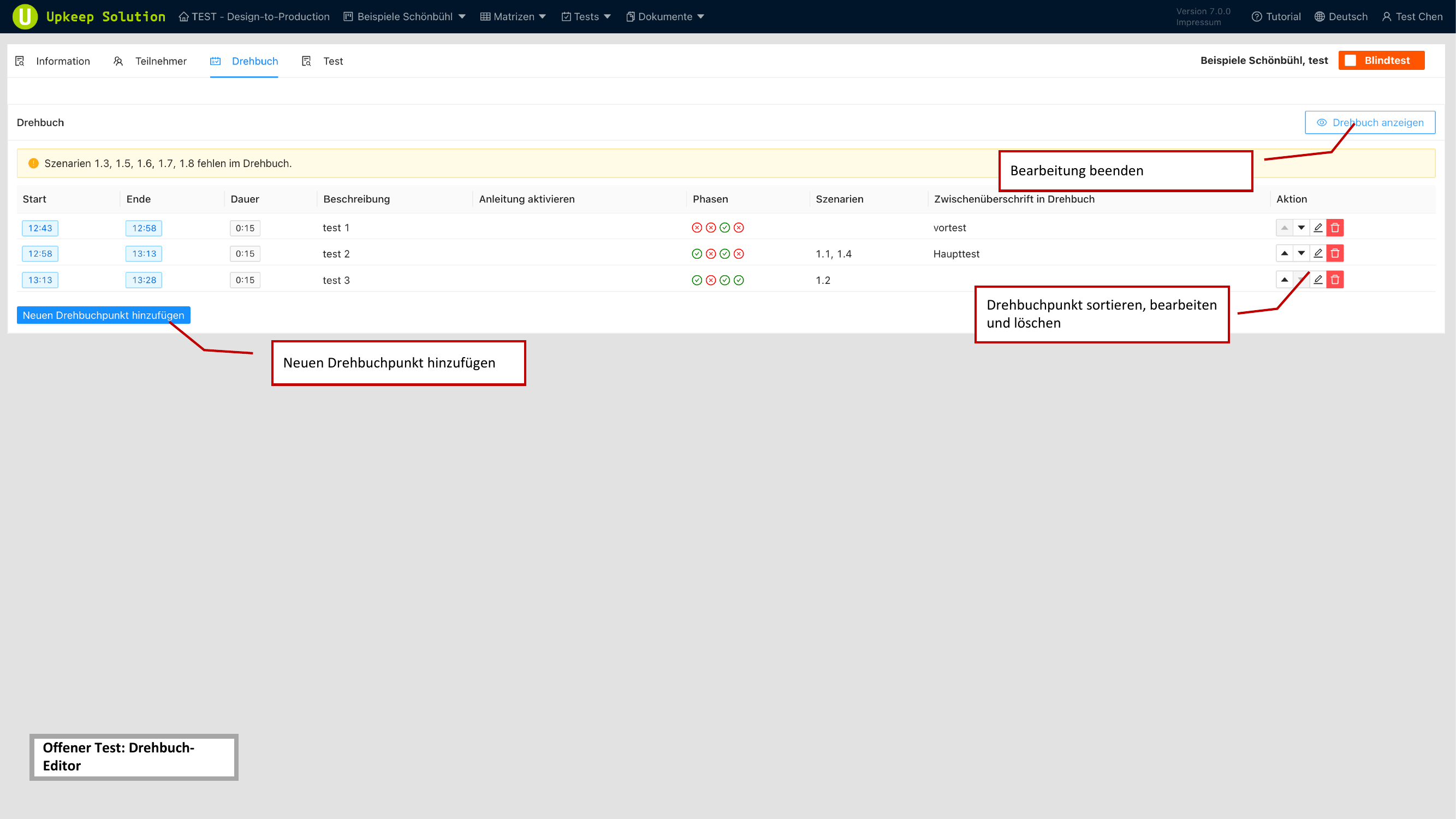
The table contains the following columns:
- Start — Start time of the script item
- Ende (End) — End time of the script item
- Dauer (Duration) — Duration in minutes
- Beschreibung (Description) — Free text to describe the item
- Phasen (Phases) — Associated phases
- Szenarien (Scenarios) — Assigned scenarios
The actions Sort, Edit, and Delete are available for each entry.
Scenarios that are not assigned to any script item are highlighted as a warning. Make sure all scenarios are assigned to an item before starting the test.
Adding a Script Item
Use the Punkt hinzufügen (Add Item) button to create a new script item.
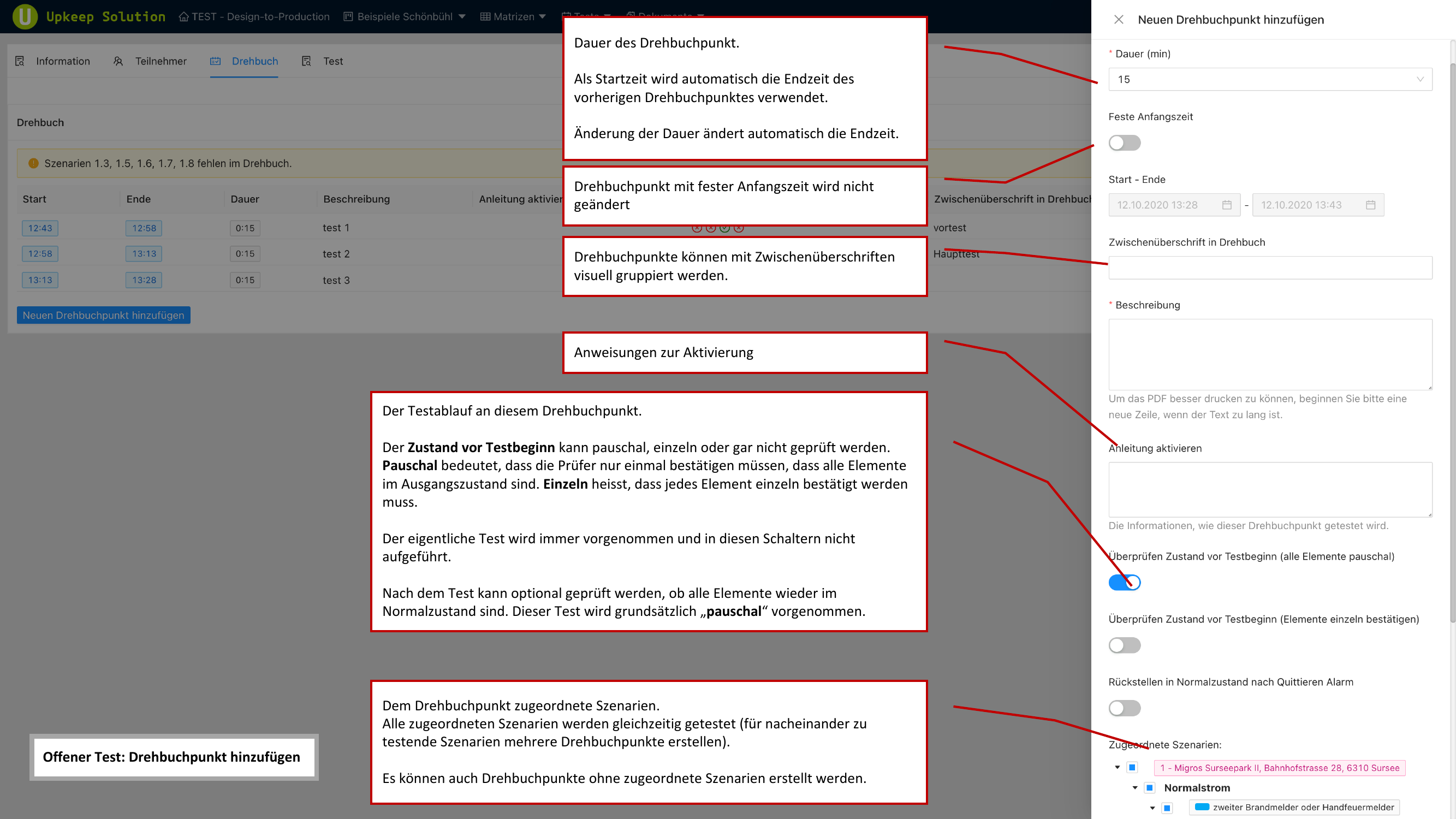
The following settings are available:
Scheduling
- Dauer (Duration) — The planned duration of the script item in minutes
- Feste Startzeit (Fixed Start Time) — Optionally, a fixed start time can be defined instead of having the item follow directly after the previous one
Description
A free text field for describing the script item. Use subheadings to visually divide the item into sections.
Activation Instructions
A toggle allows you to specify whether activation instructions should be displayed to participants.
Pre-Test State Check
Before starting a script item, a check of the normal state of the elements can be performed:
- Pauschal (Blanket) — A general confirmation that all elements are in their normal state
- Einzeln (Individual) — Each element must be individually confirmed as being in its normal state
Reset to Normal State
A toggle allows you to specify whether a reset of all elements to their normal state should be performed after the item is completed.
Assigning Scenarios
Select from the list of available scenarios those that should be tested in this script item. Each scenario can only be assigned to a single script item.