QR Code Scanning
The app supports QR code scanning to quickly identify and navigate to components.
How to Scan
There are two places you can initiate a QR scan:
- Component list — tap the QR button next to the search bar
- Component Status tab — tap "Link to QR" in the QR Code section
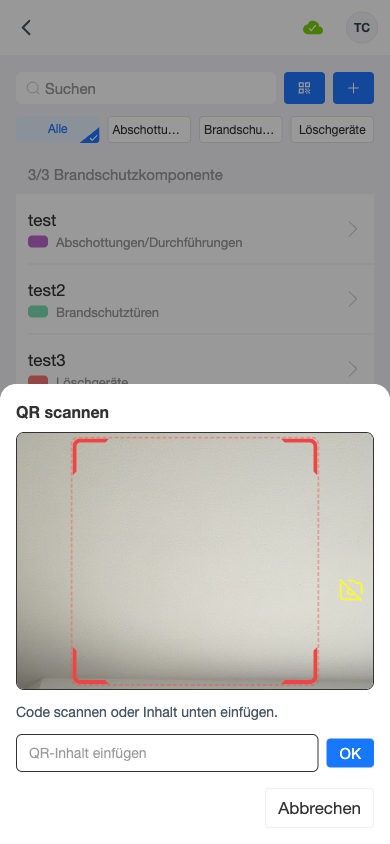
The QR scanner opens as a popup using your device's rear camera.
tip
If the camera is unavailable (e.g., permission denied or running on a desktop browser), the scanner falls back to a manual input field where you can paste the QR code content.
After Scanning
From the component list:
- If the QR code matches an existing component, you are navigated directly to that component
- If the QR code is not recognized, the Assign QR modal opens (see below)
From the Status tab:
- The QR code is linked to the current component
- If the QR is already assigned to another component, an error is shown
Assigning an Unrecognized QR Code
When a scanned QR code doesn't match any component, you can:
- Assign to an existing component — search through components that don't have a QR code yet and tap one to link it
- Create a new component — fill in the category, type, and optional name/description to create a new component with the QR code already linked
Unlinking a QR Code
On the Status tab, if a QR code is already linked, you'll see a green checkmark and an unlink button. Tap the unlink button and confirm to remove the association.