Offline Mode
The Upkeep Mobile App can be used without an internet connection. Test results and comments are cached locally and can be synchronized once the connection is restored.
Automatic Detection
The app continuously checks the internet connection. When the connection is lost, a notification is automatically displayed and the app switches to offline mode. A red status bar at the top of the screen indicates that you are offline.
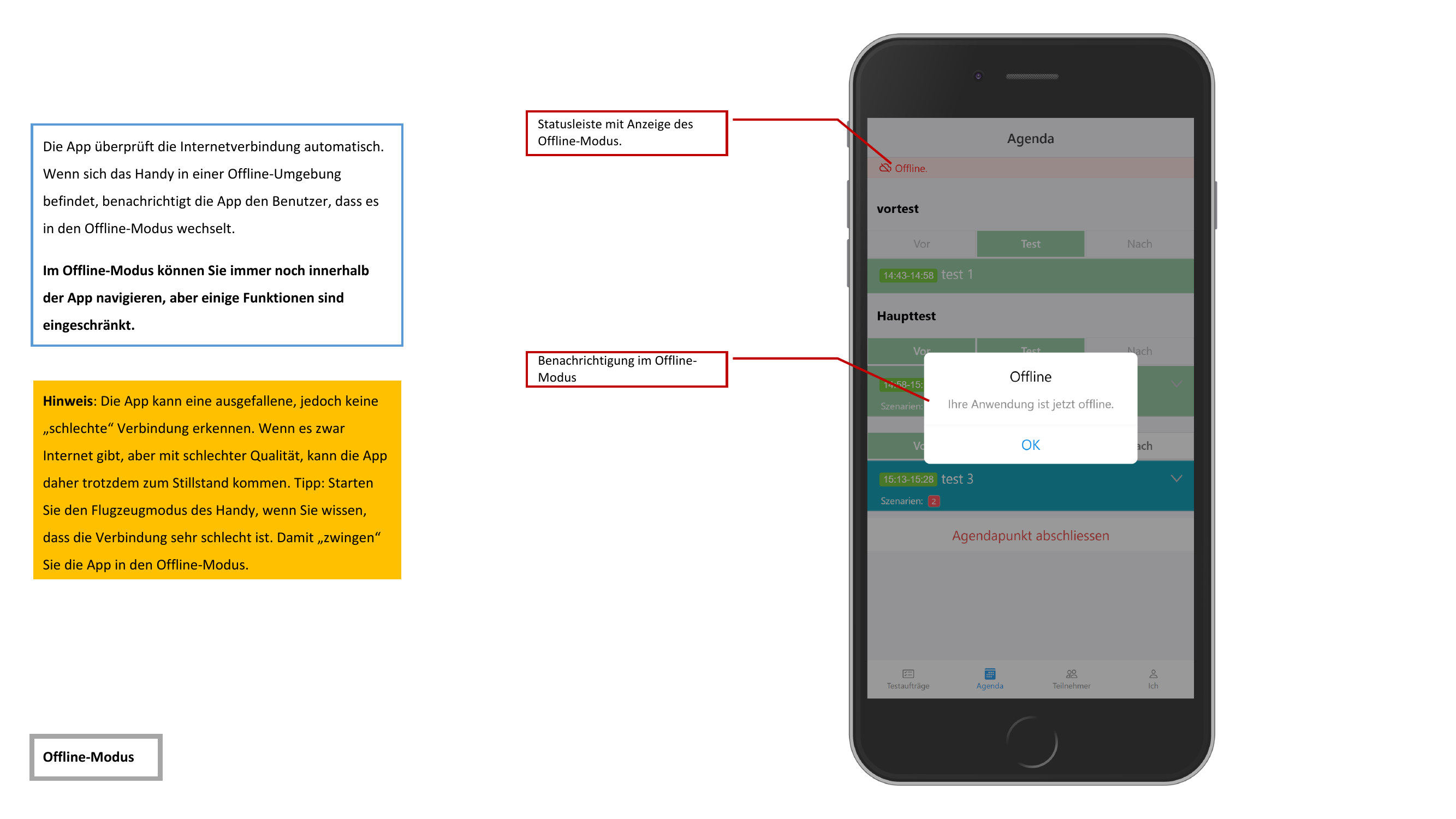
If the connection is unstable — not completely interrupted, but too poor for reliable data transfer — the app cannot detect this automatically. In this case, enable Airplane Mode on your device to deliberately force offline mode.
Limitations in Offline Mode
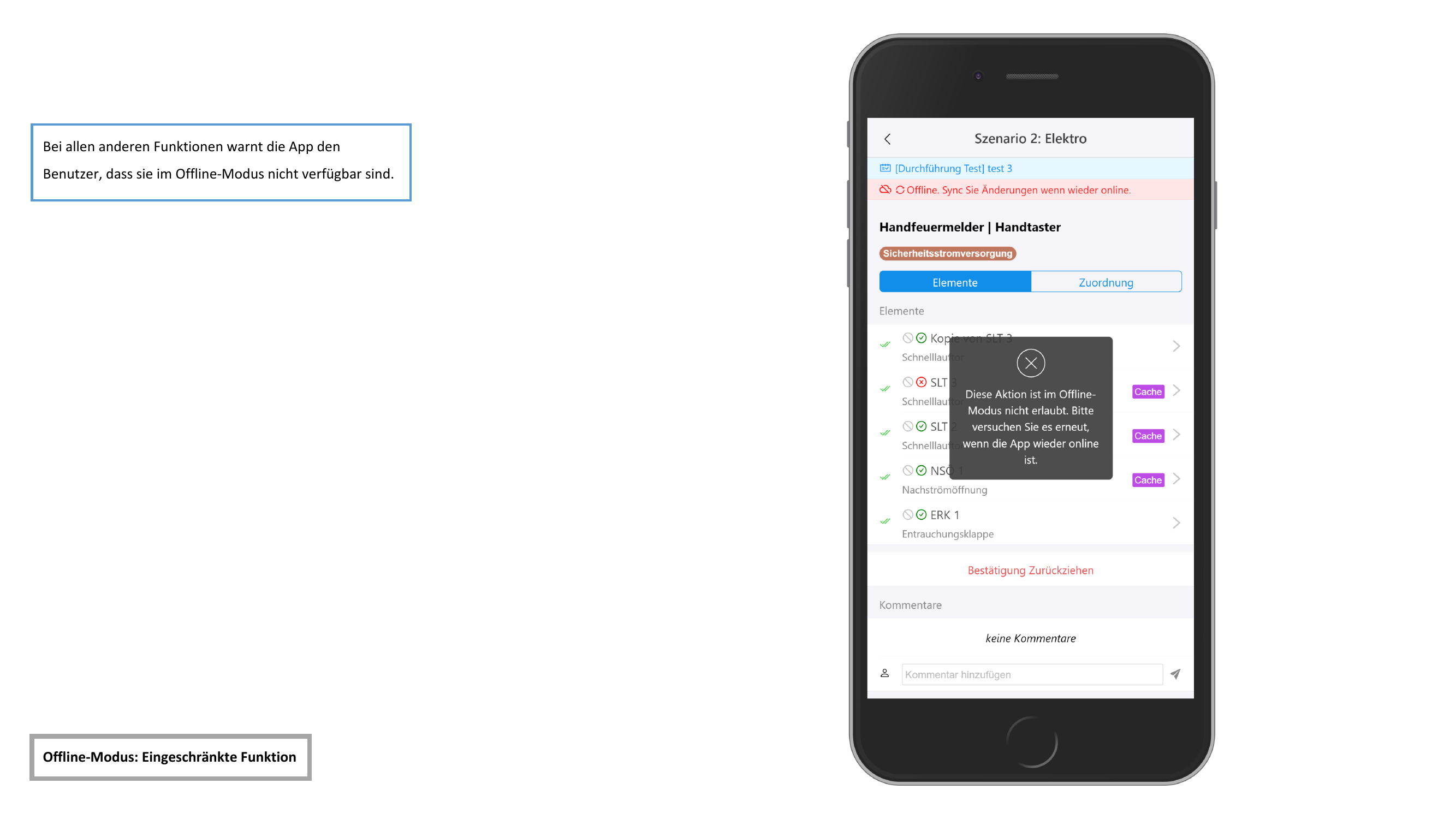
Navigation within the app works offline as well. However, some functions are restricted. If you attempt to perform an unavailable action, a warning dialog with a corresponding message will appear.
Caching Comments
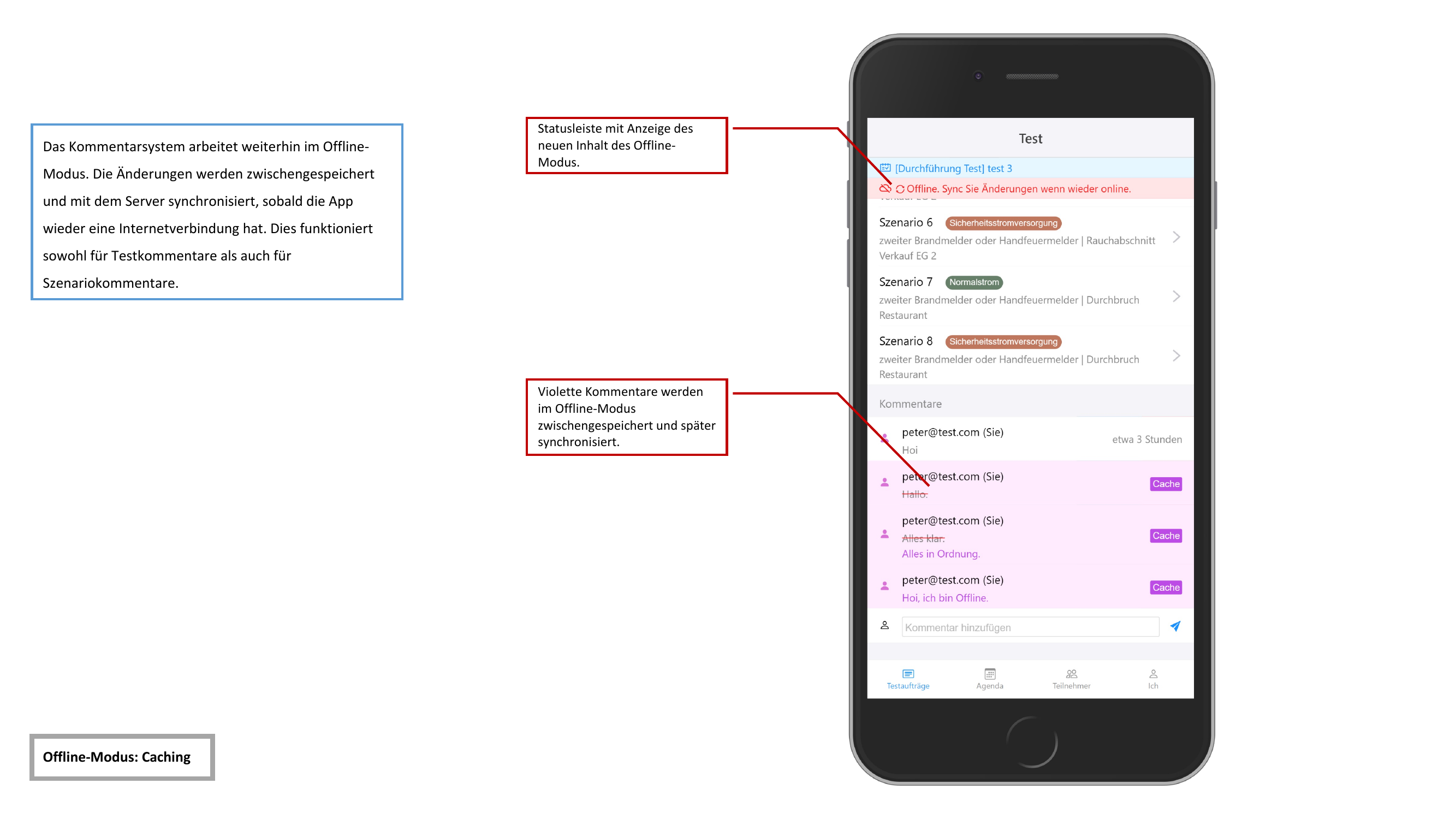
Comments can be written in offline mode — both test comments and scenario comments. Cached comments are visually highlighted in the list:
- Purple appearance to distinguish them from synchronized comments
- A "Cache" badge marks the comment as not yet synchronized
Cached comments are automatically synchronized once the connection is restored.
Caching Test Results
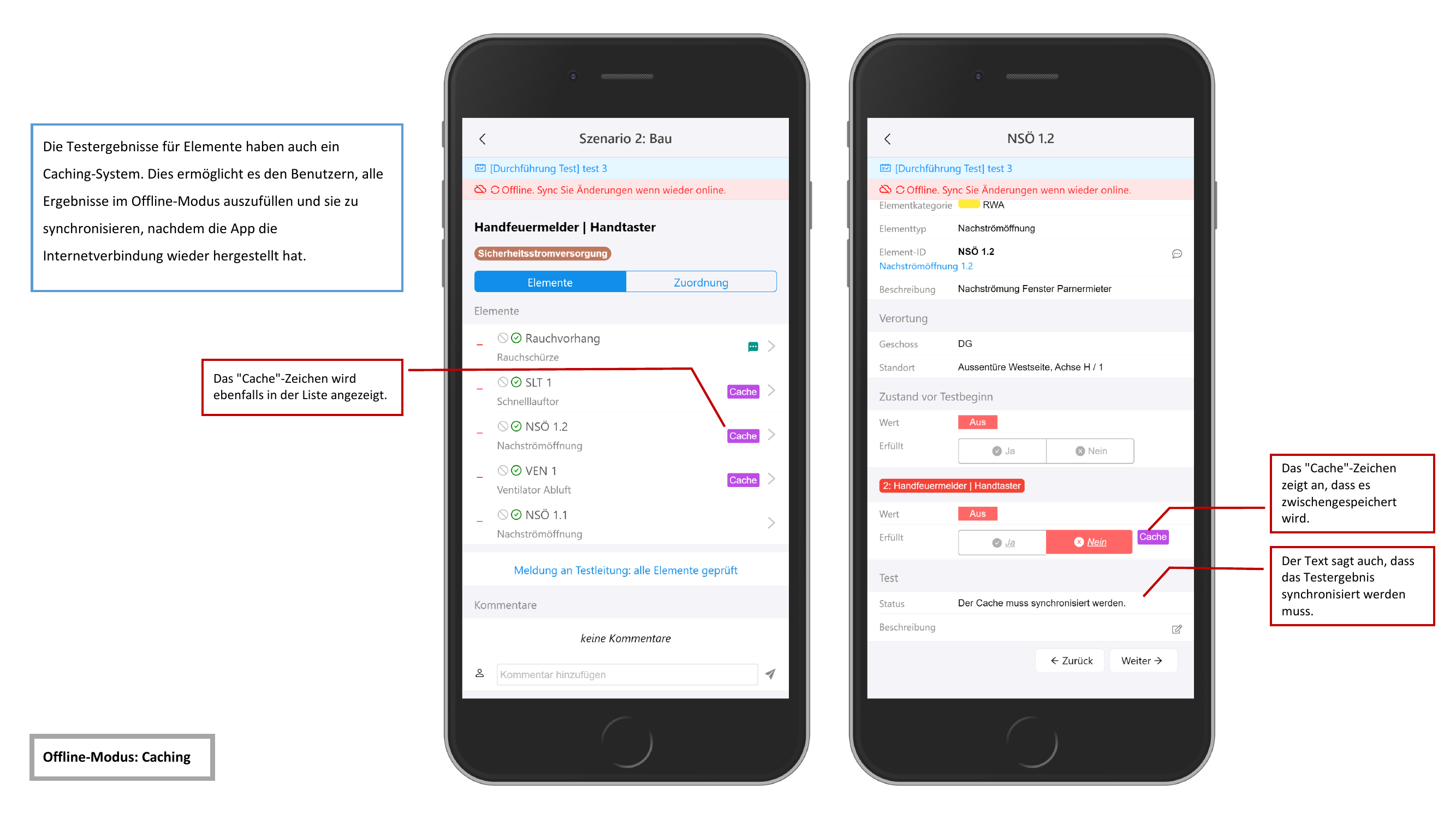
Test results can be filled in and saved in offline mode. Cached results are recognizable by:
- A "Cache" badge next to the element
- The status text "Der Cache muss synchronisiert werden" (The cache needs to be synchronized)
Going Back Online
Once the internet connection is restored, the app automatically detects this and displays a corresponding notification.
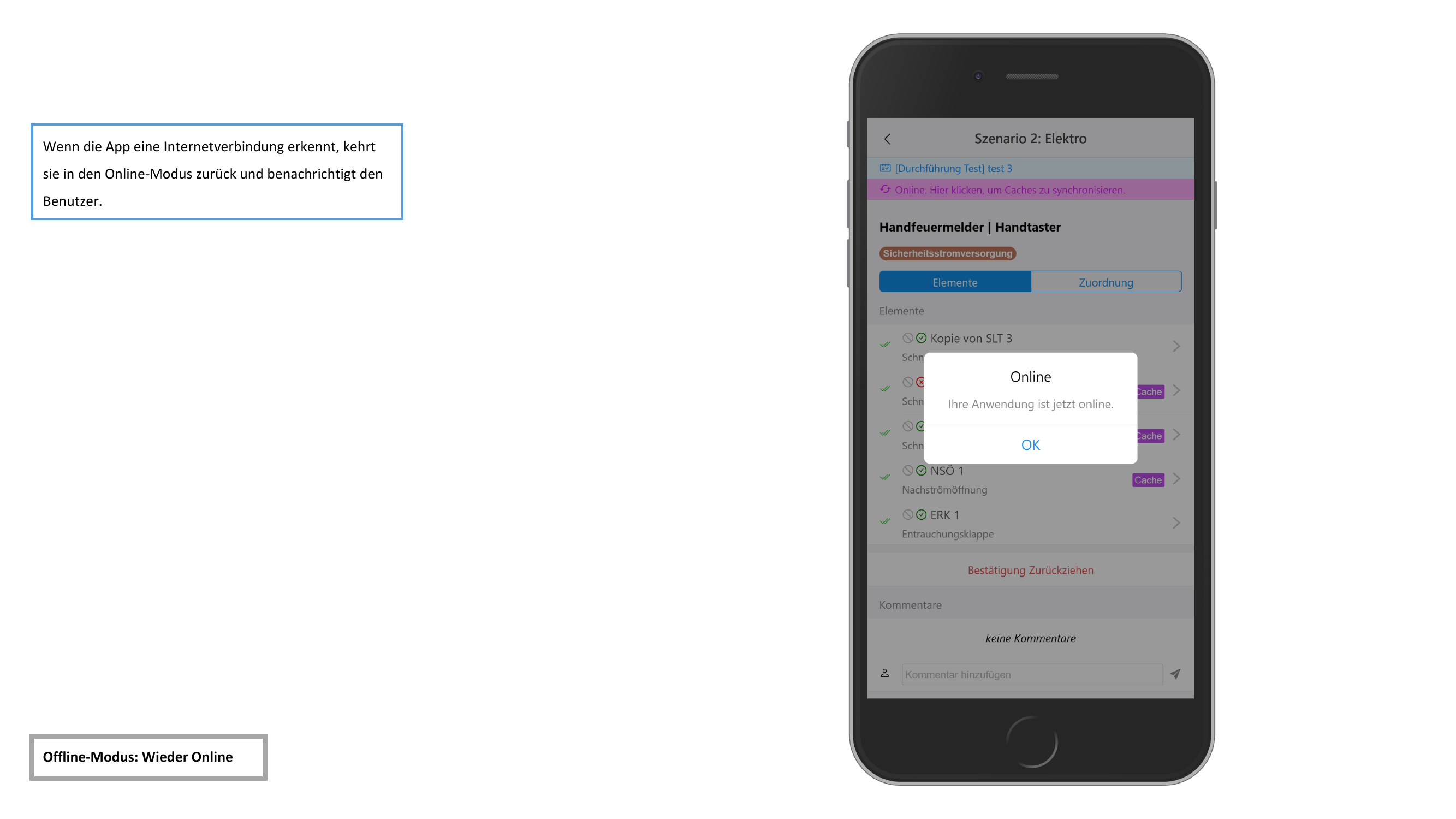
Cached test results are not automatically synchronized. You must manually trigger the synchronization by tapping on the status bar. This is a deliberate design decision: since the app cannot reliably assess the quality of the connection, you should ensure that a stable connection exists before the data is transmitted.
Performing Synchronization
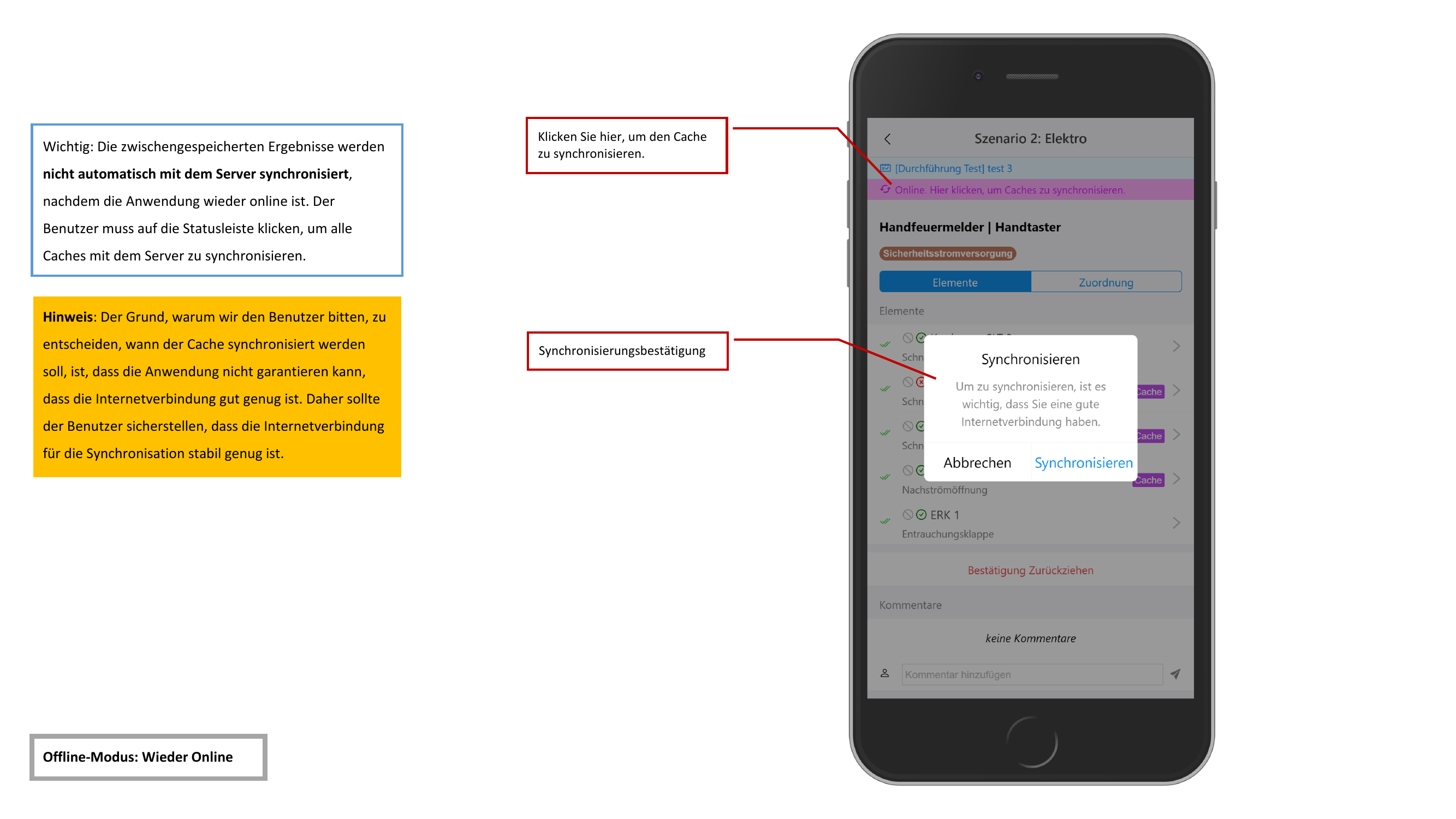
Tap on the status bar to start the synchronization. A confirmation dialog appears with the following message:
- A stable internet connection is needed for synchronization
- Two buttons are available:
- Abbrechen (Cancel) — Synchronization will not be started, data remains in the cache
- Synchronisieren (Synchronize) — Starts the transfer of cached data to the server
Make sure you have a stable Wi-Fi or cellular connection before starting the synchronization. Do not interrupt the synchronization until all data has been successfully transferred.