Test Execution
Test execution is the core function of the Mobile App. Here you process your test orders, record results for each element, and complete scenarios.
Test Orders
The test orders show all testable elements, sorted by scenario. Each scenario is displayed with its number and the power supply — either Normalstrom (normal power) or Sicherheitsstromversorgung (emergency power supply).
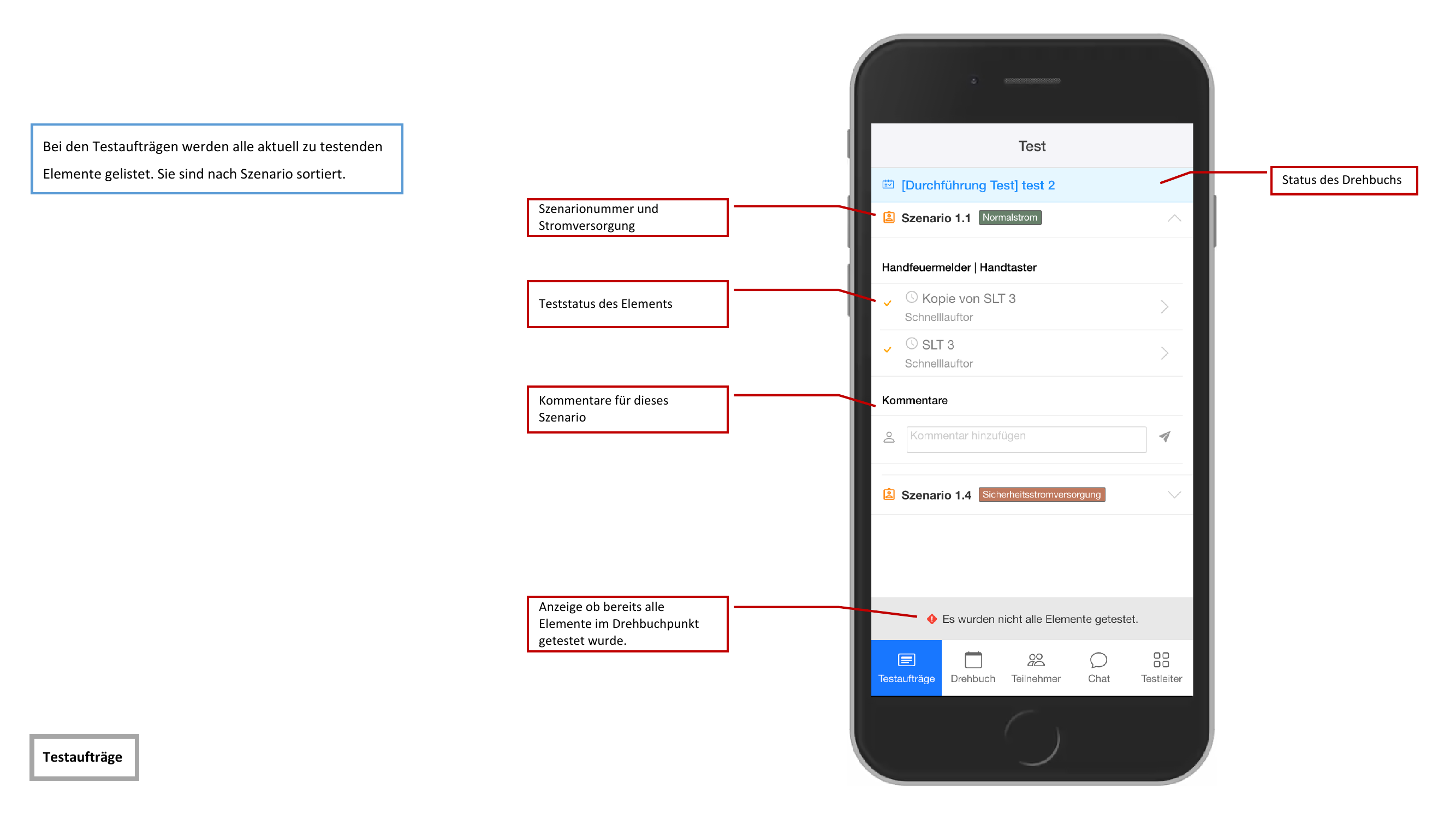
Each element in the list shows its current test status through a colored icon.
As long as not all elements of a scenario have been inspected, the scenario remains marked as incomplete. Make sure you process every element before completing the scenario.
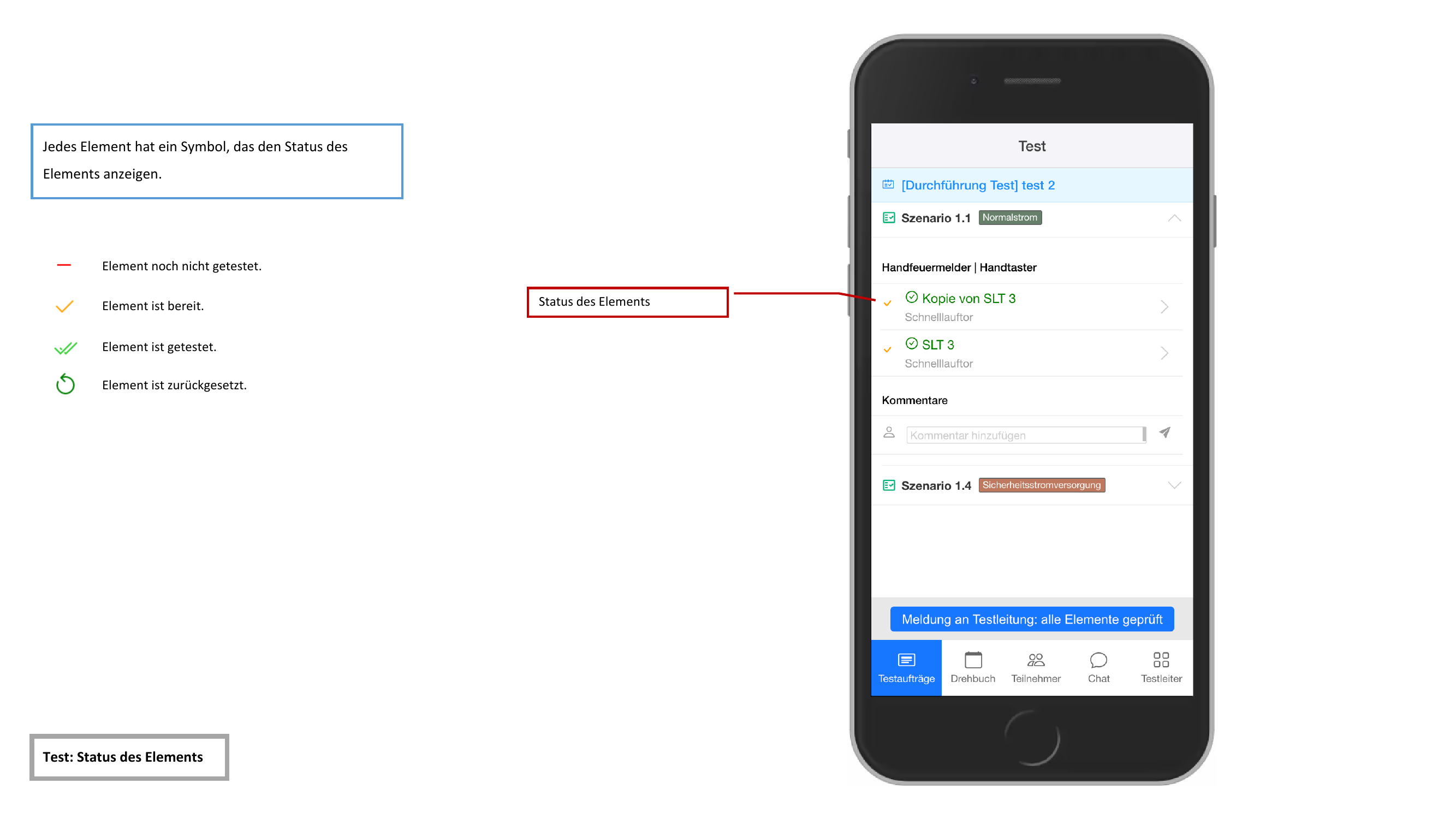
Element Status Indicators
The elements in the test list are displayed with the following status icons:
| Icon | Meaning |
|---|---|
| Red dash | Not yet tested |
| Single green checkmark | Ready |
| Double green checkmark | Tested |
| Gray circular arrow | Reset |
Result Icons
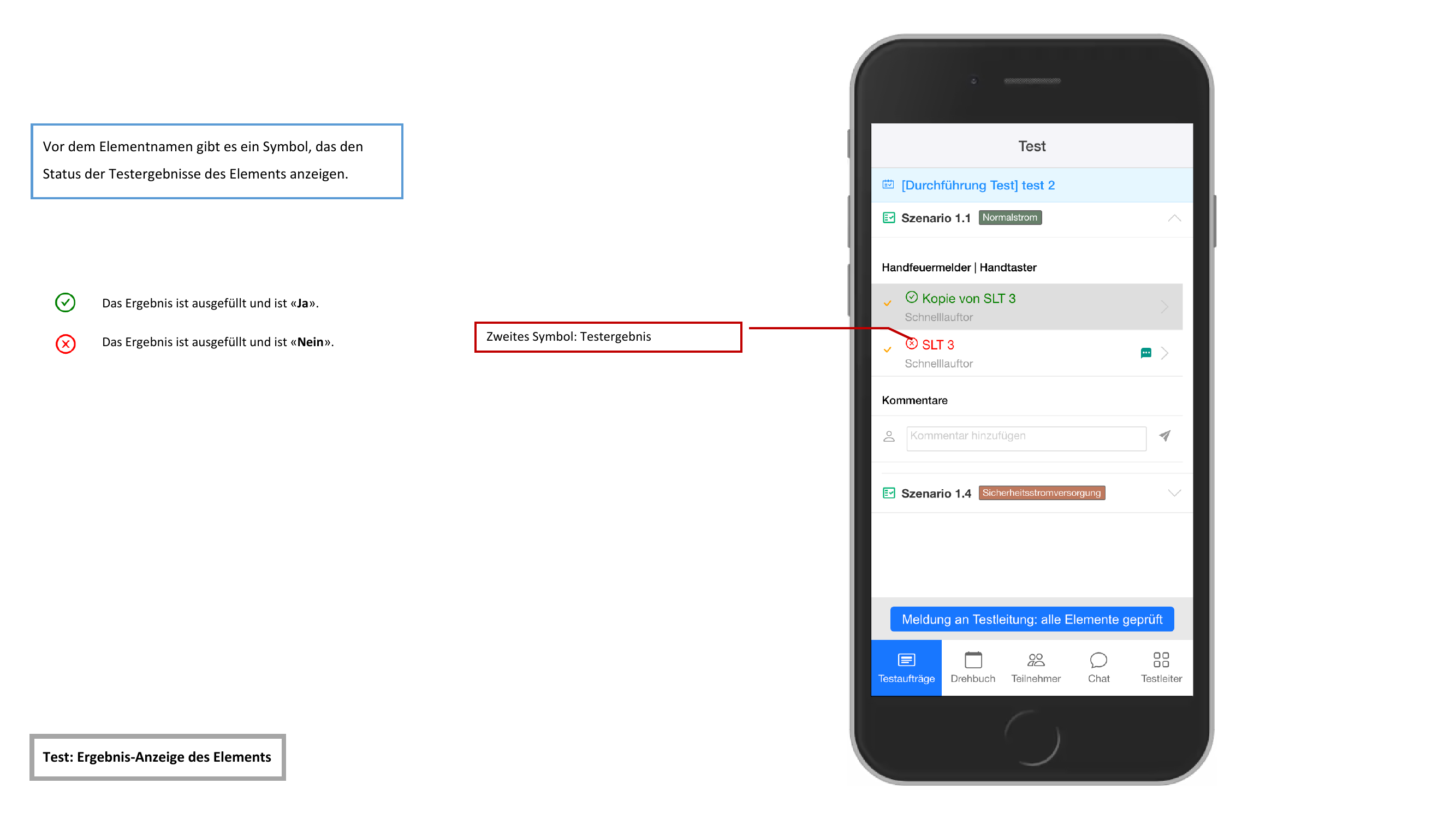
In addition to the test status, further icons indicate the recorded result:
| Icon | Meaning |
|---|---|
| Green circle with checkmark | Result "Yes" |
| Red circle with X | Result "No" |
| Camera icon | Photos attached |
Recording an Element Result
Tap on an element to open the detail page. Here you can see the current agenda item and the action status.
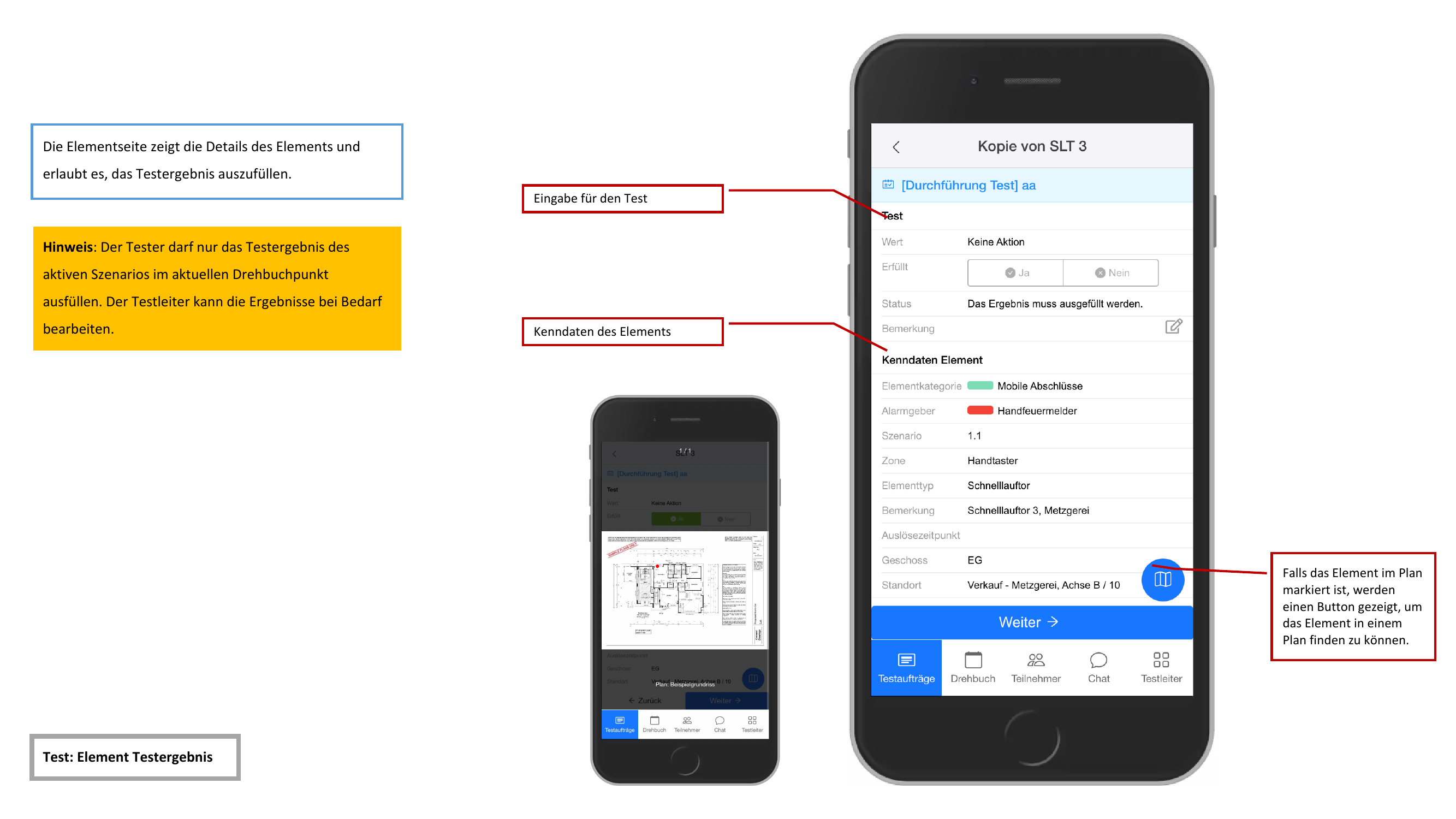
On the detail page, the following fields are available:
- Ergebnis (Result) — Toggle between Ja (Yes) and Nein (No)
- Bemerkung (Remark) — Free text field for additional notes
Below the result fields, the element specifications are displayed:
- Kategorie (Category)
- Alarmierungsgerät (Alarm device)
- Modell (Model)
- Hersteller (Manufacturer)
- Geschoss (Floor)
- Standort (Location)
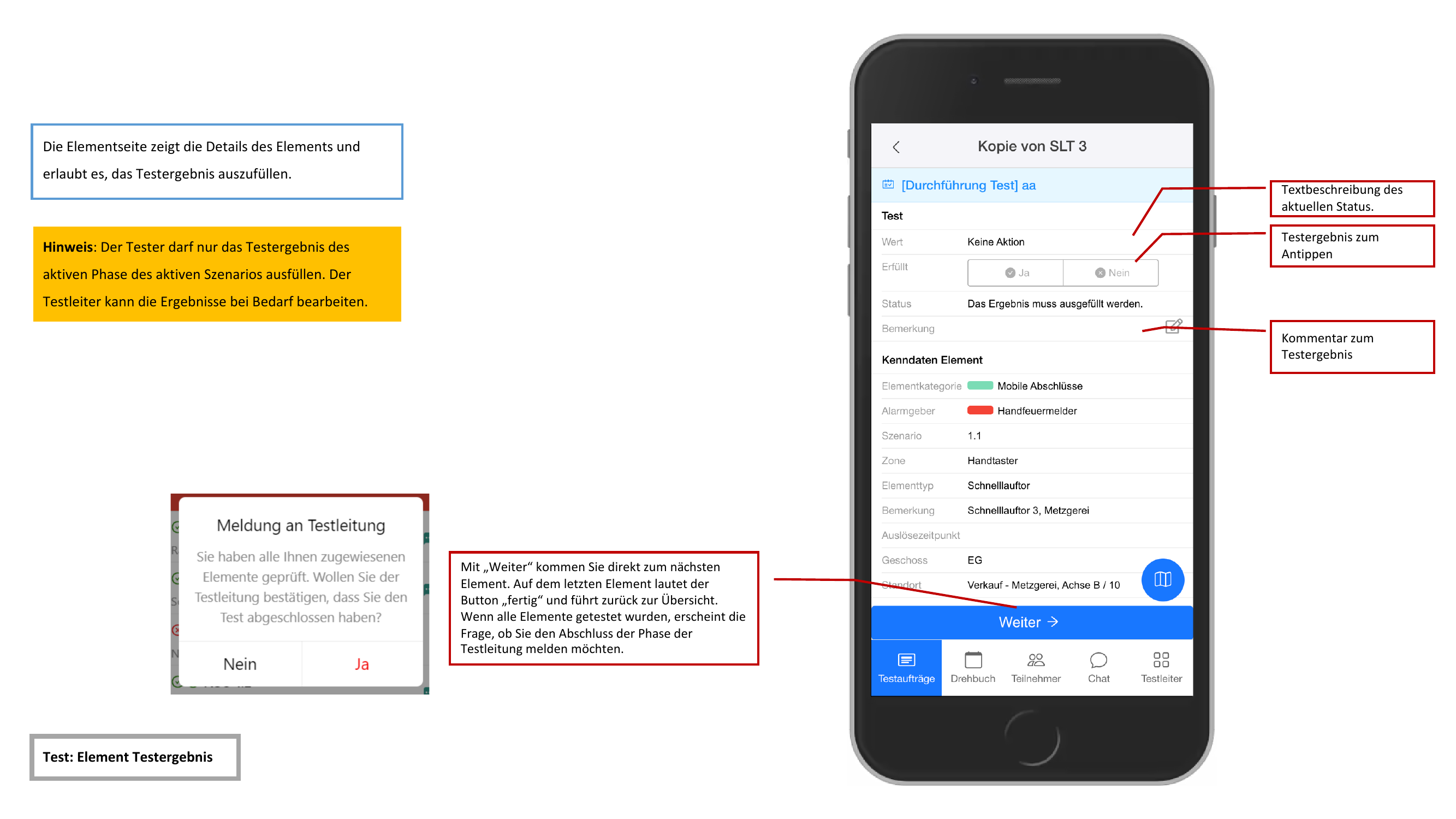
Use the "Weiter" (Next) button to jump directly to the next element. On the last element of the scenario, "Fertig" (Done) is displayed instead.
If the element is marked on a floor plan, you can use the floor plan button to view the plan with the marked position of the element.
Blind Test Mode
In blind test mode, the expected state of the element is not displayed. Instead of Yes/No, the tester records the actually observed state — for example Auf/Zu (Open/Closed) or An/Aus (On/Off).
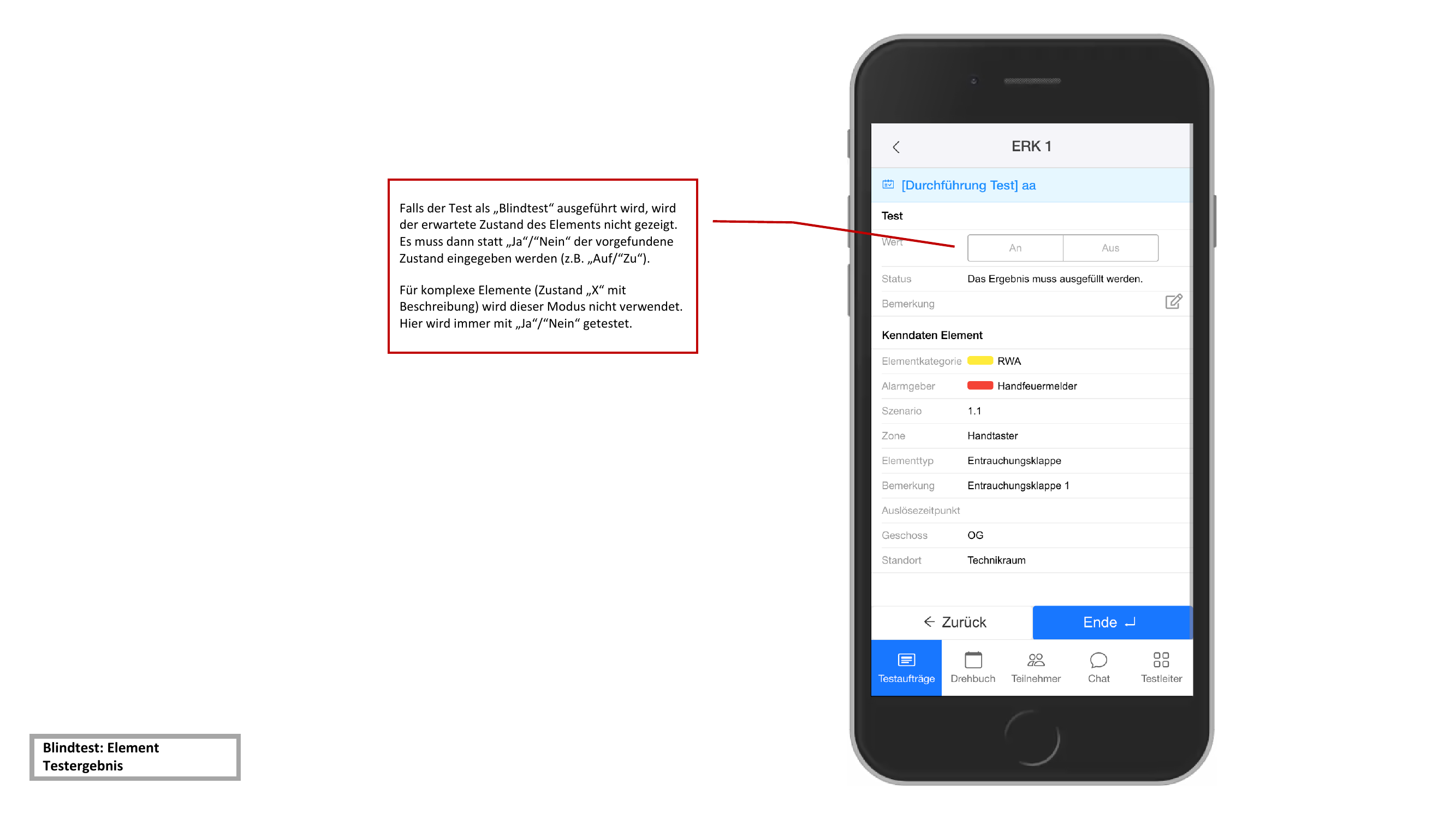
Complex elements with the state "X" and an additional description use the regular Yes/No recording even in blind test mode.
Completing a Scenario
When all elements of a scenario are marked as inspected (all icons green), the button "Meldung an Testleitung: alle Elemente geprüft" (Report to test leader: all elements inspected) appears.
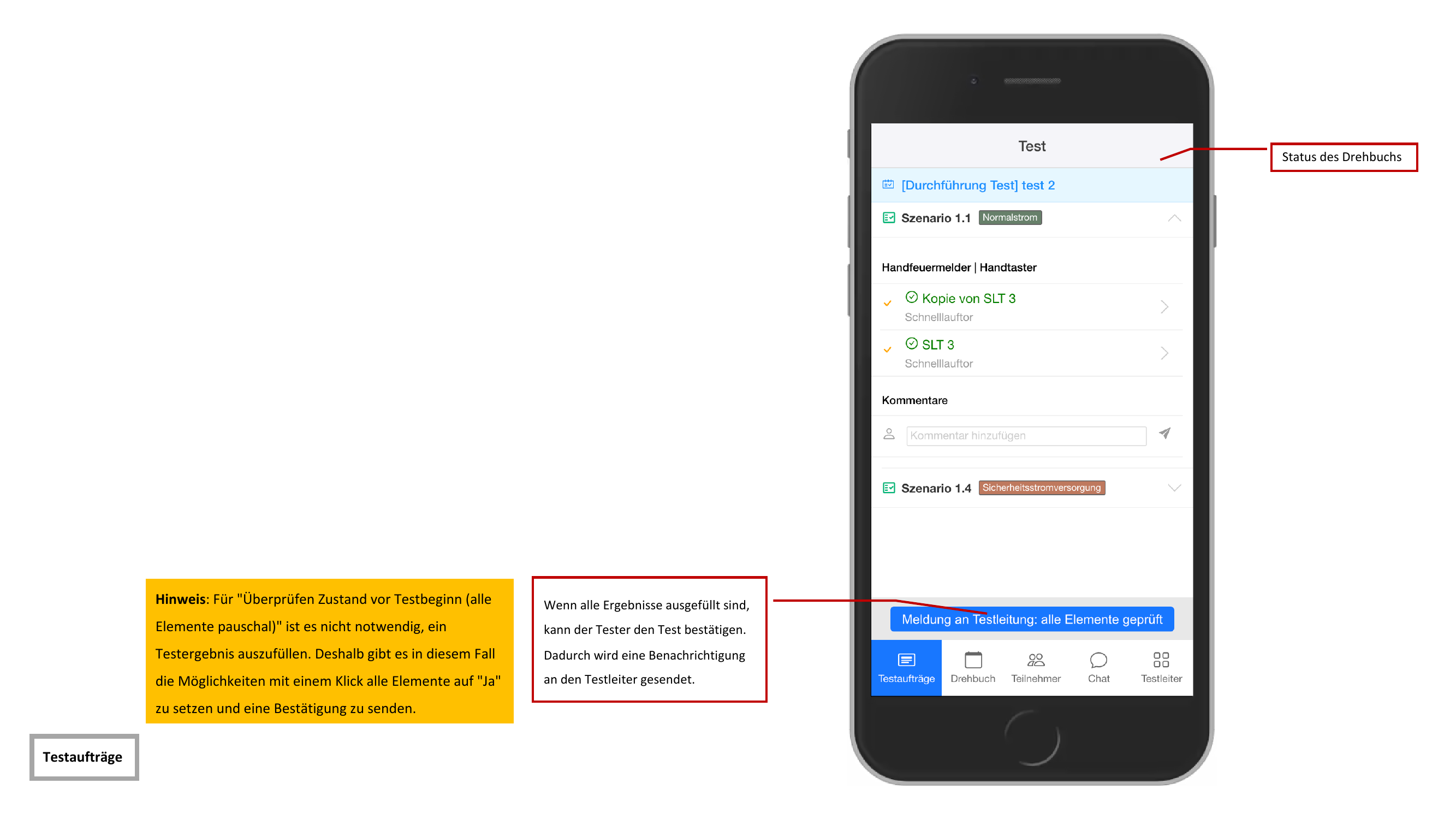
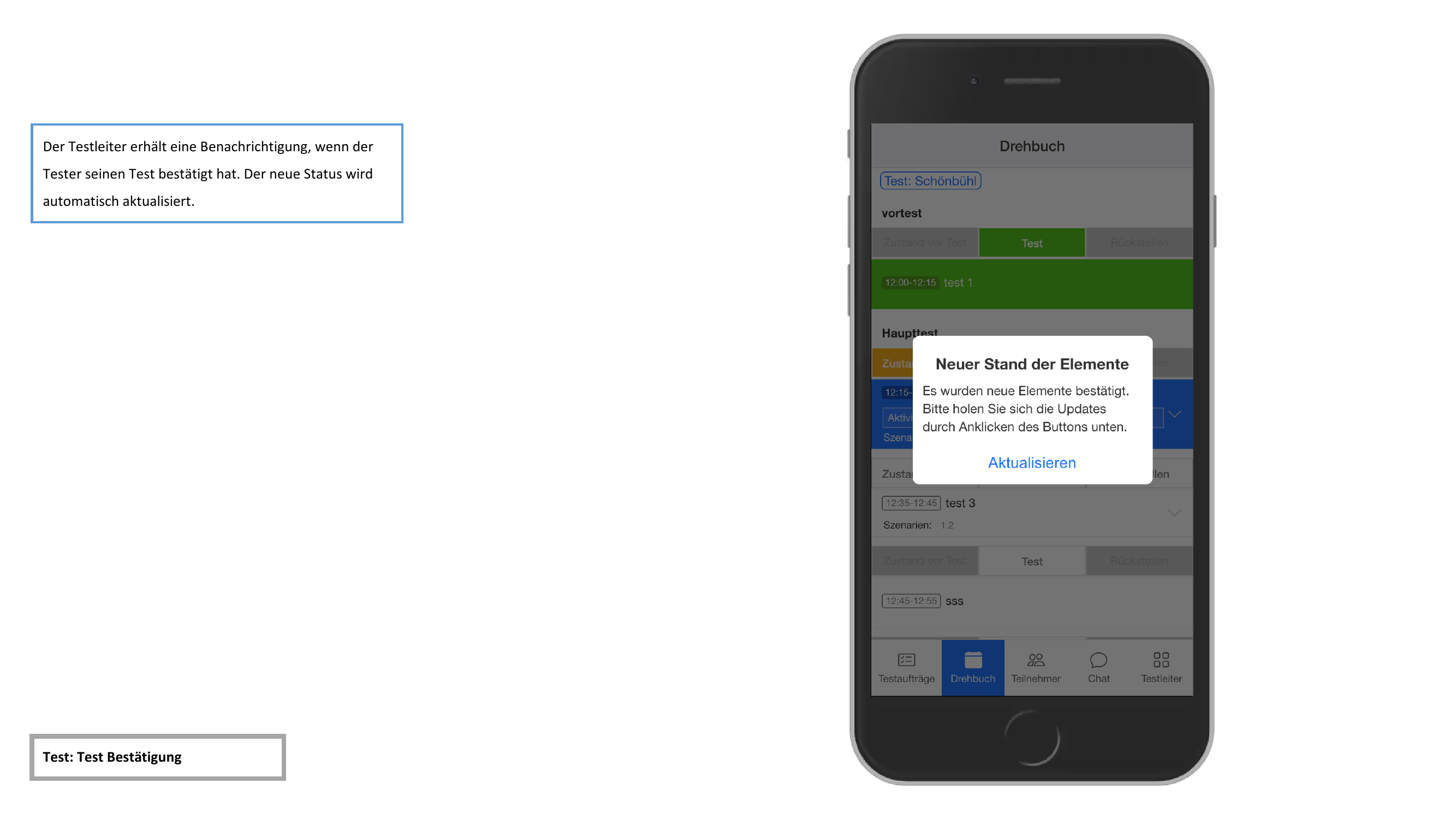
By tapping this button, the test leader is notified that all elements of the scenario have been inspected.
For the scenario type "Überprüfung Zustand vor Testbeginn (alle Elemente pauschal)" (Verify state before test start — all elements at once), a single click is sufficient to set all elements to "Yes".
Comments
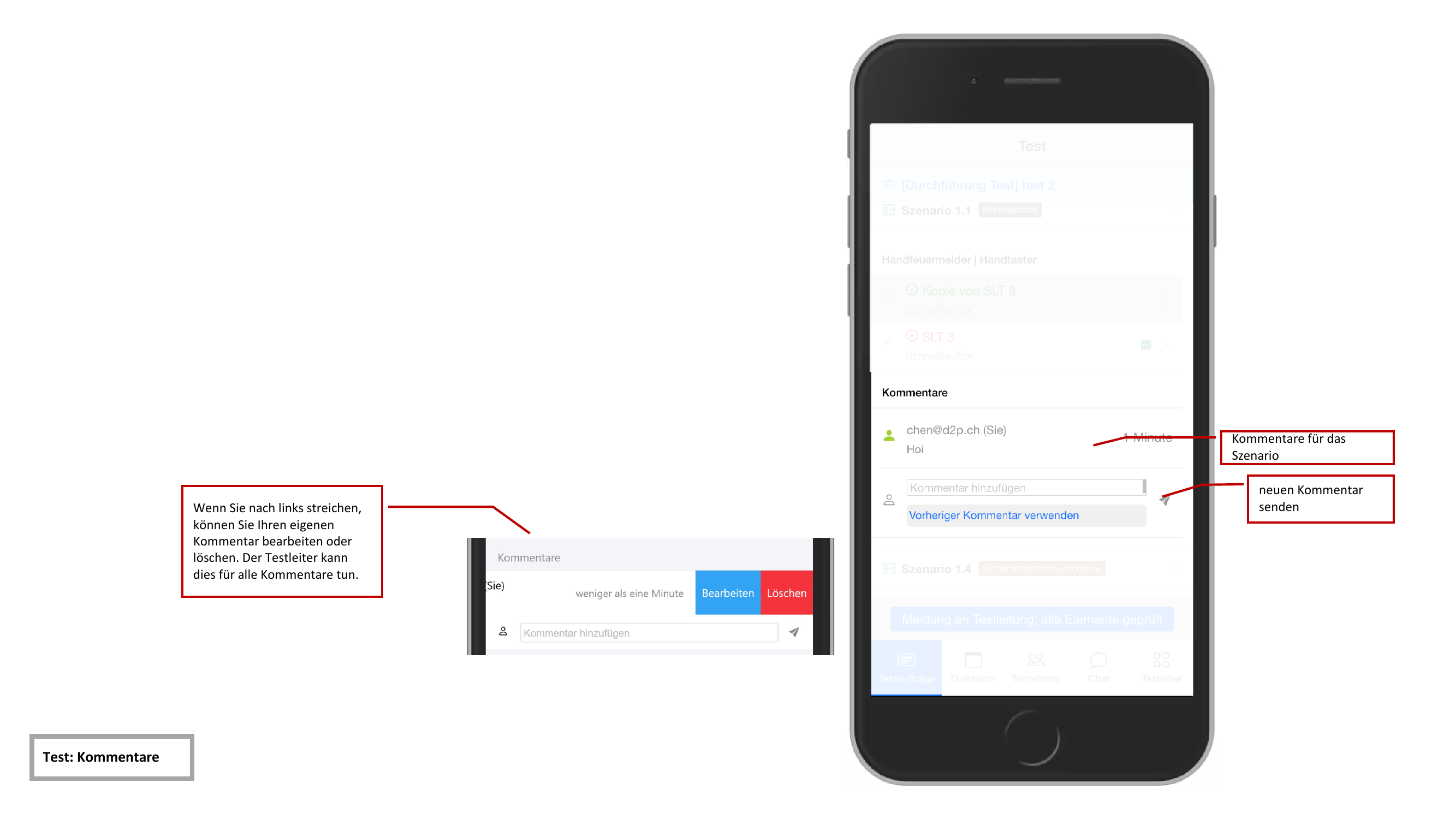
Comments can be added to each scenario.
Adding a Comment
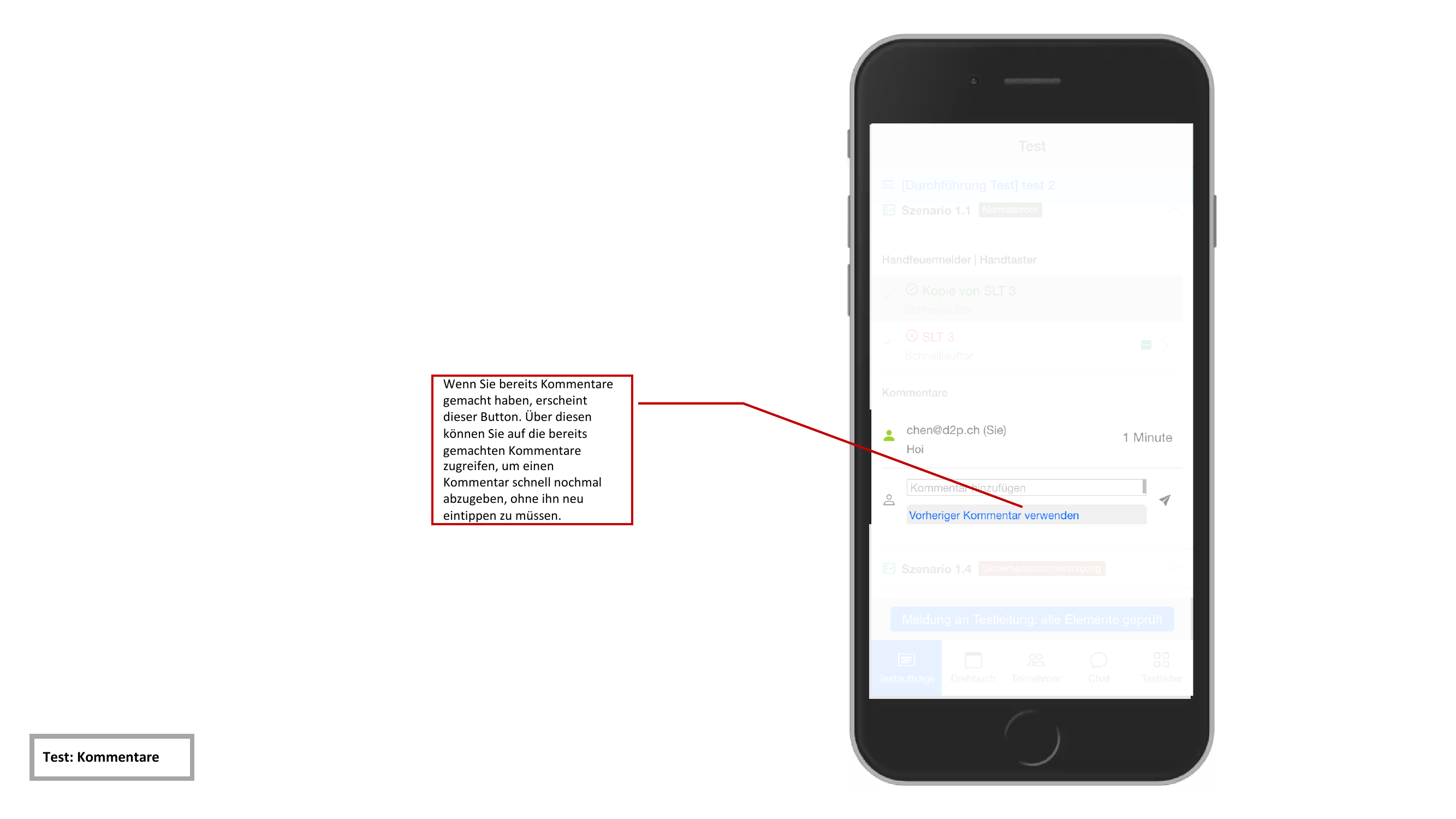
Tap the comment field and enter your text. With the "Vorheriger Kommentar verwenden" (Use previous comment) function, you can quickly reuse an earlier comment without having to retype it.
Editing or Deleting a Comment
Swipe a comment to the left to display the options for editing or deleting.
The test leader has permission to edit and delete all comments — not just their own.