Matrix Tools
The desktop app provides a range of tools for efficiently editing elements, exporting and importing data, and securing the state of the matrix.
Batch Editing
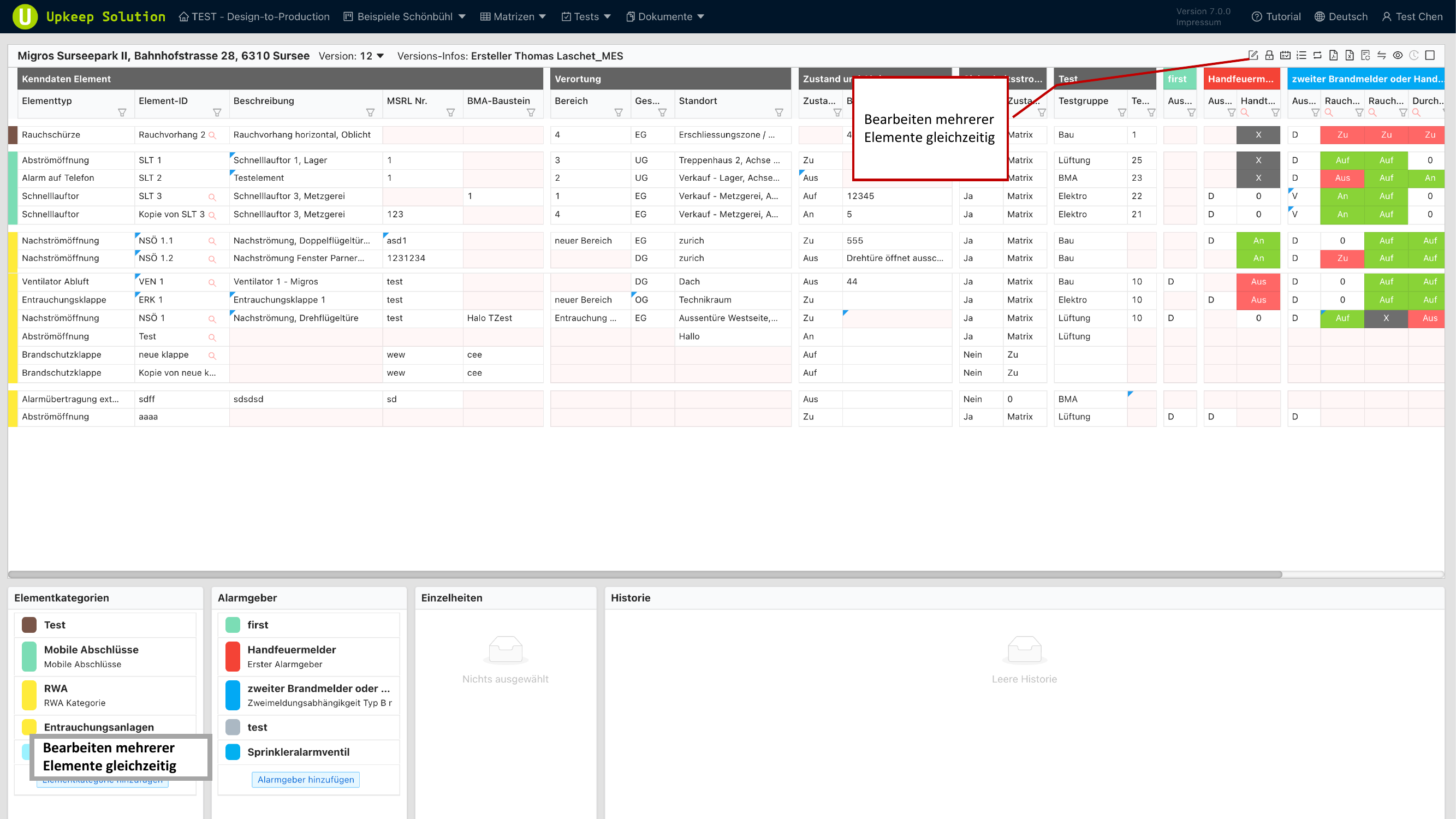
With Stapelbearbeitung (Batch Editing), you can apply actions to multiple elements at once instead of editing each element individually.
Selecting Elements
- Activate batch editing mode via the toolbar
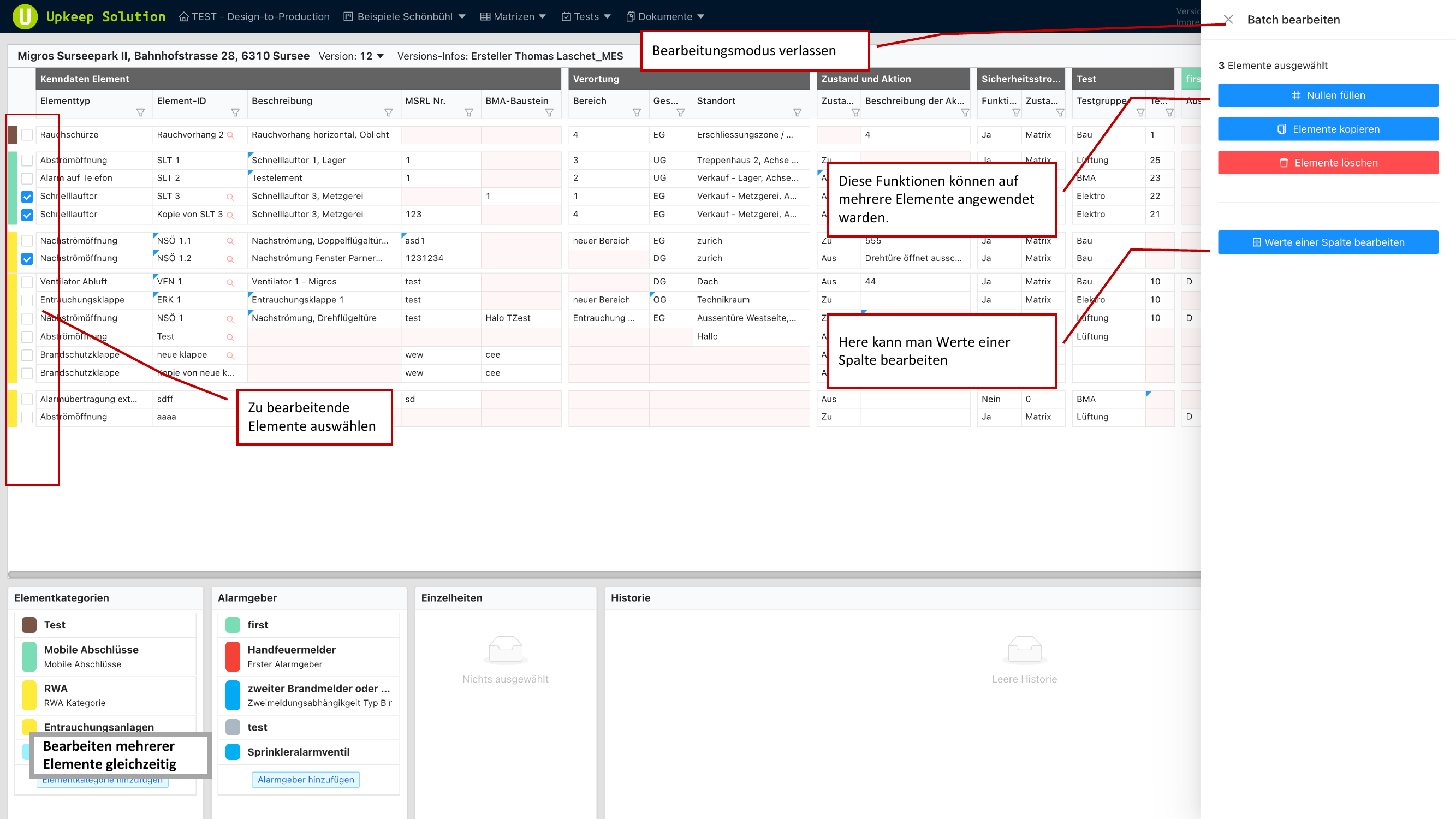
- Select the desired elements by checking the checkboxes in the rows
- Alternatively, you can select all elements of a category or the entire matrix
Available Actions
After selecting elements, the following actions are available:
- Zeilen löschen (Delete Rows) — Removes the selected element rows from the matrix
- Elemente kopieren (Copy Elements) — Duplicates the selected elements
- Elemente löschen (Delete Elements) — Permanently deletes the selected elements
- Spaltenwerte bearbeiten (Edit Column Values) — Changes a specific column value for all selected elements at once
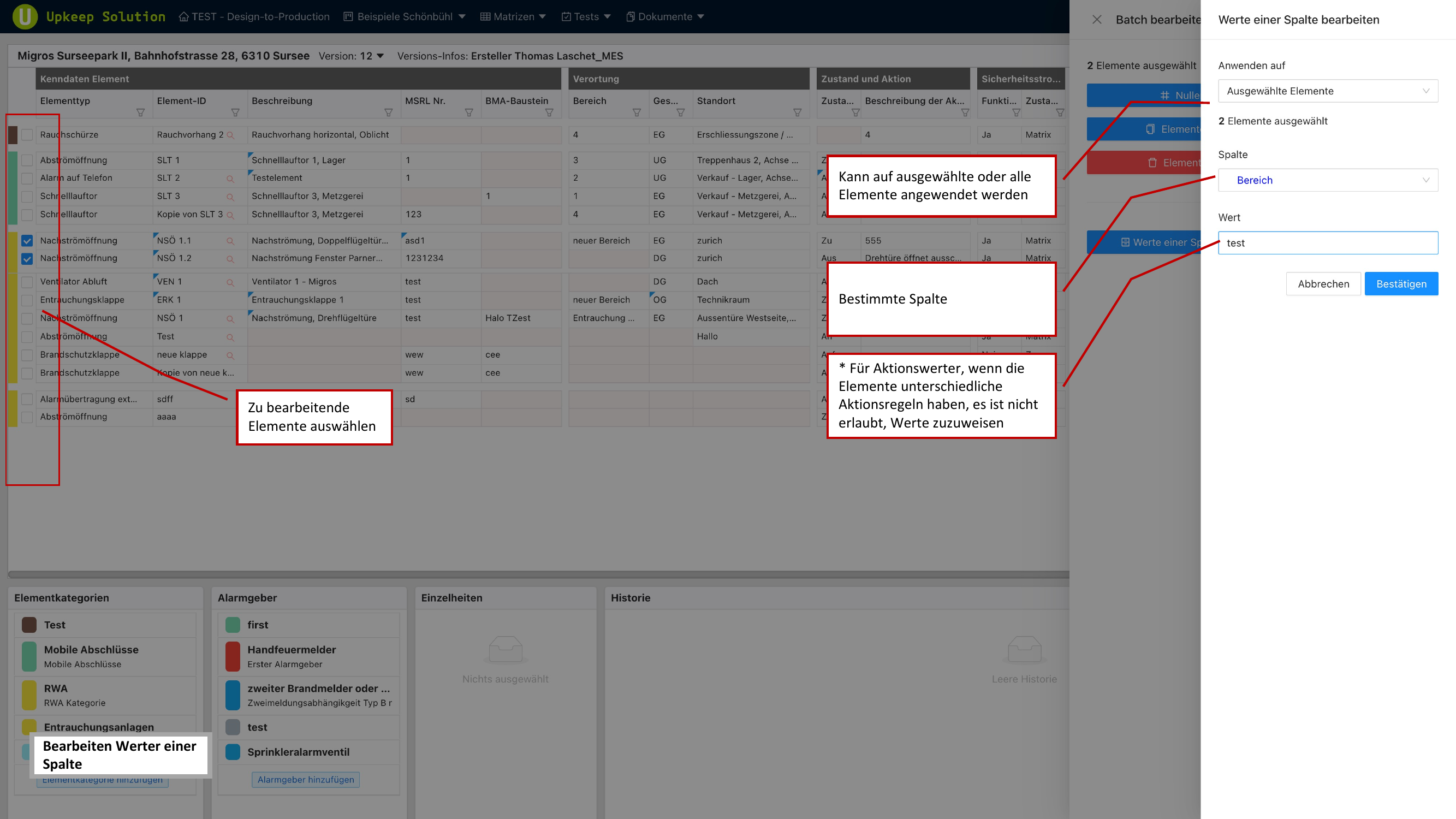
Batch editing of column values is particularly useful when you want to update the location or status of many elements simultaneously. Select the column, enter the new value, and apply it to all selected elements.
Export
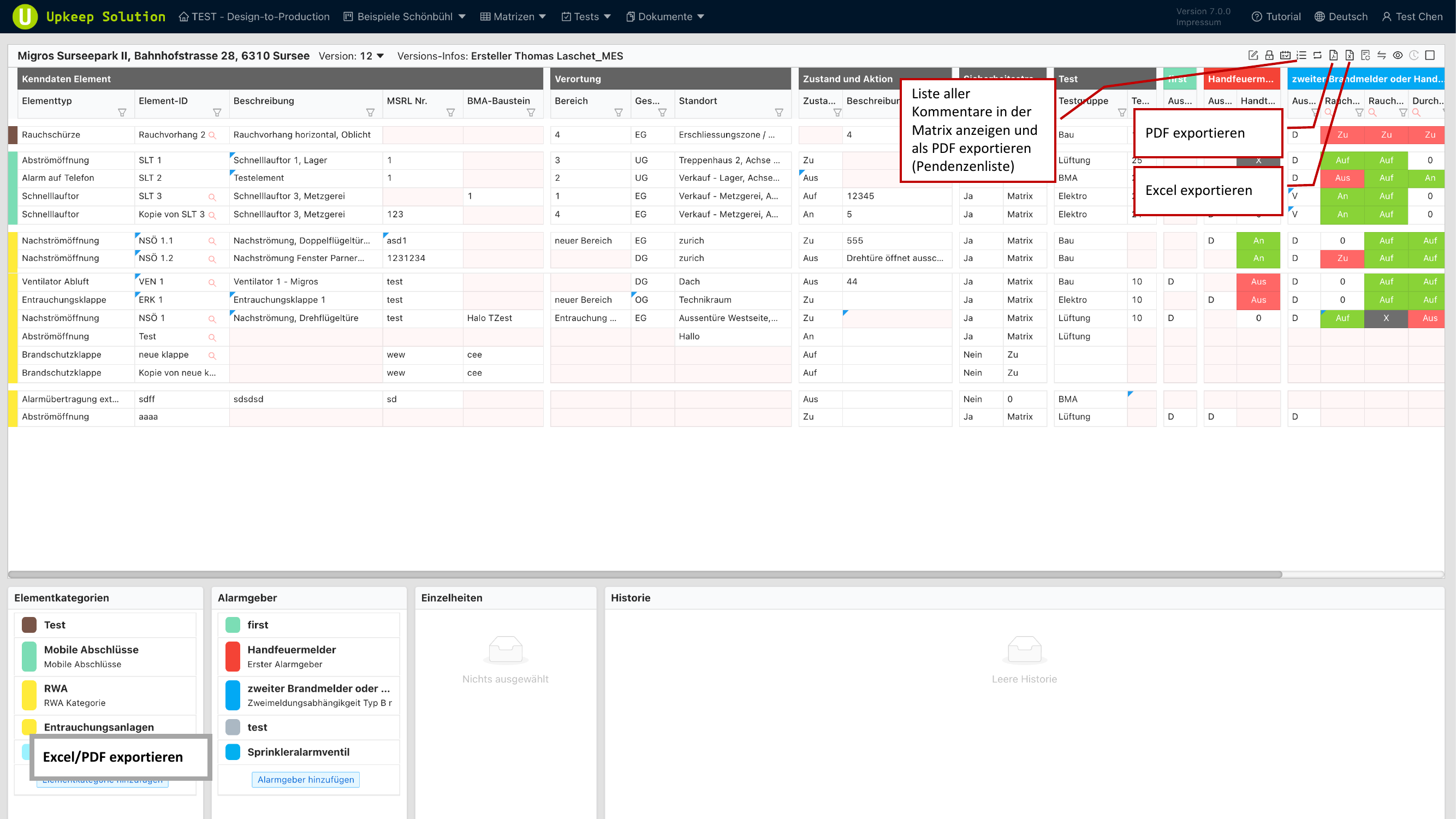
The matrix can be exported in various formats. Open the export menu using the corresponding button in the toolbar.
PDF Export
Exports the matrix as a PDF document. The export includes the current table view including a comment list, if comments are present.
Excel Export
Exports the matrix as an Excel file (.xlsx). All columns and rows of the current view are included. The Excel file can also be used as a template for later import.
Comment List
The Kommentarliste (Comment List) provides an overview of all comments that have been added to the matrix.
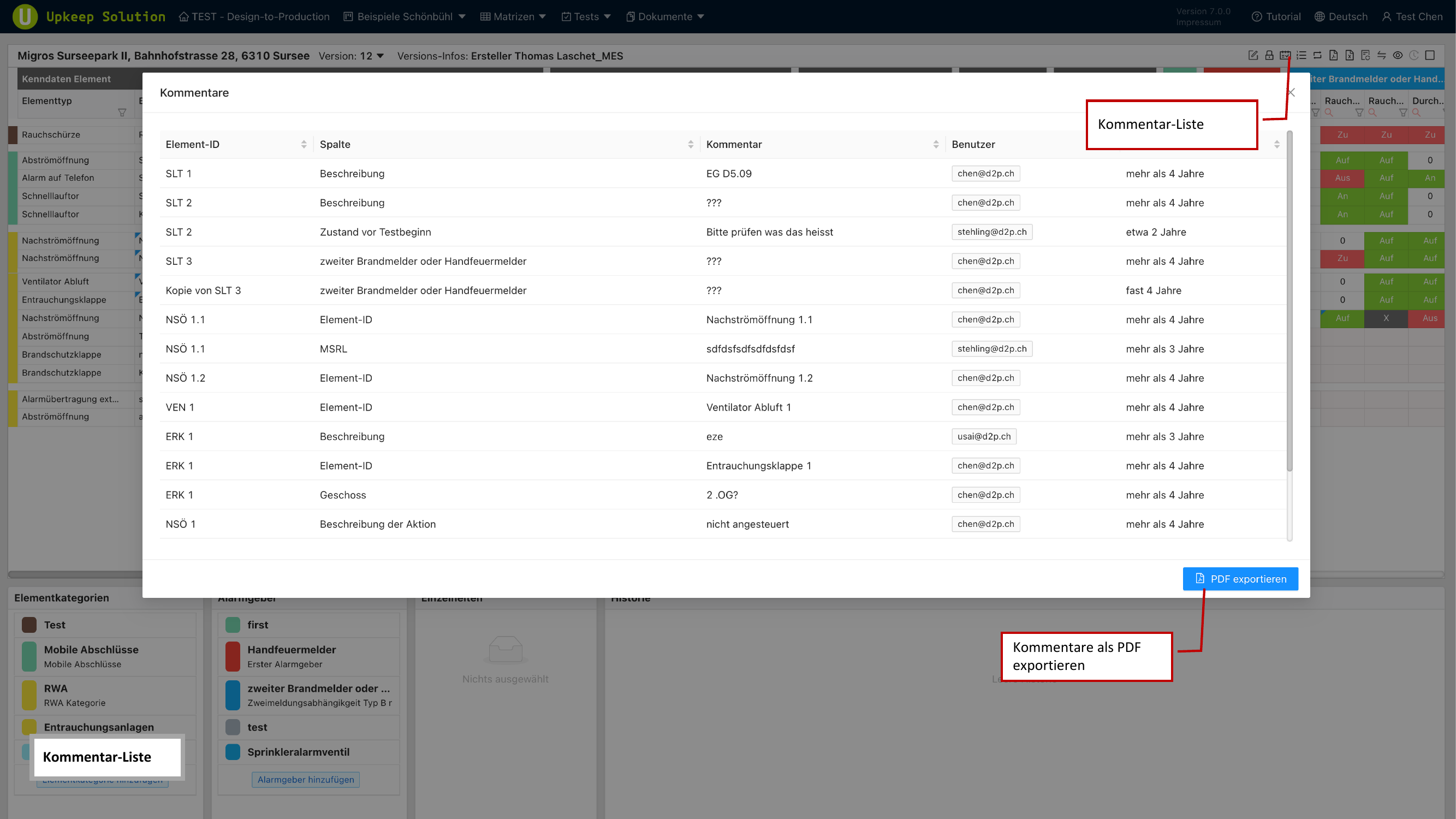
- All comments are listed with the associated element and timestamp
- The list can be exported as a PDF for sharing as a report
Change Element Category
This function allows you to move elements from one category to another:
- Select the elements to be moved
- Open the Kategorie ändern (Change Category) function
- Select the target category
- Confirm — the elements are moved to the new category
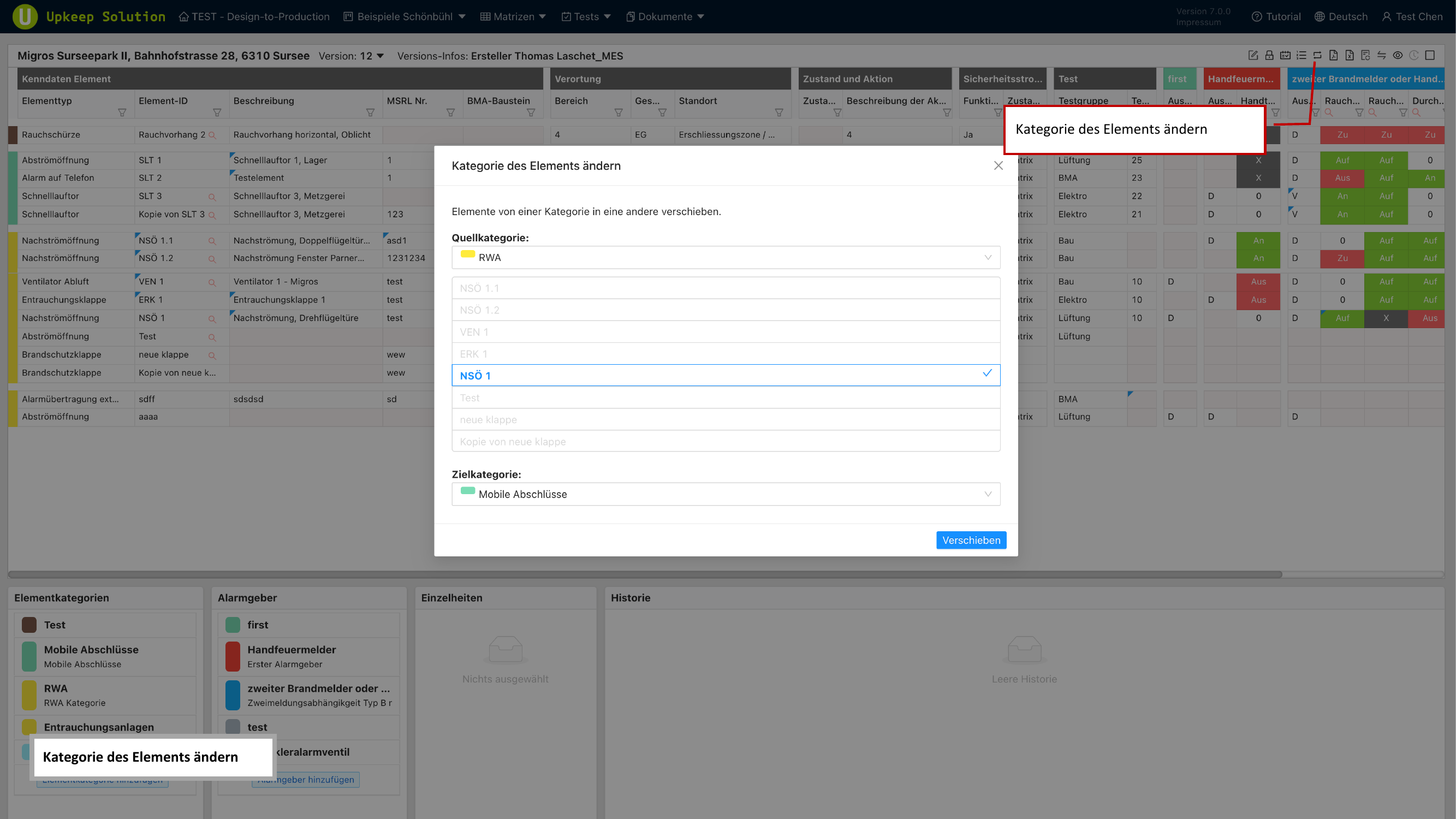
When moving elements, all properties and cell contents are preserved. Only the assignment to the element category is changed.
Sorting
The order of categories, elements, alarm devices, and zones can be adjusted via drag & drop.
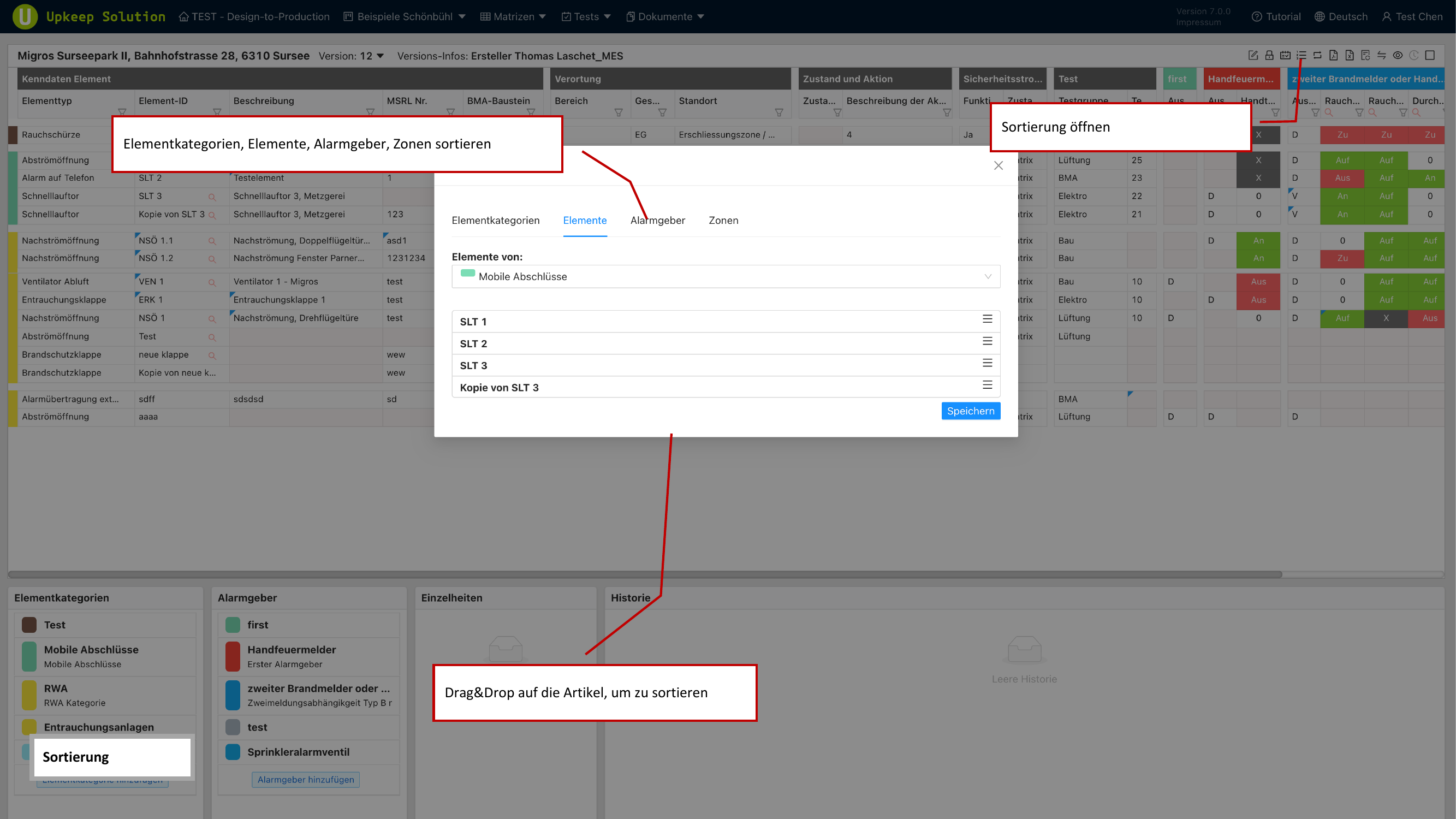
The following items can be sorted:
- Element categories — Change the order of row groups
- Elements within a category — Change the order of rows
- Alarm devices — Change the order of column groups
- Zones — Change the order of zone columns
Drag the desired item to its new position and release it to save the order.
Excel Import
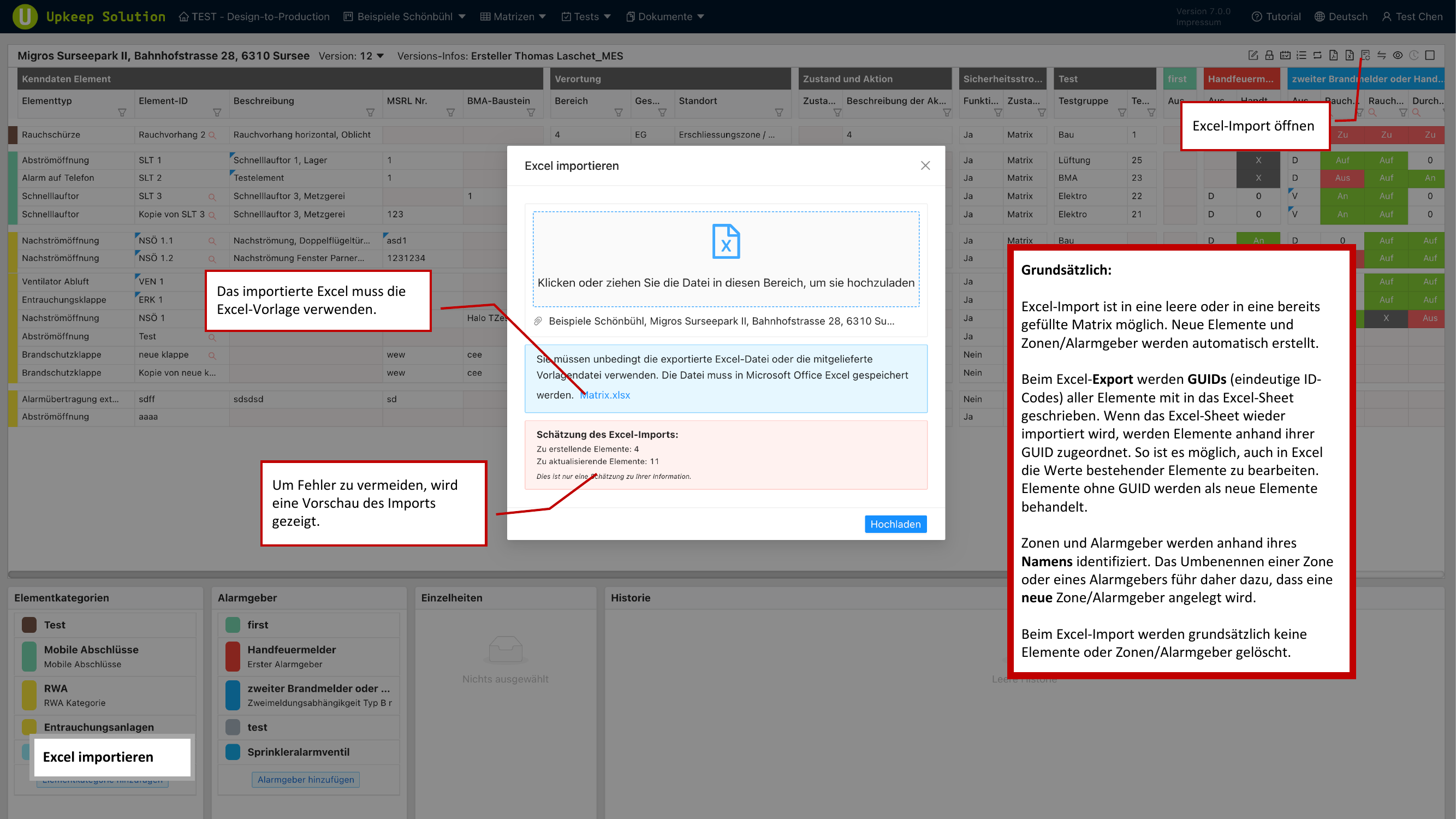
With Excel-Import, you can import data from an Excel file into the matrix.
Import Process
- First, download the Excel template (via Excel export)
- Fill in the template with the desired data
- Upload the completed file using the import function
- A preview shows the recognized data and any potential conflicts
- Confirm the import
The import uses GUIDs for data mapping. Elements with matching GUIDs are updated; new GUIDs create new elements. Make sure not to modify the GUIDs in the template if you want to update existing elements.
Freezing a Matrix
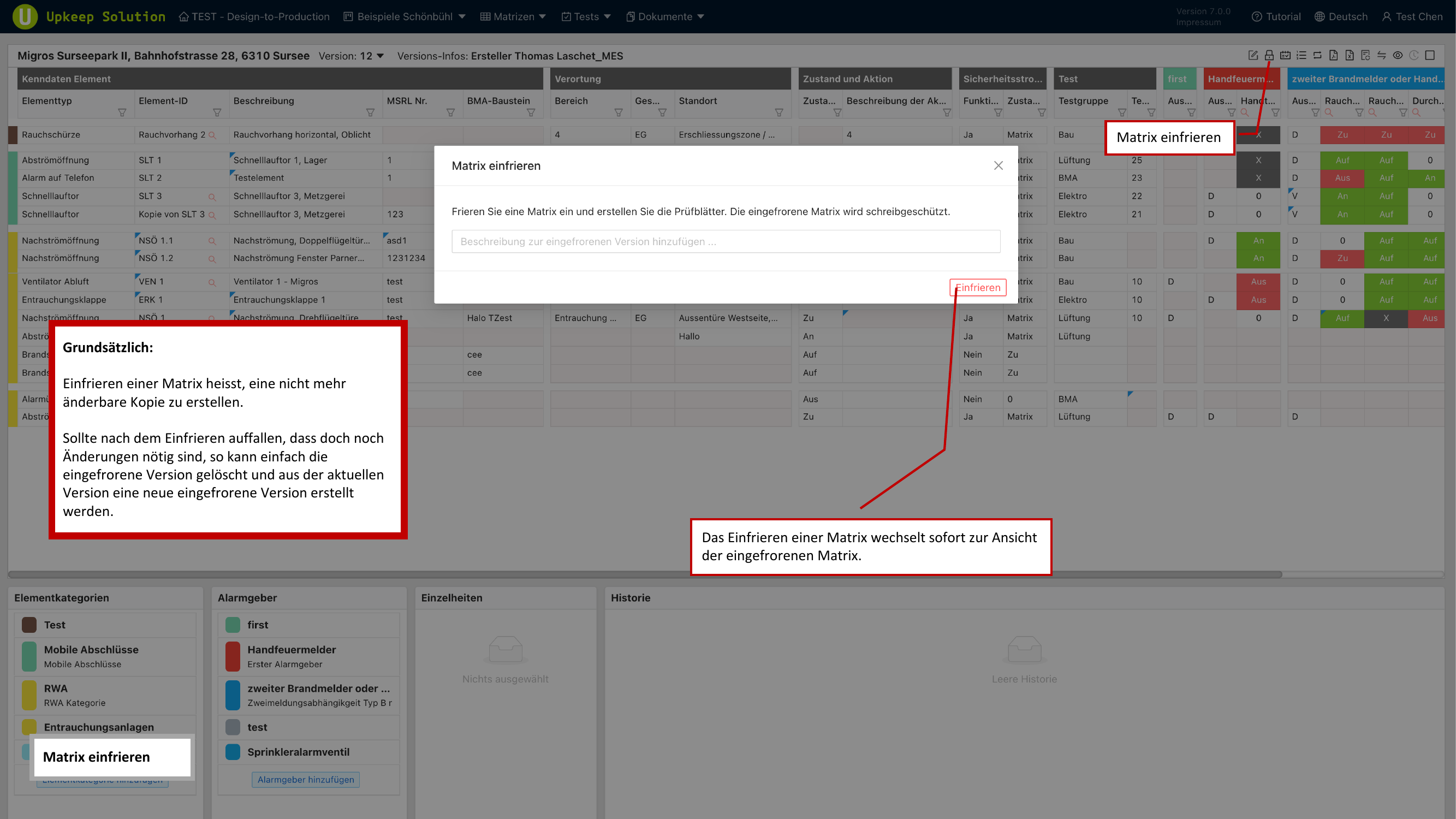
By freezing a matrix, you create an immutable snapshot of the current state. Frozen versions serve as reference points for matrix comparison and documentation.
Freezing Process
- Open the freeze function via the toolbar
- Enter a description for the frozen version (e.g., "State after initial inspection" or "Release Q1 2026")
- Confirm — the current state of the matrix is saved as a frozen version
- The view automatically switches to the newly created frozen version
Frozen versions are read-only and cannot be edited. They serve exclusively as a reference. To return to the editable version, switch back to the current matrix using the version selector.